Quick answer
The main Snipping Tool shortcut is Windows + Shift + S. It opens the capture toolbar so you can select an area, window or full screen. After taking the screenshot, press Ctrl + V in an app that accepts images to paste it.
To copy an edited snip or save a file, use Ctrl + C or Ctrl + S with the Snipping Tool editor active.
Snipping Tool keyboard shortcuts
| Shortcut | Action |
|---|---|
| Windows + Shift + S | Open screenshot capture |
| Ctrl + C | Copy the current snip, including annotations, from the editor |
| Ctrl + V | Paste the copied screenshot into an app such as Paint |
| Ctrl + S | Save the current image from the editor |
| Windows + Shift + R | Open screen-recording controls |
The copy and save commands require focus in Snipping Tool. Pasting happens in the destination app.
Take a screenshot with Windows + Shift + S
Press Windows + Shift + S. When the screen darkens, choose a capture mode:
- Rectangle: drag around the area you need, then release the mouse. In our check, this completed the capture without a separate Capture button.
- Window: click the window you want to capture.
- Full screen: capture the full display area.
- Freeform: draw a closed outline around an irregular area.
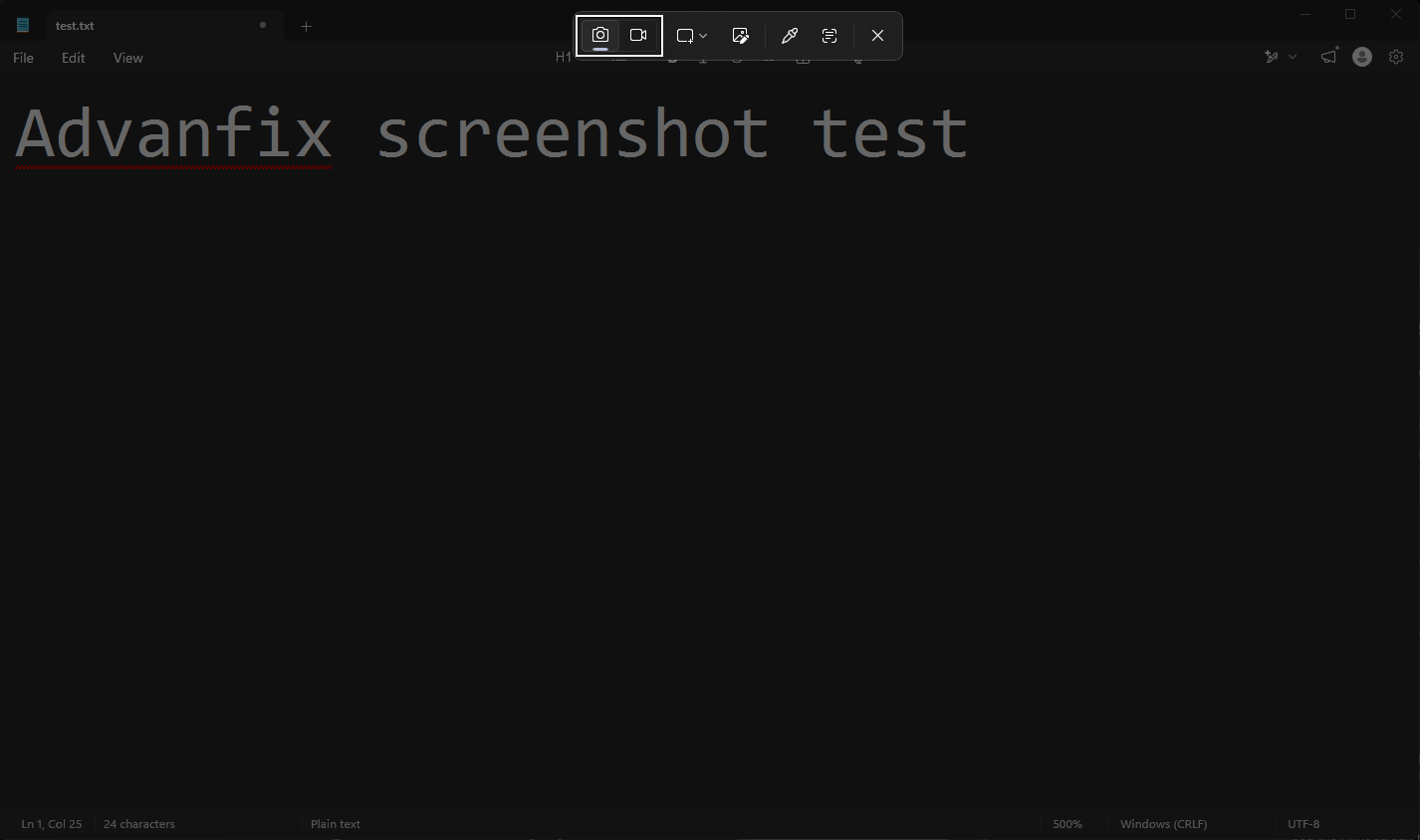
The capture toolbar above a Notepad test window.
Using multiple monitors? In the Full screen test, one image contained all three connected monitors. Use Window or Rectangle when you want a smaller selection.
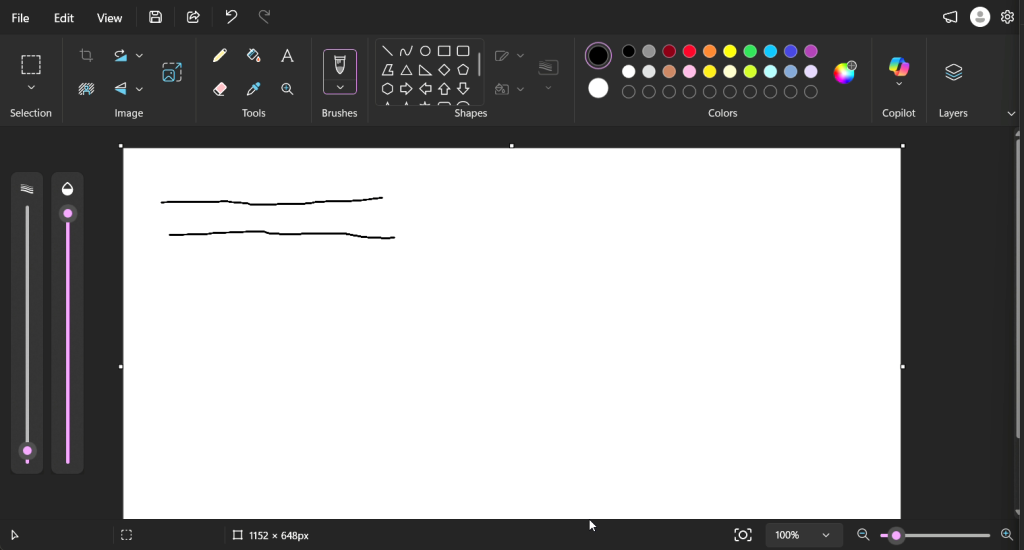
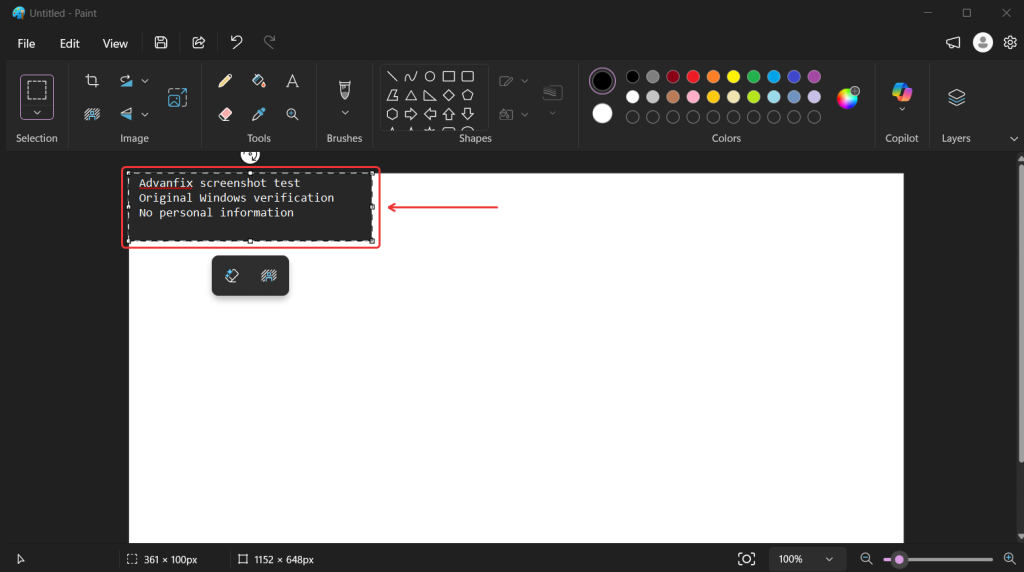
After capture, open Paint and press Ctrl + V. Our screenshot pasted directly without first opening the Snipping Tool editor.
Copy and save an edited screenshot
Copy the image with Ctrl + C
Open your capture in the Snipping Tool editor, make any annotations, and press Ctrl + C. Switch to the destination app and press Ctrl + V.
In our check, a red line added in the editor also appeared in the image pasted into Paint.
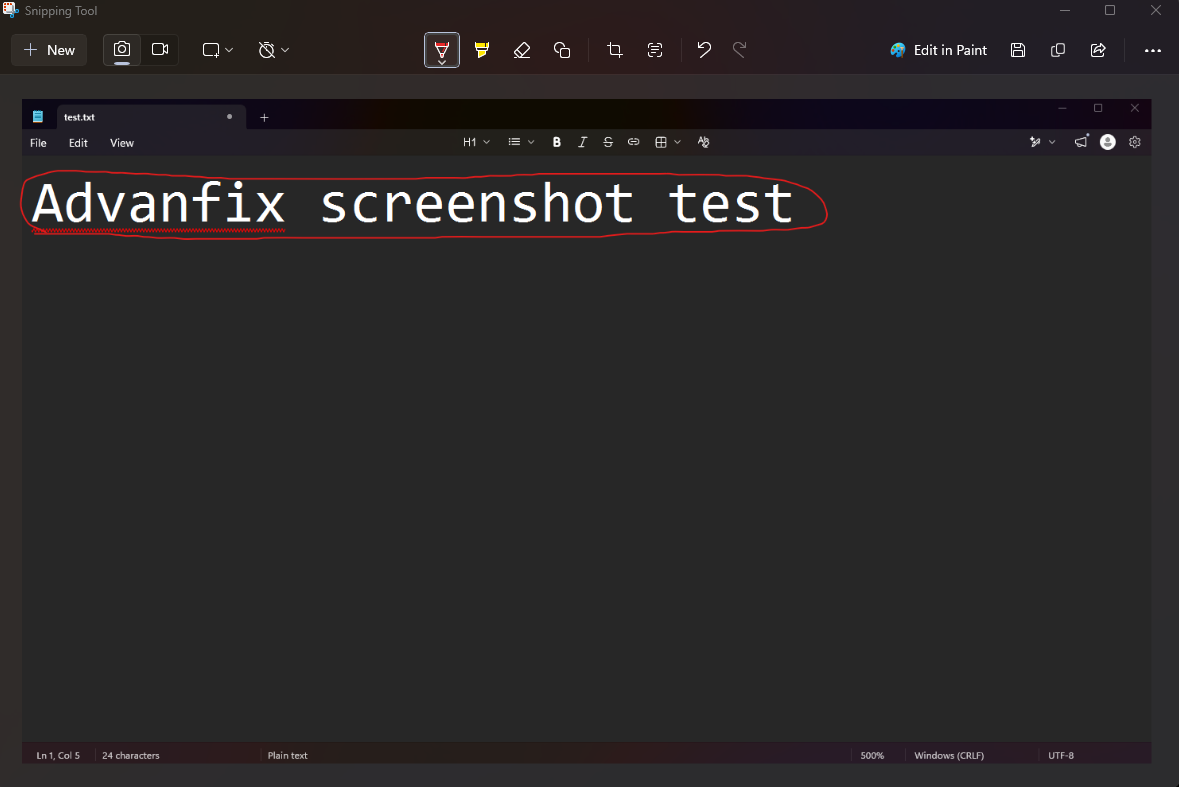
The annotated screenshot, with save and copy controls in the editor toolbar.
Save a file with Ctrl + S
With the edited image open, press Ctrl + S, choose a folder and filename, then save. We reopened the file and confirmed that it contained the annotation.
Copying is convenient for a message or document. Saving creates a file you can keep or upload.
Print Screen shortcuts and settings
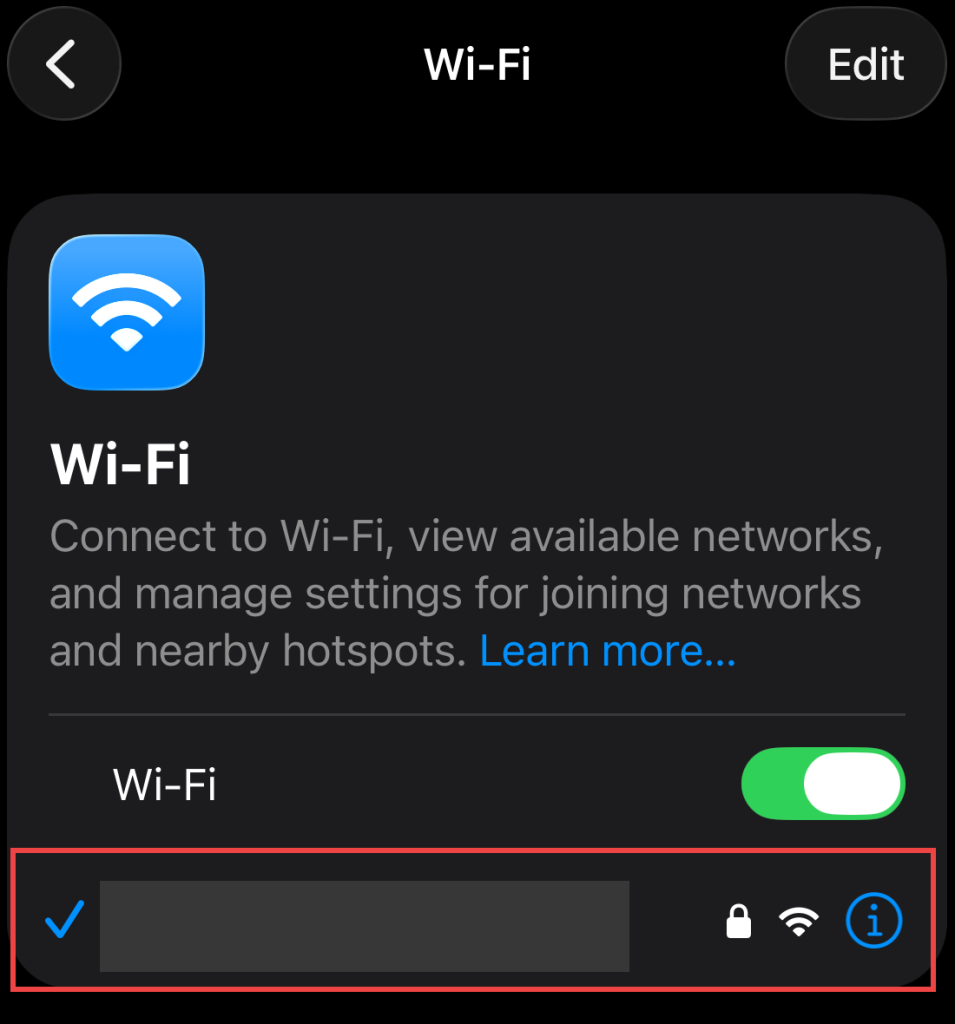
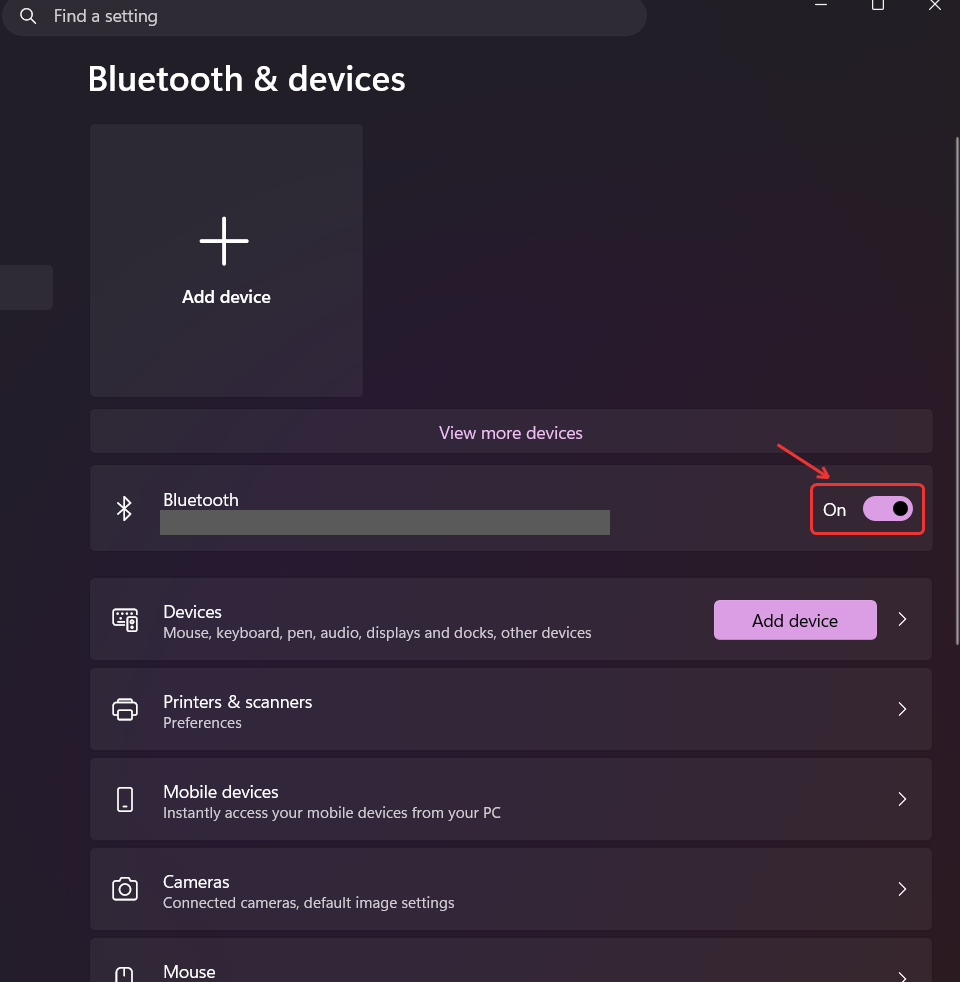
Print Screen behavior depends on the screen-capture setting. On the tested build, open Settings → Bluetooth & devices → Keyboard and find Use the Print screen key to open screen capture.
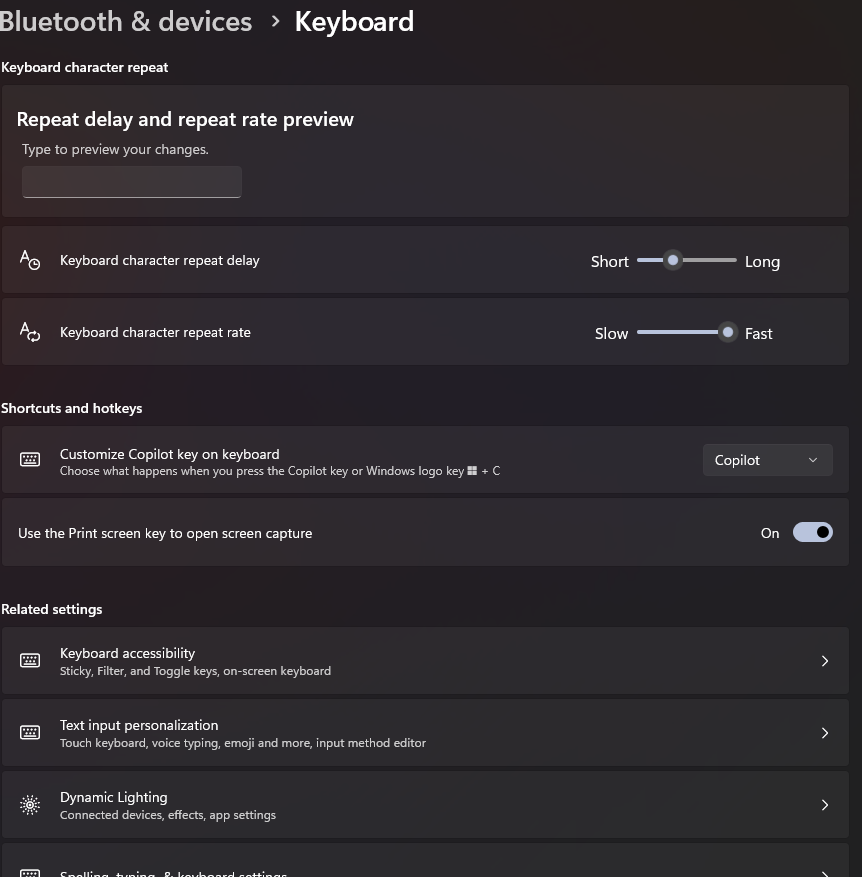
The screen-capture setting switched On in the tested Windows build.
| Shortcut or setting | Result in our check |
|---|---|
| Print Screen, setting On | Opened the area-selection toolbar |
| Print Screen, setting Off | Copied the full screen; pasting into Paint showed the image |
| Alt + Print Screen | Copied only the active Notepad window |
| Windows + Print Screen | Briefly dimmed the screen and saved a full-screen image |
If you cannot find the switch, search Windows Settings for Print Screen. Microsoft’s Windows keyboard reference lists it under Accessibility in another Settings layout.
For Windows + Print Screen, Microsoft documents Pictures → Screenshots as the save location. We confirmed file creation, but did not record the exact path on the test laptop.
Record your screen with Windows + Shift + R
Press Windows + Shift + R, select an area, then choose Start. Choose Stop to finish. In our check, the video opened in Snipping Tool for review.
Opening the recording controls does not start recording immediately. Microsoft’s Snipping Tool guide describes the capture and recording workflows.
If Windows + Shift + S does not work
Open Snipping Tool from Start and try New. If manual capture works, note whether the shortcut fails to open the toolbar or whether capture succeeds but the result cannot be pasted. These are different symptoms to investigate.
This reference covers working shortcuts; troubleshooting fixes were not tested.
How these shortcuts were checked
We performed the checks and captured the screenshots. Rectangle, Window, Full screen and Freeform capture, copying an annotated image, saving, and screen recording were confirmed during the session.
Print Screen combinations and both switch positions were checked on a laptop. We confirmed that the laptop’s Windows and Snipping Tool versions matched those listed above. The three-monitor observation applies specifically to the Full screen capture-mode test.
Scope of the checks
Troubleshooting fixes, Windows 10, legacy Alt-key commands, automatic saving and changing the save folder were not tested. The exact Windows + Print Screen save path was not recorded. The three-monitor result applies only to the Full screen capture-mode test.
Relevant sources
We performed the checks and captured the original screenshots. Microsoft documentation provides additional reference; differences from the tested interface are explained above.
Microsoft: Use Snipping Tool to capture screenshots ↗Microsoft: Keyboard shortcuts in Windows ↗Your reading checklist
Optional notes for this device. A checked box records your progress, not whether a fix worked.
Progress is stored only in this browser when storage is available.
Something doesn’t match?
Tell us which step differs from your device. Include the OS and app versions if you know them.
Report an issue with this guide →