Quick answer
Open Settings → Notifications → the affected app and check its permission and alert locations. Then review the active Focus and Scheduled Summary. Test with a fresh message while the iPhone is locked, recording the visible alert, sound and arrival time separately.
Start with one app and one conversation. If the message itself appears only when you open the app, also investigate delivery and connectivity. If the alert arrives without sound, inspect the sound controls before treating it as a delivery failure.
We reviewed our screenshots on November 23, 2026. iPhone 15, iOS 26.6.1, English interface. Books provides the app-permission example. Separate frames show Do Not Disturb rules, Scheduled Summary and a visible Telegram alert. App versions, sound, delivery delay, active Focus state at message arrival and a before-and-after repair were not established.
Identify the missing part of the alert
Send a new, uniquely labelled test message from a consenting contact. Avoid using an old notification as the test event. Record whether the message arrives, whether a notification appears, whether it sounds and how long each takes.
| What you observe | Investigate next |
|---|---|
| An alert appears without its message text | Preview privacy |
| An alert appears silently | App sound and phone sound settings |
| An alert appears later in a group | Scheduled delivery |
| One conversation stays silent | That conversation's mute controls |
| Messages appear only after opening the app | Delivery, app settings and network access |
Check Notification Center as well as the Lock Screen. Apple describes different notification layouts, including a count and stacks. Expand the notifications before concluding that the event is missing. Apple's notification viewing guide.
Check the affected app's permission and presentation
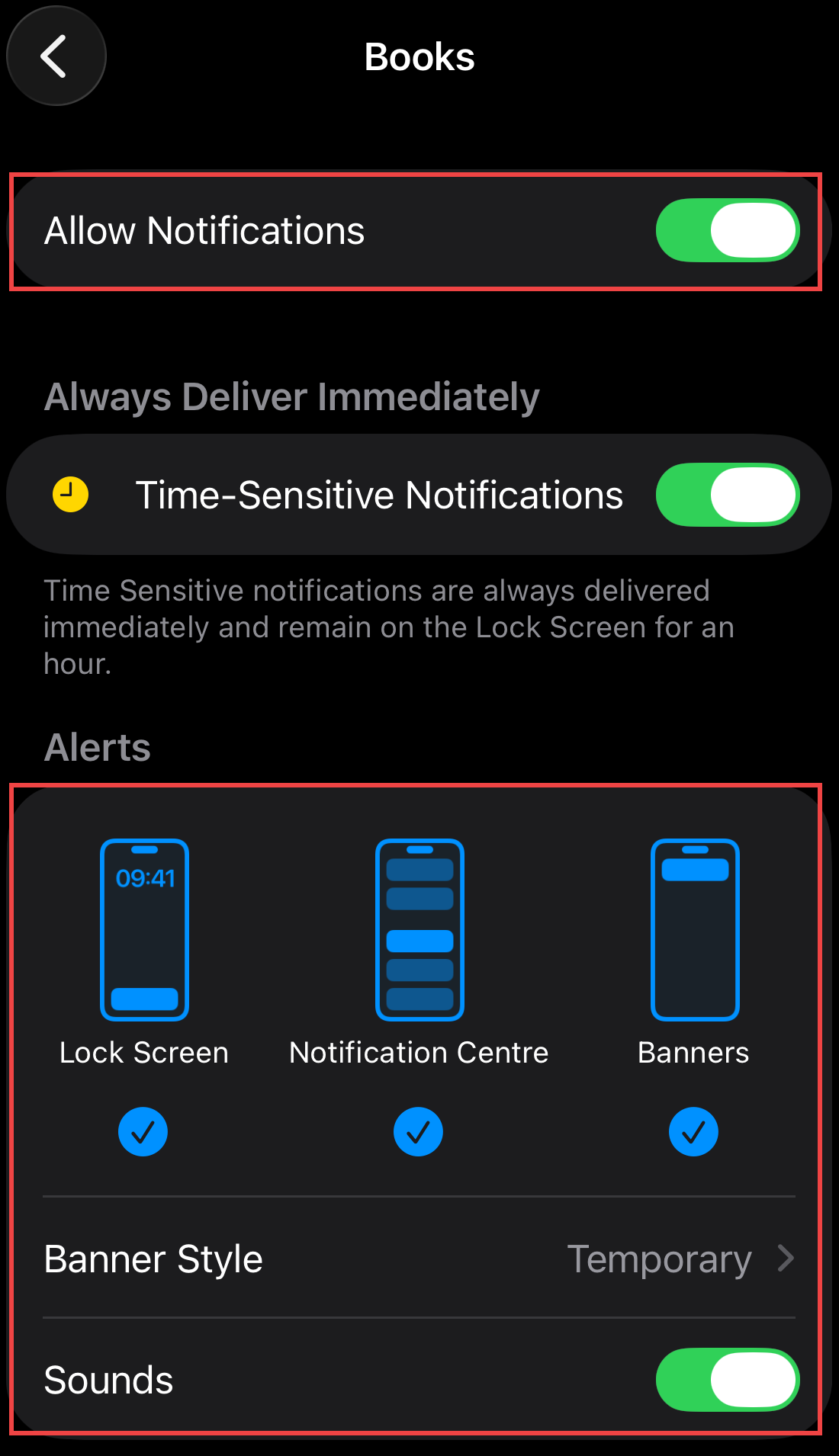
In Settings → Notifications, select the app and inspect Allow Notifications, alert locations and Sounds where offered. Enable the presentation you actually want. Review Show Previews if the notification appears with hidden content. Apple's settings guide explains these controls and the available delivery choices. Apple's notification settings.
Write down the original values before making a change. Return to the Home Screen, lock the phone, and request a fresh test message. A screenshot of enabled permission records the setting at that moment. Record the incoming-message result separately.
If new messages arrive only after the connection changes, follow the iPhone Wi-Fi internet checks before attributing the problem to notification presentation. A working connection and an enabled alert are separate checks.
Review the active Focus
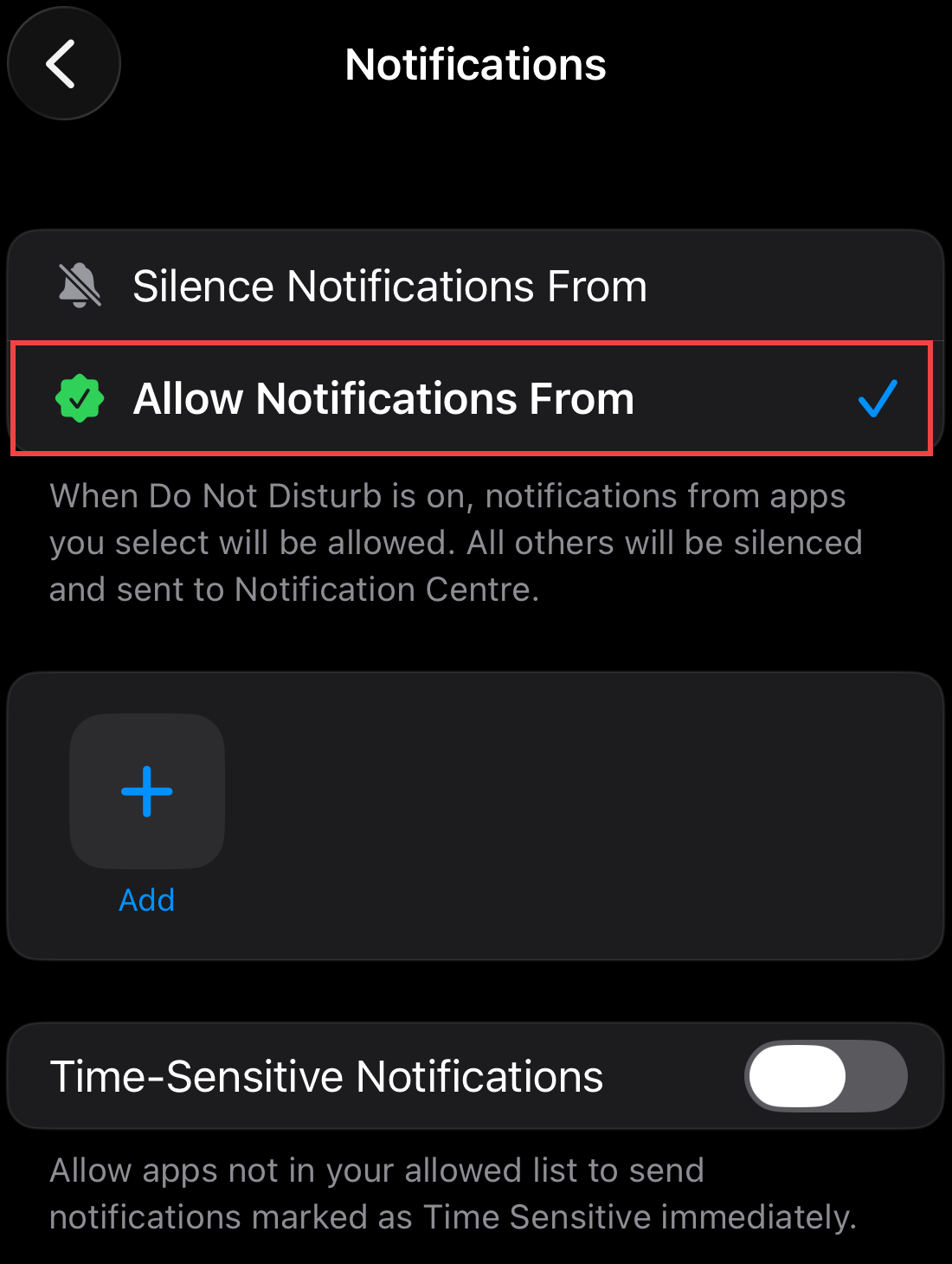
Open Settings → Focus and select the Focus that is active during the problem. Inspect its Apps and, for contact-specific behavior, People rules. Check whether the list is configured to allow selected entries or silence selected entries, because the same listed app has a different meaning under each rule. Apple's Focus rules.
For a comparison, temporarily disable that Focus at a convenient time, repeat the locked-screen test, then restore it. If the outcome changes, inspect the specific rule before deciding on a permanent adjustment. Keep the test conditions and sender consistent.
Check Scheduled Summary
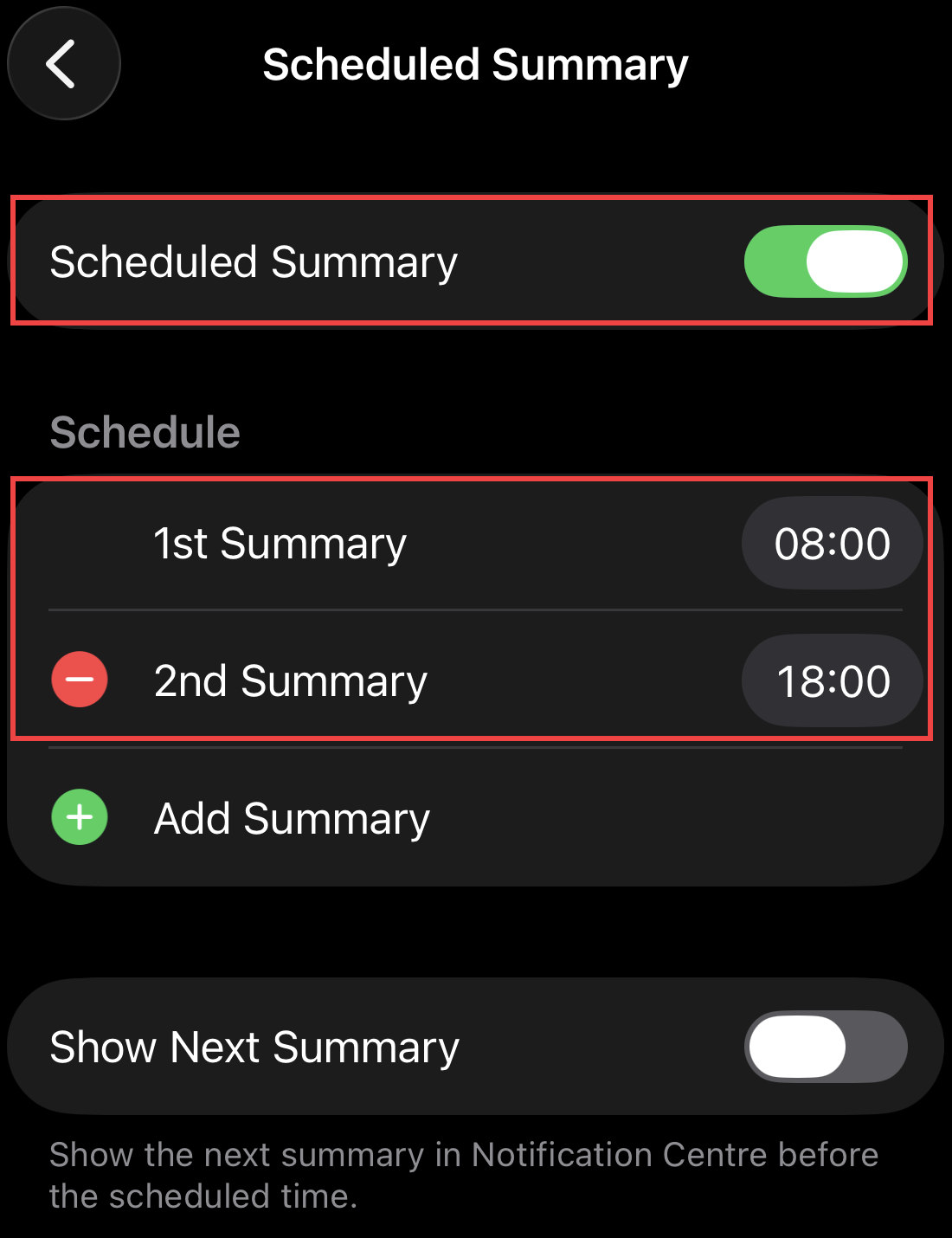
Open Settings → Notifications → Scheduled Summary. If it is enabled, review the apps included. Where the app offers Immediate Delivery, use that choice when you want its ordinary alerts promptly. A scheduled summary intentionally groups delivery. Apple's delivery settings.
Retest using a new event and note its send and appearance times. Keep a delay observation separate from a missing sound or hidden preview.
Inspect the app and any paired Apple Watch
Check the app's own notification preferences and the affected conversation's mute state. For Telegram, follow our Telegram notification guide for app-specific controls.
If you use an Apple Watch, record whether the iPhone and watch are locked. Apple explains that alerts normally go to the unlocked iPhone, or to an available unlocked watch when the phone is locked or asleep. Include the watch in the observations before diagnosing a missing iPhone alert. Apple's notification routing.
Repeat the test and keep the observations
Use two fresh numbered messages under the same conditions after changing one setting. Record their actual results, including failures. Restore temporary settings afterward. A test that starts with working alerts can verify a procedure but cannot establish that it repaired the original problem.
What we checked and what remains
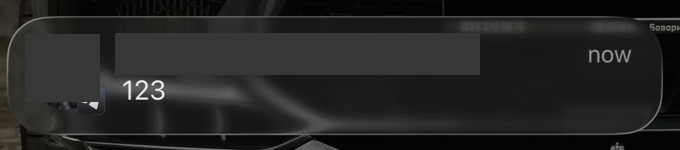
We inspected Books permissions, the Do Not Disturb allow-list configuration, Scheduled Summary set to 08:00 and 18:00, and a separate Telegram notification image. Books and Telegram are different examples. The Focus rule screenshot does not establish that the mode was active at the moment the Telegram alert arrived. We did not measure sound or delivery delay, or perform a controlled two-message before-and-after test. No notification failure was reproduced or repaired.
If the problem remains
Record the iPhone model, iOS and app versions, affected apps, exact test times, network, Focus, Summary and watch state. Contact the app developer for an isolated app problem, or Apple for a broader system problem. Include the comparison results so support can distinguish a missing alert from missing message delivery.
Relevant sources
Your reading checklist
Optional notes for this device. A checked box records your progress, not whether a fix worked.
Progress is stored only in this browser when storage is available.
Something doesn’t match?
Tell us which step differs, the application version and your operating system. Report a guide issue.