Quick answer
Open Settings → Apps, select the app, open Storage & cache, and tap Clear cache. You may need to open All apps or See all apps before choosing the app. Check its name before clearing anything.
Choose Clear cache to remove temporary app data. Clear storage or Clear data is a broader reset that can erase saved app data and settings. Do not substitute that button if your only aim is to clear the cache.
Checked on October 30, 2026 in Android Emulator 37.2.13, using a Pixel 7 hardware profile and the Google Play x86_64 image for Android 16, API 36, build BE2A.250530.026.D1. The image reports a July 5, 2025 security patch; it is a test image, not a claim that the system has current security updates. Interface: English. Test app: Google Play Store 53.7.23-34 [0] [PR] 1001145691.
The agent followed the interface, tapped Clear cache, captured the before-and-after screens, and opened the store afterward. No Google account was present. This confirms the steps in that emulator. A physical phone, Samsung One UI, signed-in data retention, and the resolution of an existing app fault were not tested.
Before you start
Choose the specific app you want to investigate. Finish any work in it, then open Android's Settings app. You do not need to clear every app's cache to follow this guide.
Keep cache clearing separate from resetting an app. If you are considering a broader reset of an app containing unsynced work, check its backup and recovery instructions first.
Find the app's storage controls
- Open Settings → Apps.
- Open All apps if the app is not already listed. Other versions may label this See all apps.
- Select the app. Our example uses Google Play Store, which is a separate entry from Google Play services.
- On its App info page, tap Storage & cache.
- Confirm the app name and note the Cache value.
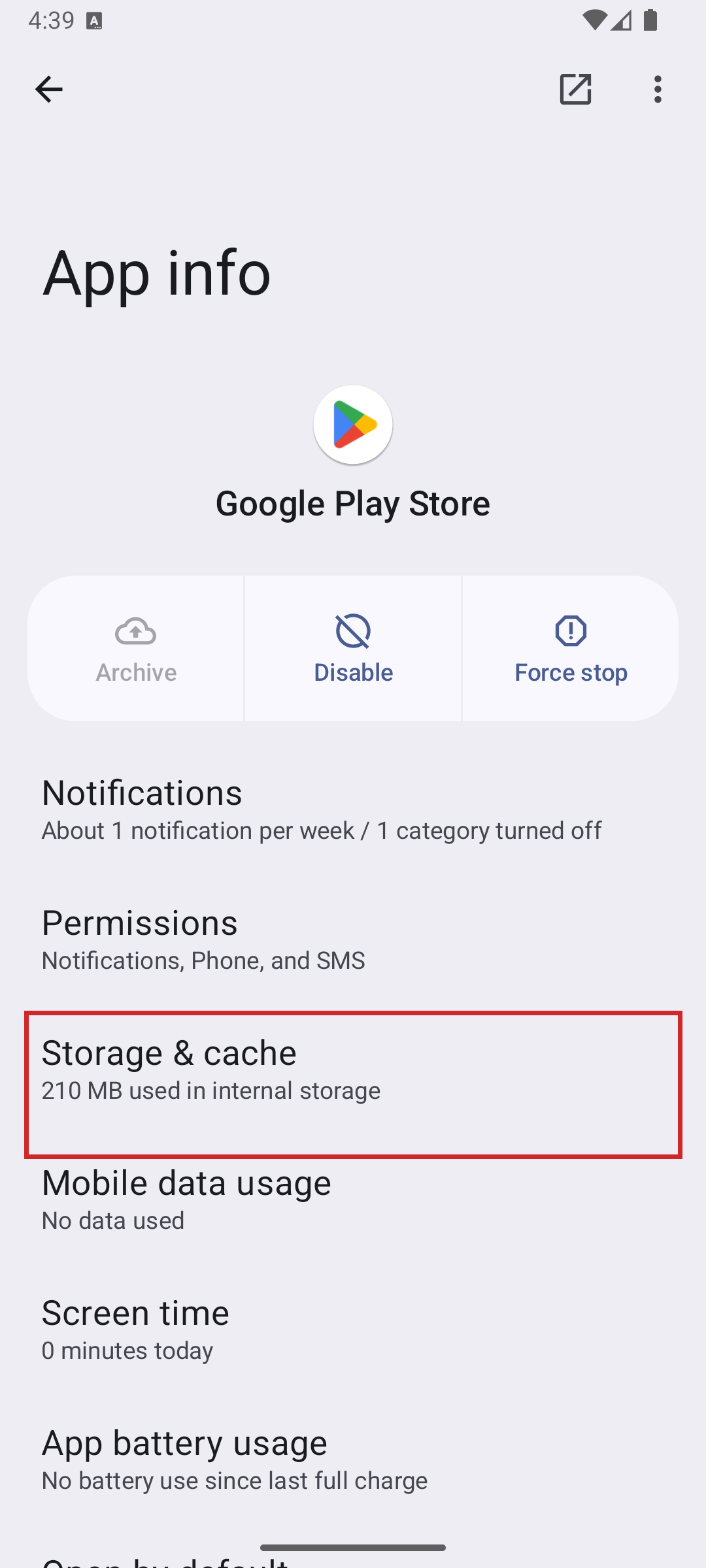
Menu labels can differ by manufacturer. Samsung documents Settings → Apps → [app] → Storage → Clear cache for Galaxy devices. That route was checked against Samsung's instructions, not tested on One UI here.
Tap Clear cache, not Clear storage
On the app's storage screen, tap Clear cache. Wait for the displayed value to refresh.
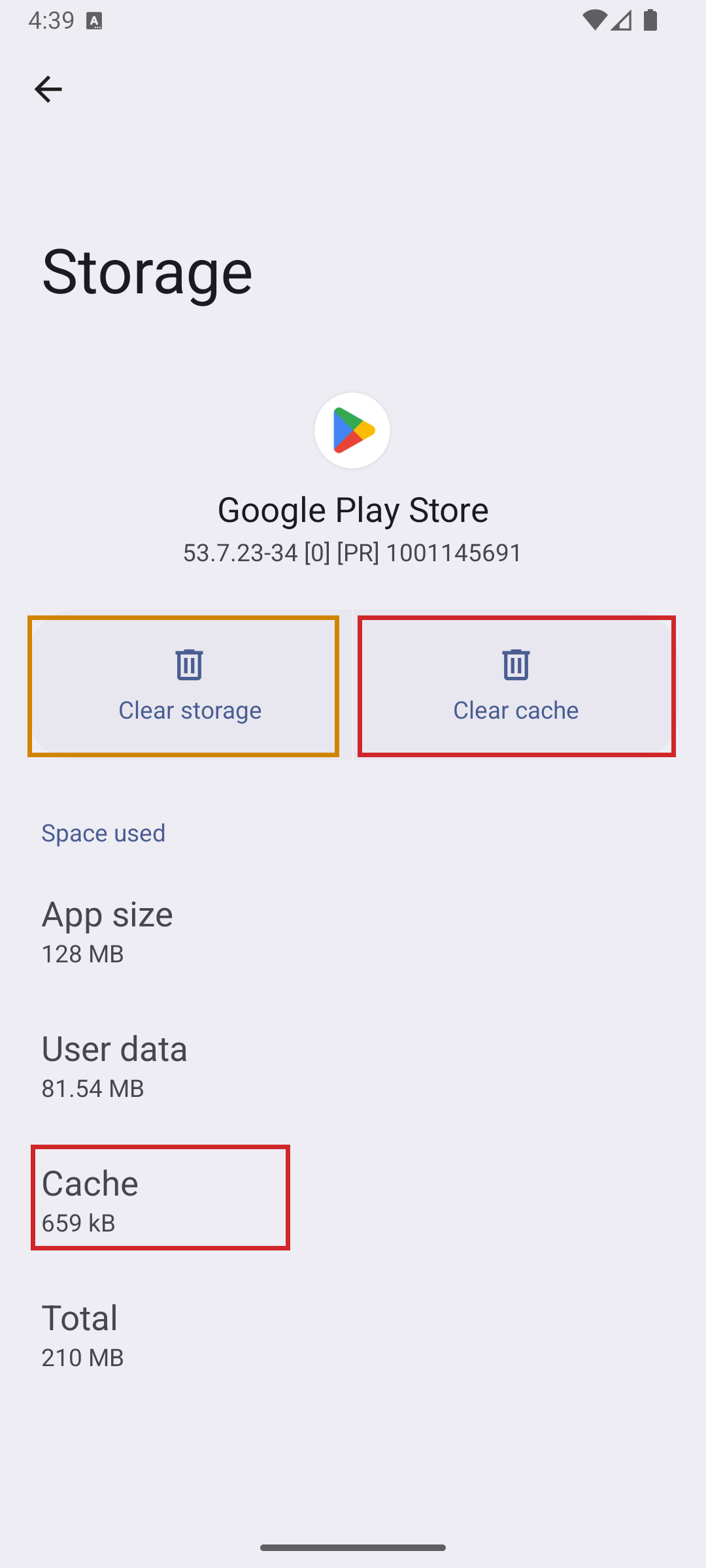
| Control | Intended effect |
|---|---|
| Clear cache | Removes temporary app data. |
| Clear storage / Clear data | Resets saved app data; local information may be permanently lost. |
Google distinguishes these actions in its Android storage guide. It also notes that an app may open more slowly after its temporary data is cleared.
If Clear cache is unavailable, do not press Clear storage as a replacement.
Check the result and reopen the app
Check the Cache figure, then open the app again. If you were investigating a fault, repeat the same task that failed and record whether it now works. A smaller cache figure alone does not establish that the fault is fixed.
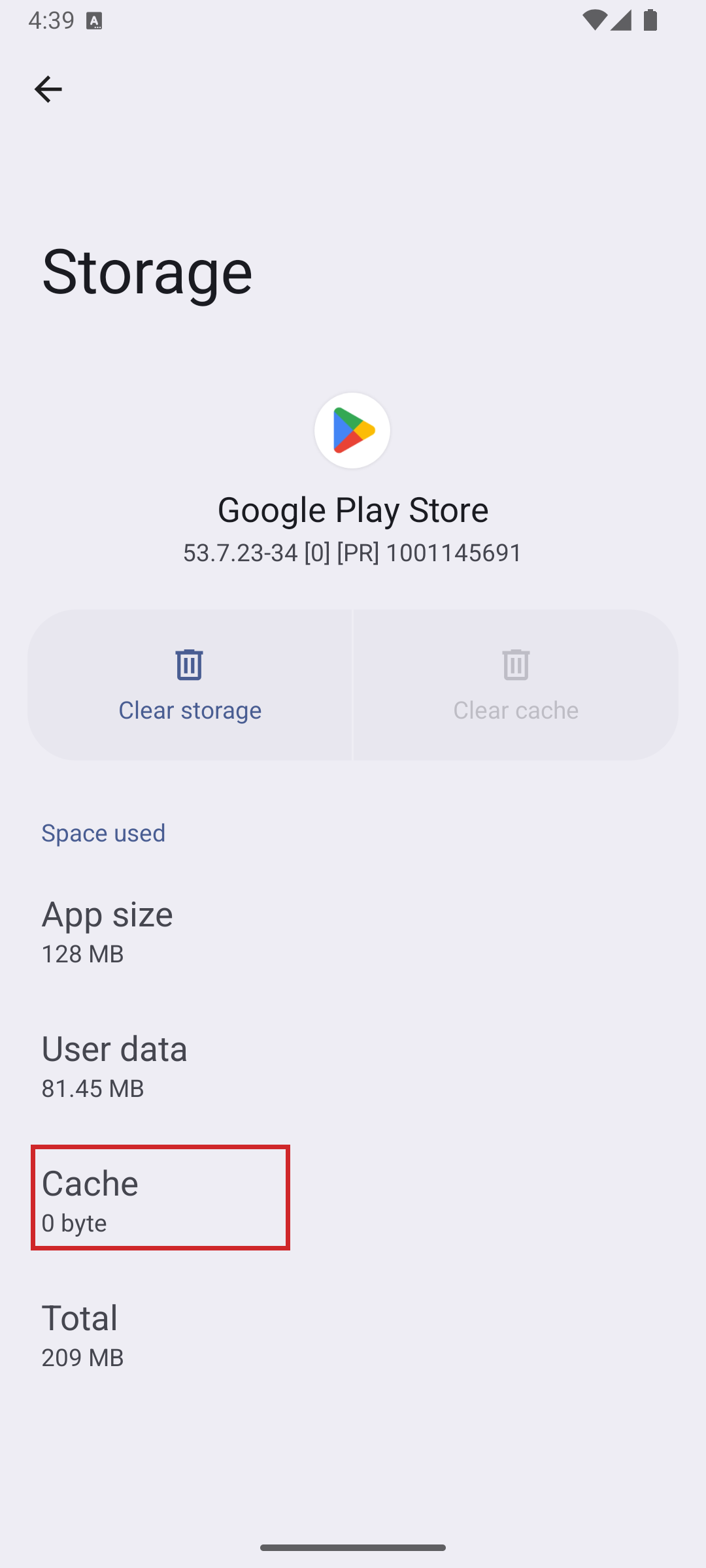
If the value changes again after using the app, record when you checked it. Do not keep clearing it solely to preserve a zero reading, or treat the initial cache size as a promise of lasting space savings.
If the button is missing or disabled
Confirm that you opened the app's page in Android Settings, rather than a cleanup menu inside the app. Look for the device manufacturer's storage label.
In our test, Clear cache became disabled after the value reached zero. We did not test every cause of a disabled button. If the control remains unavailable and the app still has a problem, consult the app or device support instructions. Record the model, Android version, app version, and the exact screen you see.
What we checked
| Observation | Before | After tapping Clear cache |
|---|---|---|
| Cache | 659 kB | 0 byte |
| User data | 81.54 MB | 81.45 MB |
| App size | 128 MB | 128 MB |
| Total shown by Settings | 210 MB | 209 MB |
These are the displayed values, with their original units and rounding. User data also changed; this test does not establish why. The total is not a precise measurement of space recovered by the cache action.
We used Clear cache and did not use Clear storage. Afterward, Google Play opened to its sign-in screen. There was no account on the device before the test, so this does not demonstrate that a signed-in session or personal settings survive. No download-pending error or other original failure was reproduced, and installation of an app was not tested.
Relevant sources
- Google: Free up storage on your Android device — cache versus storage and what to expect at the next launch.
- Samsung: Clear app cache and data on a Galaxy phone or tablet — the documented Galaxy route and software-version caveat.
Your reading checklist
Optional notes for this device. A checked box records your progress, not whether a fix worked.
Progress is stored only in this browser when storage is available.
Something doesn’t match?
Tell us which step differs, along with your phone model, Android version, and app version. Leave passwords and other private information out of your report.