Quick answer
Open the affected app's notification settings and check both its overall notification switch and the category that should alert you. An enabled app can still have one category blocked. After changing a setting, trigger a new notification and look in the notification shade.
If the notification appears but does not interrupt you, inspect the category's Default/Silent setting and active Modes or Do Not Disturb. If messages arrive only when you open the app, investigate delivery and background activity separately from display settings.
Checked on October 30, 2026 in Android Emulator 37.2.13, using a Pixel 7 hardware profile, Android 16/API 36, build BE2A.250530.026.D1, and English menus. The image reports a July 5, 2025 security patch; this identifies our test image, not current security updates.
We used Advanfix notification test 1.0, a small local test app targeting Android 13. Its only declared permission is notifications: it has no internet, contacts, or file-access permission. The agent compared fresh notification attempts with the app switch and one category disabled, then enabled.
The check confirms local notification blocking and display in this emulator. It does not test remote push delivery, Gmail or Telegram, real-device delays, Samsung One UI, or HyperOS. Sound and vibration were not verified; the emulator runs without audio. Do Not Disturb was off and was not changed.
Separate missing notifications from silent or late ones
Start with one app and one repeatable event.
| Symptom | Start here |
|---|---|
| No notification from one app | Its overall permission and notification categories. |
| Some notification types work, others do not | The category or conversation that differs. |
| Notification is in the shade but does not alert you | Silent/Default, banner settings, sound, and Modes. |
| Content appears only after opening the app | Connectivity, app settings, and background restrictions. |
| Several apps are quiet at the same time | Active Modes, device sound settings, and a common connection problem. |
Check the app's own settings too. For example, a muted conversation is a different condition from Android blocking every notification from that app. Change one setting at a time and repeat the same kind of event.
Check the app's overall notification permission
Open Settings → Notifications → App notifications, find the affected app, and open its controls. Another route on many devices is Settings → Apps → [app] → Notifications. Labels and available controls vary; Google's notification settings guide describes the device differences.
Look for All [app] notifications, Allow notifications, or the equivalent switch. If it is off and you want alerts from that app, turn it on and retest.
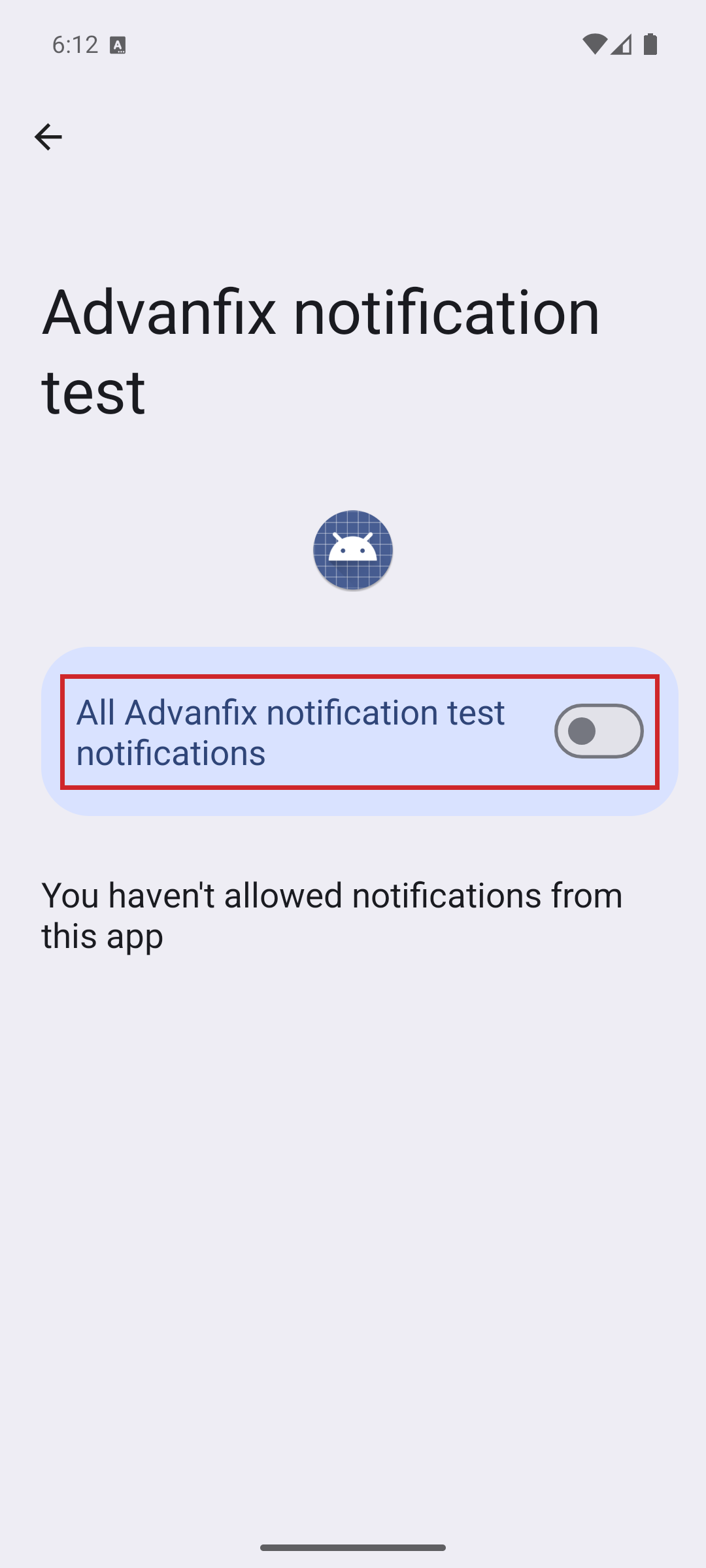
Android 13 and later use a permission for most non-exempt app notifications. Google explains that newly installed apps need this permission before posting those notifications. Our test app started with the permission off; see the Android notification-permission documentation.
An old notification is not a useful test of a newly enabled permission. Generate another event after the change.
Check the category even when the app is enabled
On the same notification page, find the relevant Notification categories entry. Android's developer term is a notification channel; the user interface may call it a category.
In our test, All Advanfix notification test notifications was on while Local checks was off. A fresh notification from that category did not appear.
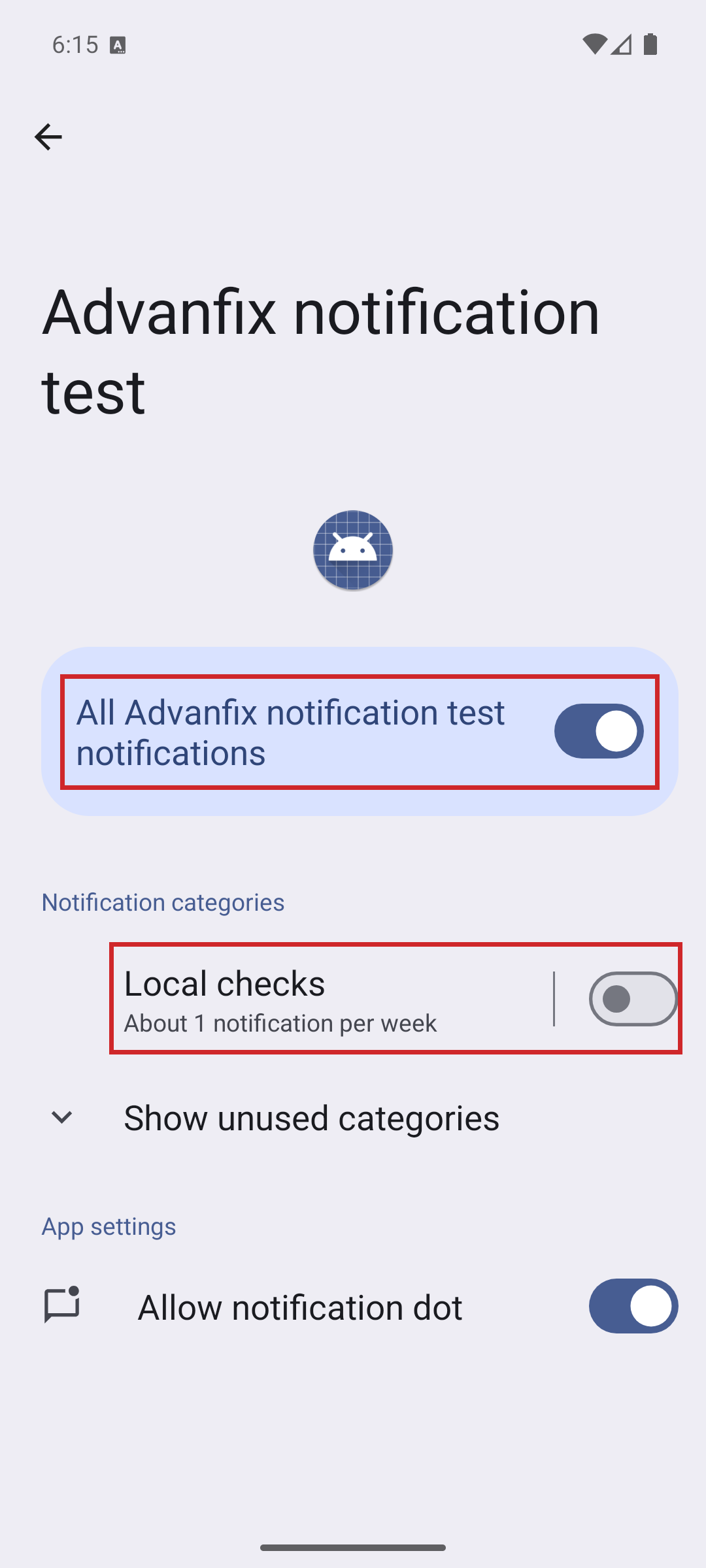
Enable the category you actually need, then trigger another event. Do not enable every promotional or unrelated category just to troubleshoot one missing alert. If a category is not listed, open the app and check its own settings; our Android screen also offered Show unused categories.
Some system notifications have protected controls. A greyed-out switch is not proof of a broken Settings app. The local comparison in this guide used an ordinary test app, not a protected system notification.
If it appears silently, inspect presentation settings
Tap the category's name to inspect its options. The tested page showed Show notifications, Default, Silent, Pop on screen, Sound, and Vibration. Available options depend on the category and device.
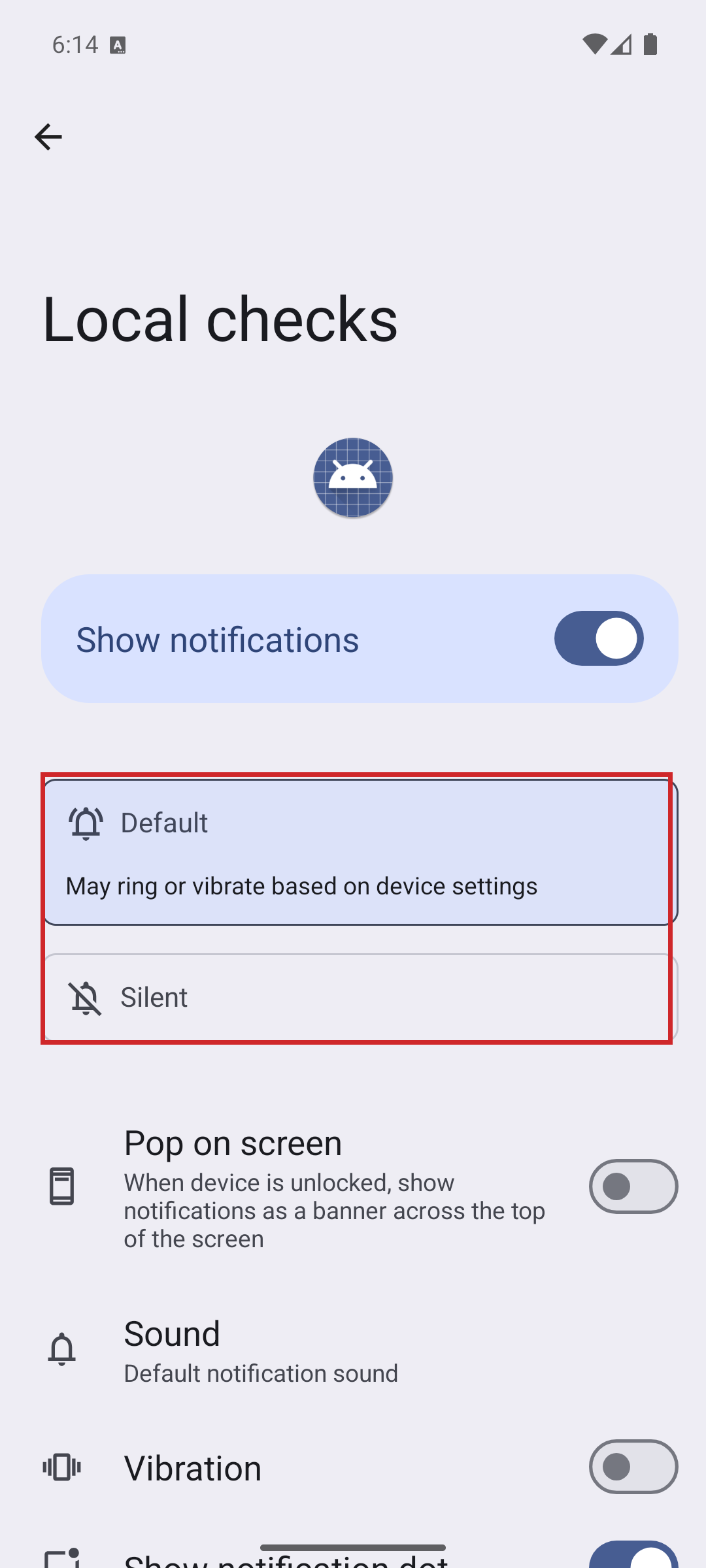
Choose the presentation you want, and check the relevant device volume if sound is the problem. A notification visible in the shade but delivered silently is a different result from a notification that never appears. Android lets users control channel behaviour; see Google's channel documentation.
Check Modes and Do Not Disturb
Inspect active modes in Quick Settings. On the tested Android image, tapping Modes opened a panel containing Do Not Disturb. No mode was active.
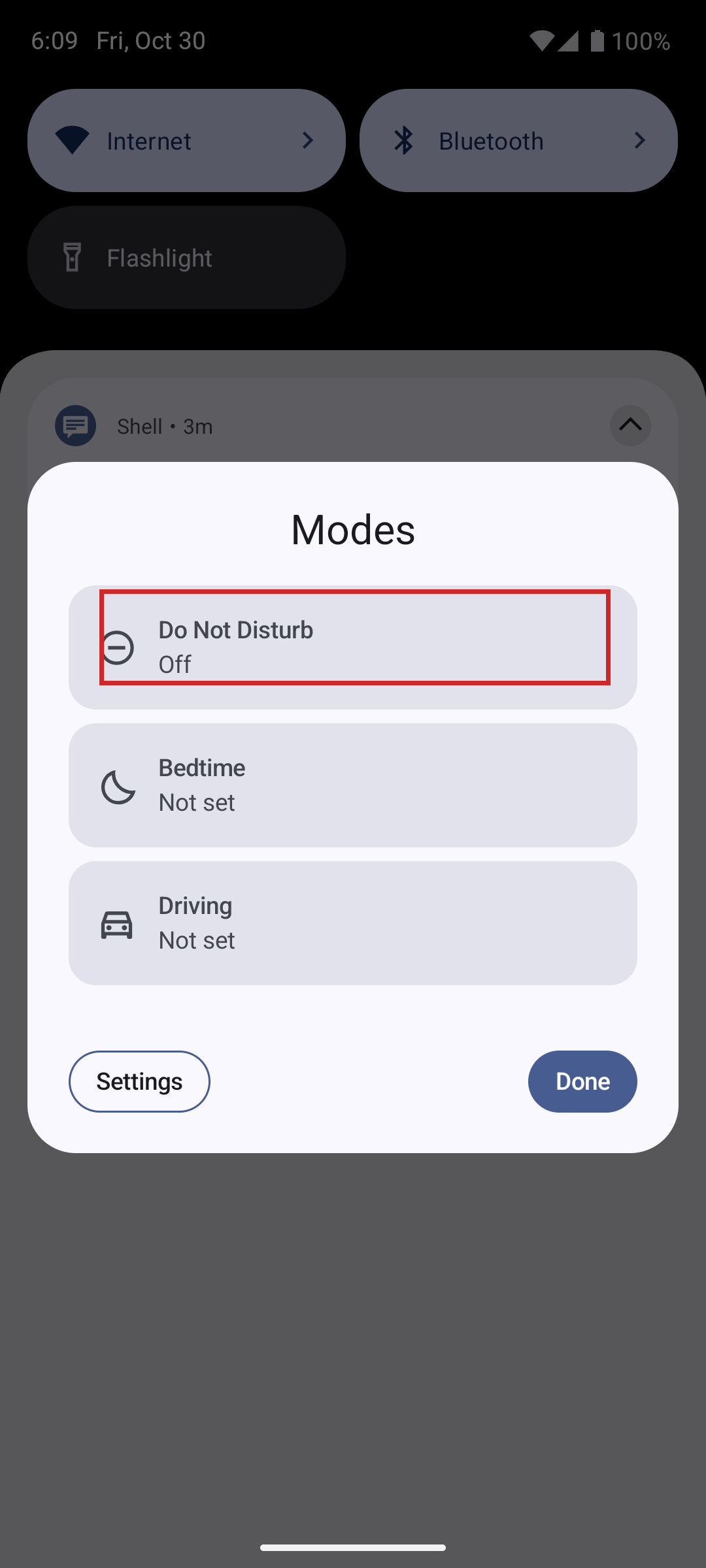
If a mode is active on your phone, review its schedule, app exceptions, and notification filters. If appropriate for your situation, temporarily end it, retest, and restore your preferred routine afterward. Google's Modes and Do Not Disturb guide describes these controls. Do not assume that every mode blocks all apps or every kind of interruption.
If notifications arrive only after opening the app
Treat delayed delivery as a separate branch. Check the app's connection, account state, and its own notification controls before changing system-wide settings.
For Pixel phones, Google notes that Adaptive Battery can delay notifications and that removing battery optimization can increase background battery use. Review the affected app's App battery usage or manufacturer's equivalent, rather than disabling battery management for every app. See Google's battery optimization guidance.
This is documentation-based advice here. Our local app does not use a network, so its successful notification cannot establish that a remote message reached another app. Manufacturer-specific sleep or background controls need matching instructions and testing; we did not test One UI or HyperOS.
What we checked
We posted four distinct local test events and used a fresh event after each relevant change. Earlier visible test notifications were dismissed before the next comparison.
| Local test | App notifications | Local checks category | Result |
|---|---|---|---|
| 1 | Off | Created with default importance | No active test notification. |
| 2 | On | On | New notification appeared in the shade. |
| 3 | On | Off | No active test notification. |
| 4 | On | On again | Another new notification appeared in the shade. |
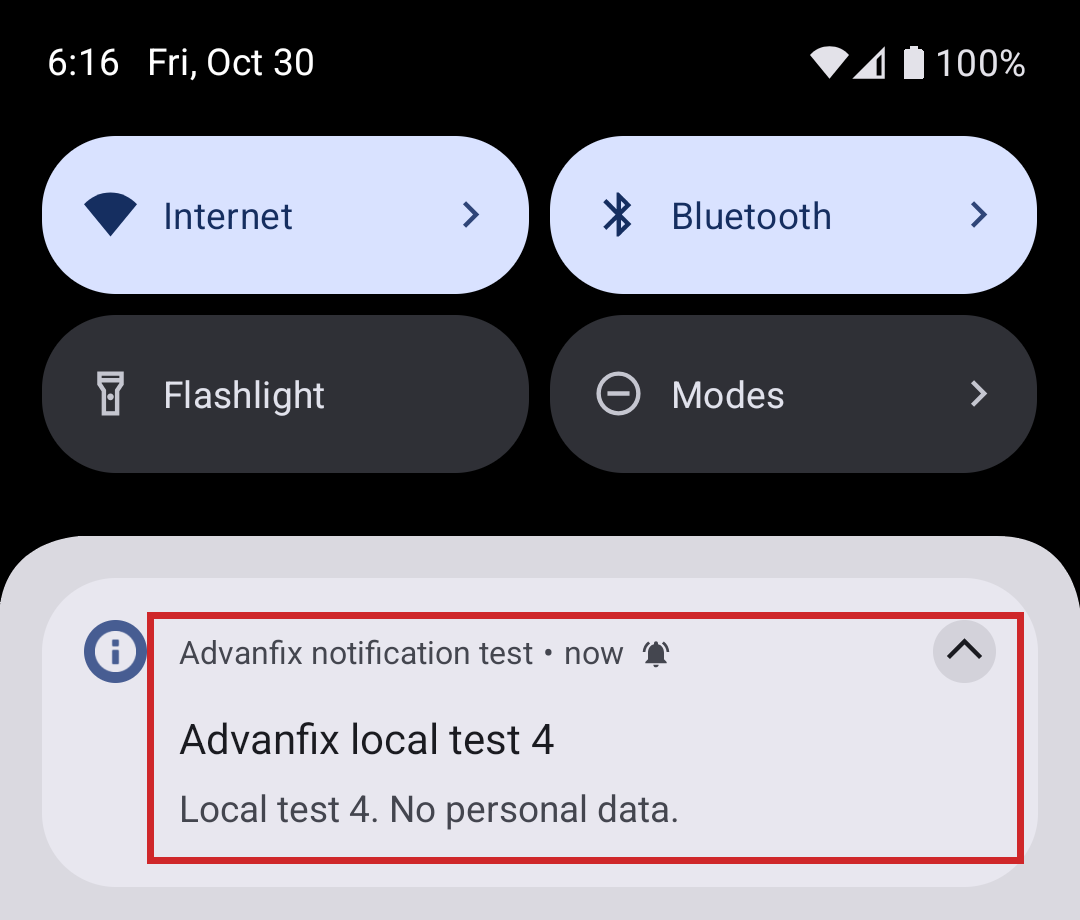
The UI observations were cross-checked with Android's active-notification records. These were deliberately controlled permission/category tests, not a diagnosis of an unexplained incident in a messaging app.
Afterward, we returned the test app's overall notifications to their original off state, left its category enabled as originally created, and confirmed no active test notification remained. Other apps' notification settings and Do Not Disturb were not changed.
If the problem remains
Record the app and Android versions, affected category or conversation, whether the notification appears in the shade, and whether a fresh event works while the app is open versus closed. Also record any active mode and the result of each change.
Use the app or device maker's matching support route with that information. Clearing all app data or factory-resetting the phone is not a routine next step for this checklist.
Relevant sources
Your reading checklist
Optional notes for this device. A checked box records your progress, not whether a fix worked.
Progress is stored only in this browser when storage is available.
Something doesn’t match?
Report the differing step, with your device model, Android version, and app version. Do not include private messages or account credentials.