Quick answer
Check two unrelated websites on the iPhone, then try the same pages on another device connected to the same Wi-Fi. If both devices fail, investigate the network or its sign-in page. If only the iPhone fails, compare another trusted Wi-Fi network before changing its settings.
During this comparison, temporarily turn off cellular data if you can do so without interrupting something important. Otherwise, a successful page load may have used the mobile connection. Record and restore your original setting.
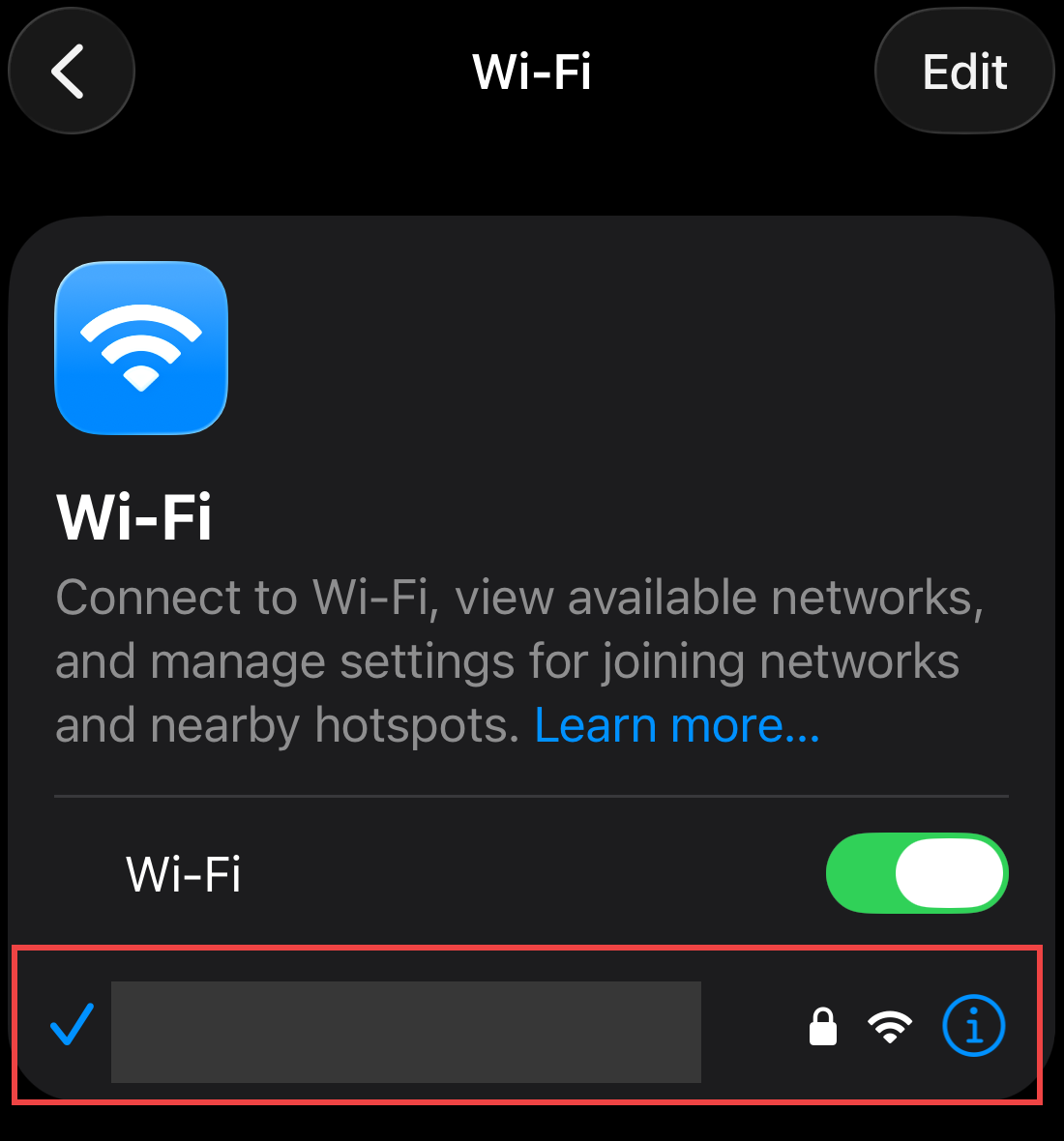
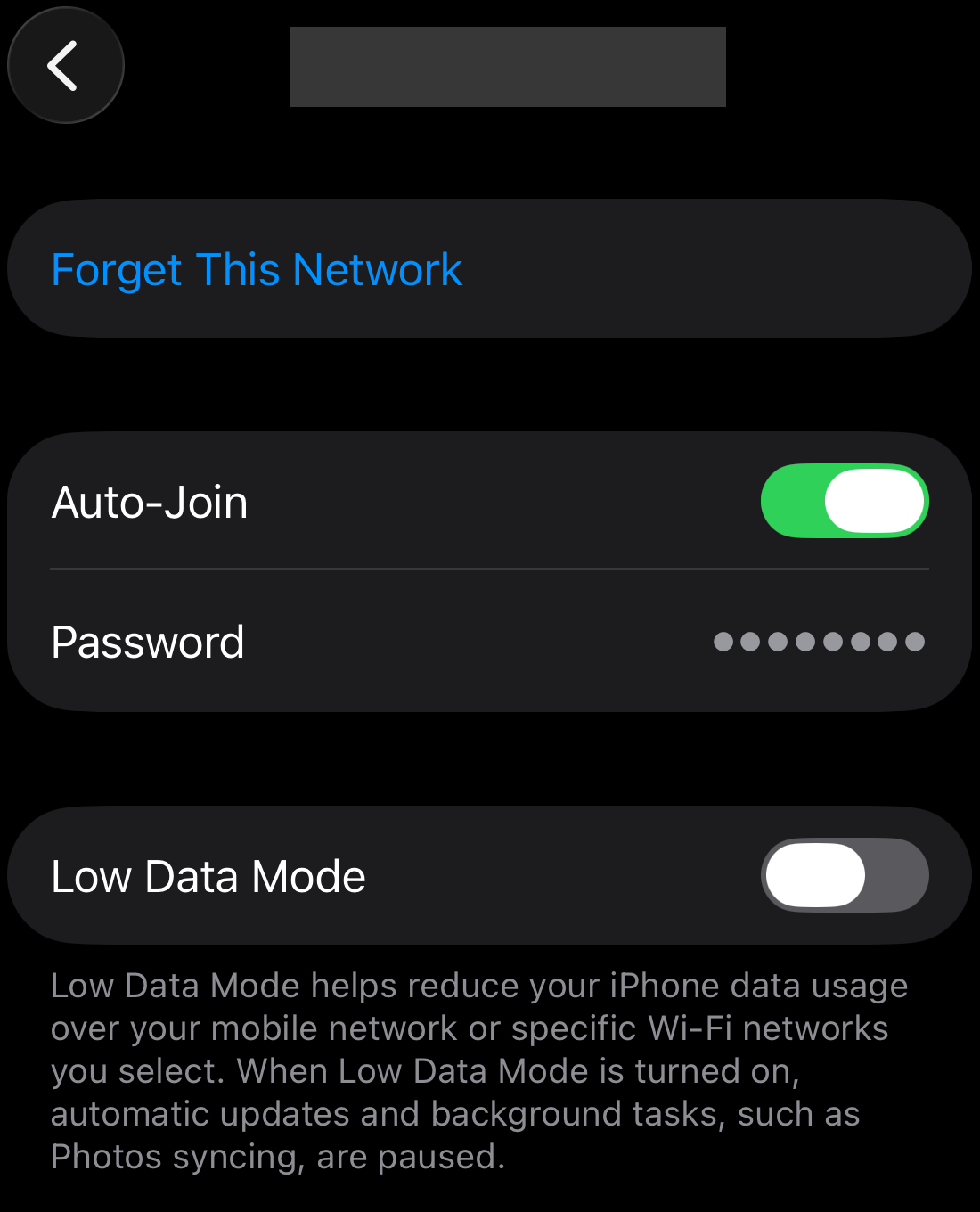
We reviewed our original settings screenshots on November 23, 2026. iPhone 15, iOS 26.6.1, English interface. The frames show a joined Wi-Fi network and its information screen. Internet reachability, a two-device comparison, captive sign-in, VPN removal, network reset and a successful repair were not demonstrated.
Establish where internet access stops
A checkmark beside a Wi-Fi network identifies an association with that network. Test a task that actually needs internet access, such as loading two unrelated HTTPS pages. Record the exact error and whether another app also fails.
| Observation | Next comparison |
|---|---|
| One website fails on both devices | Check that service before changing the phone |
| Several sites fail on both devices | Check network sign-in and the router's upstream connection |
| The iPhone fails while another device works | Compare the phone on a second trusted Wi-Fi network |
| Wi-Fi works but one app fails | Investigate that app's account, settings and service |
Keep the second device on the same Wi-Fi during the comparison. A laptop using Ethernet or a phone using cellular data gives a different comparison.
Complete a public network's sign-in
Hotel, airport and café Wi-Fi may require a welcome page before providing internet access. Open Settings → Wi-Fi, select the intended network and wait for that page. Apple also describes a Join Network option from the network's information screen. Check that the page belongs to the network you intended to use before submitting information. Apple's captive-network guide.
Retest the same two pages after completing sign-in. Record a login-page requirement separately from a router outage so the result remains meaningful.
Compare a second connection
If another device works on the original network, try the iPhone on another trusted Wi-Fi network. If mobile data is available under your plan, you can also compare the same task there and then restore Wi-Fi.
Write down each result. Working mobile data narrows the investigation to the Wi-Fi path, but a single comparison cannot identify a particular router setting as the cause.
Review connection software before broader changes
Record any VPN or security app in use. Apple includes removal and a restart in its troubleshooting procedure. Before removing software, make sure you can reinstall it and recover its configuration. For a work-managed connection, consult its administrator. Apple's Wi-Fi troubleshooting.
Retest after each change and restore any temporary change that provides no benefit. Avoid combining a VPN removal, DNS change and router restart into one experiment, because the outcome would be difficult to attribute.
Investigate the router when several devices fail
Ask the network administrator whether there is an outage or upstream connection problem. Restart a router only when you manage it and can interrupt its users. Apple's guidance also covers router compatibility and firmware. Use the router maker's instructions for the specific model. Apple's network checks.
Record whether the same pages load afterward. For another phone in the household, our Android Wi-Fi guide provides its own device-specific steps.
If other apps and websites work but one Safari page still fails, investigate that page separately. Our Safari cache and website-data guide explains the cleanup options and their sign-in consequences. Clearing browser data is not a substitute for diagnosing a network-wide outage.
Consider a network reset only after the comparisons
Before resetting, obtain the Wi-Fi credentials and any configuration needed to reconnect. On a managed phone, consult the administrator first. Apple places Reset Network Settings under Settings → General → Transfer or Reset iPhone → Reset.
The reset removes saved networks and relevant VPN settings, disconnects Wi-Fi, and can change roaming and certificate-trust settings. Profile-managed configurations have separate rules. Read the consequences for your setup before proceeding. Afterward, reconnect and repeat the original test. Apple's reset guide.
What we checked and what remains
We inspected our original Wi-Fi screens on iPhone 15 with iOS 26.6.1. The network had a join checkmark and its information screen was accessible. That documents association and the menu path. The supplied material contains no results from page-loading, a second device or an alternative network. No connectivity failure, reset or repair was reproduced.
If the problem remains
Give the network provider or Apple the iPhone model, iOS version, affected networks, error wording and results from the two-device comparison. If every device fails on one network, contact its administrator or provider. If the iPhone fails across several otherwise working networks, include that pattern in the support request.
Relevant sources
Your reading checklist
Optional notes for this device. A checked box records your progress, not whether a fix worked.
Progress is stored only in this browser when storage is available.
Something doesn’t match?
Tell us which step differs, the application version and your operating system. Report a guide issue.