Quick answer
Open Settings → Apps → Startup and switch off an optional app you do not want opening at sign-in. You can also select its entry in Task Manager → Startup apps and choose Disable. This changes its registered startup behavior; it does not uninstall the application.
Start with one app you recognize and note its current state. Keep software you depend on for security, accessibility, work management or synchronization enabled unless you understand the consequences of changing it.
Use Settings
- Open Settings → Apps → Startup.
- Find a familiar optional application.
- Note the original state, then switch it Off.
Microsoft documents this route and the Task Manager alternative in Configure startup applications in Windows. You do not need to change the same registered item in both places.
Use Task Manager
- Press Ctrl + Shift + Esc to open Task Manager.
- Select Startup apps.
- Choose the app, note its Status and Startup impact, then select Disable.
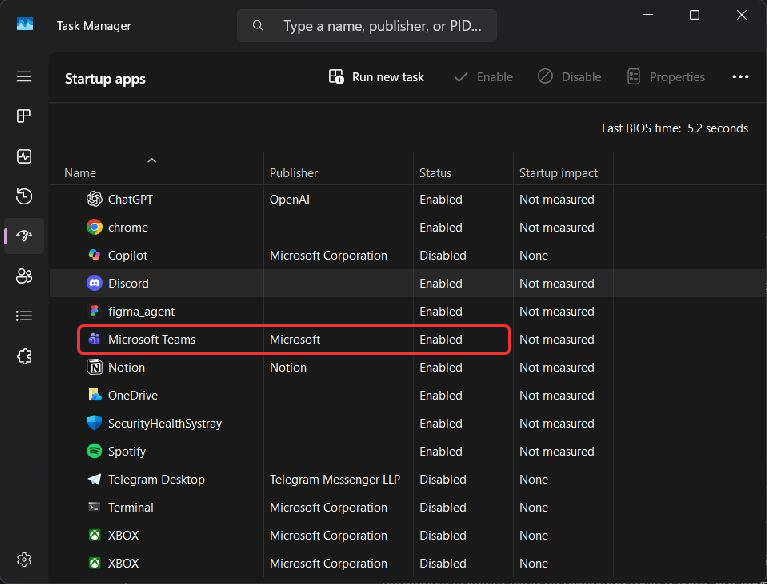
The original Enabled state; Startup impact was Not measured.
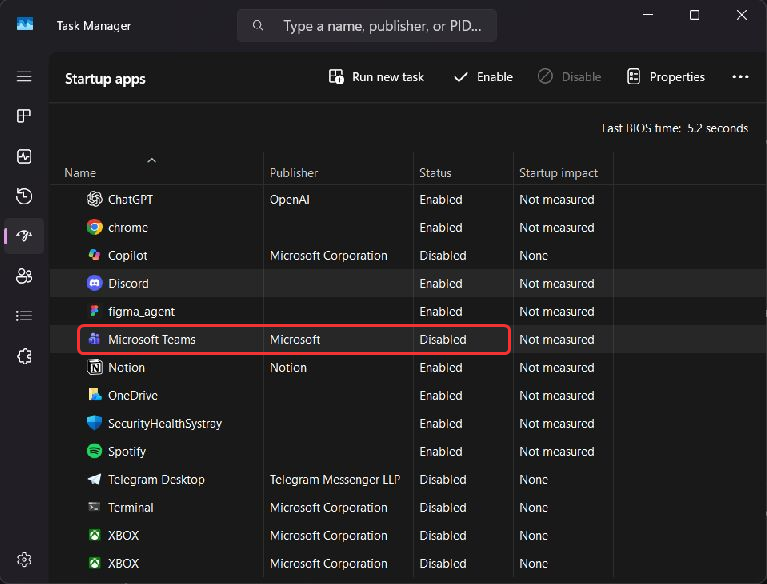
The Disabled state used for our restart check.
Check that Status changes to Disabled. In our Windows 11 test the Microsoft Teams entry changed from Enabled to Disabled. The relevant Task Manager screenshots show Not measured in Startup impact; they do not provide a measured speed improvement.
Check the next sign-in
Save your documents and other work. Restart and sign back in, then observe whether the selected app opens automatically before launching it yourself. A restart can close unsaved work, so prepare for it.
Changing one optional app gives you a clearer test than disabling many at once. Note the app, original state, changed state and what happened after sign-in. An app remaining closed in one check is a useful observation, not a promise that every application behaves identically.
If the app is missing or still opens
Check the application’s own launch-at-login preference and record which control you changed. A program may have more than one launch mechanism, so identify the source before removing anything.
For an item started by a known shortcut, inspect the relevant Startup folder. Microsoft’s guide describes current-user and all-users locations. Removing a recognized launch shortcut changes that shortcut, not the installed program. Do not disable services or delete registry entries merely to chase an unidentified app.
Restore the original setting
Return to Settings and switch the entry On, or select it in Task Manager and choose Enable. Verify that the status returns to the original value.
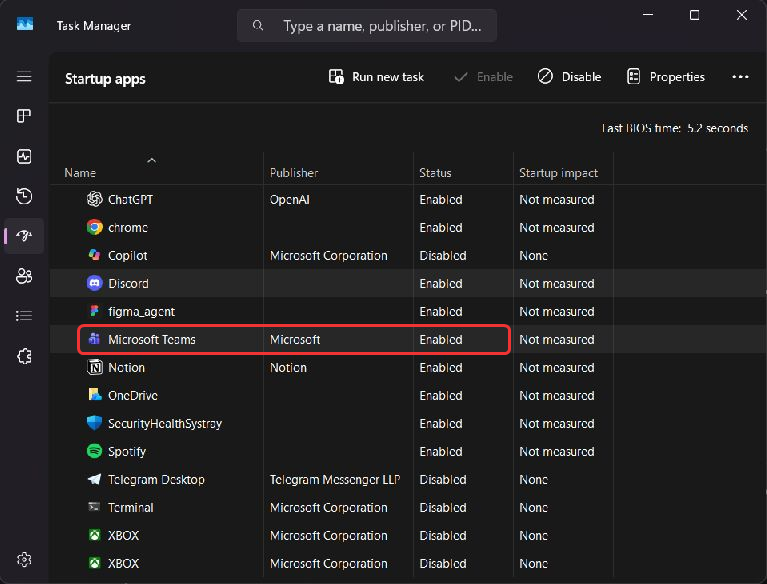
The original Enabled state restored after the check.
What we checked
On Windows 11 Home 26H2, build 26300.9711, the agent observed Microsoft Teams change On → Off → On in Settings. In a later manual check, we used Task Manager to change Teams from Enabled to Disabled.
We restarted the PC and confirmed that Teams did not open automatically afterwards. We then restored Enabled and captured that final status. The reboot outcome is based on our reported observation; it was not independently watched or timed as a performance measurement.
This test confirms changing and restoring the entry and the reported disabled-startup result. Automatic launching after re-enabling was not tested again. All three Task Manager states are preserved; the final configuration leaves Teams enabled.
Relevant sources
Configure startup applications in Windows ↗Your reading checklist
Optional notes for this device. A checked box records your progress, not whether a fix worked.
Progress is stored only in this browser when storage is available.
Something doesn’t match?
Tell us which step differs from your device. Include the OS and app versions if you know them.
Report an issue with this guide →