Quick answer
Check the download queue, connection, and available device storage before resetting anything. If another download is progressing, let it finish. If the message says Waiting for Wi-Fi, check the download preference rather than treating it as an unexplained Pending error.
If downloads still do not progress after reopening Google Play and restarting the device, try Clear cache for Google Play Store. Retry one download after each change and stop troubleshooting when it works. Clear storage and clearing Google Play services data are separate, broader actions.
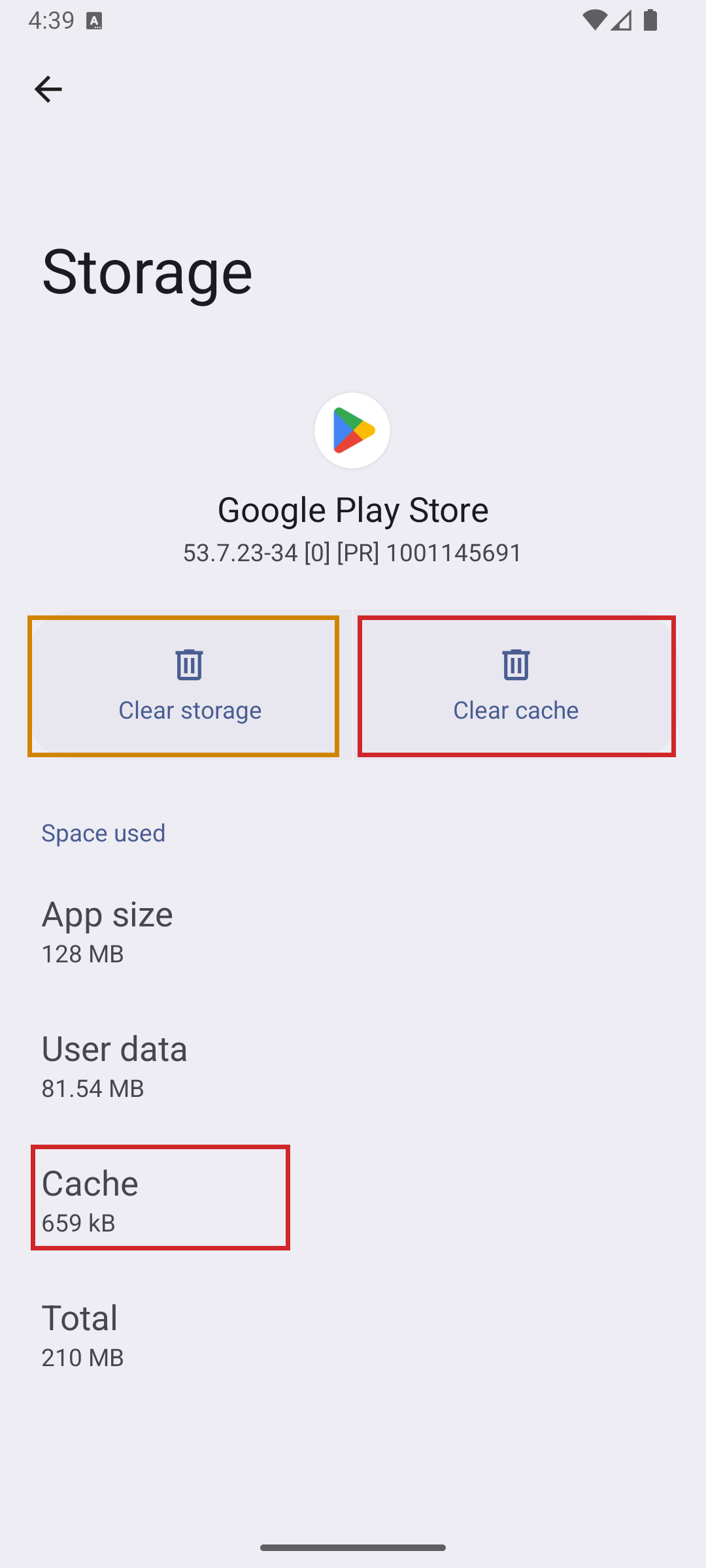
Checked on October 30, 2026 in Android Emulator 37.2.13, with a Pixel 7 hardware profile, Android 16/API 36, build BE2A.250530.026.D1, and an English interface. The image reports a July 5, 2025 security patch; this identifies the test image, not current security-update coverage. Google Play Store: 53.7.23-34 [0] [PR] 1001145691.
The agent checked Play Store cache clearing, app management, download preferences, and installation of Files by Google. We manually signed in to a separate test account before the installation. Files by Google installed and opened to its initial access-setup screen.
A download stuck on Pending was not reproduced. These checks confirm interface steps and one successful installation; they do not demonstrate a cure for Pending. Cache clearing occurred before sign-in. Play Store storage, Google Play services data, and the account were not reset or removed.
Identify the message first
Record the exact app and status before changing settings.
| What you see | What to check next |
|---|---|
| Pending | Inspect the queue and whether anything else is progressing. |
| Waiting for Wi-Fi | Check the selected network and download preference. |
| Installing | Check whether the installation finishes; this is a different stage from waiting for a download. |
| An app is unavailable or incompatible | Follow the app-specific message instead of resetting the entire store. |
| Something went wrong | Record which screen shows it; it is not the same message as Pending. |
If one app fails but another installs, keep the investigation focused on the original app. One successful test does not prove every app or Google service works.
Check the queue before starting more downloads
Open Google Play's profile menu and find Manage apps & device. In the tested version, the profile-menu entry was labelled My apps & games and opened a page titled Manage apps & device.
Review Overview → Updates, or Updates available → See details when offered. Google documents the latter route in its app-update instructions.
If an update is making progress, allow it to complete. Avoid starting many extra installations while diagnosing one stalled item. If you cancel an optional queued update, remember to complete that update later.
Check connection and download preferences
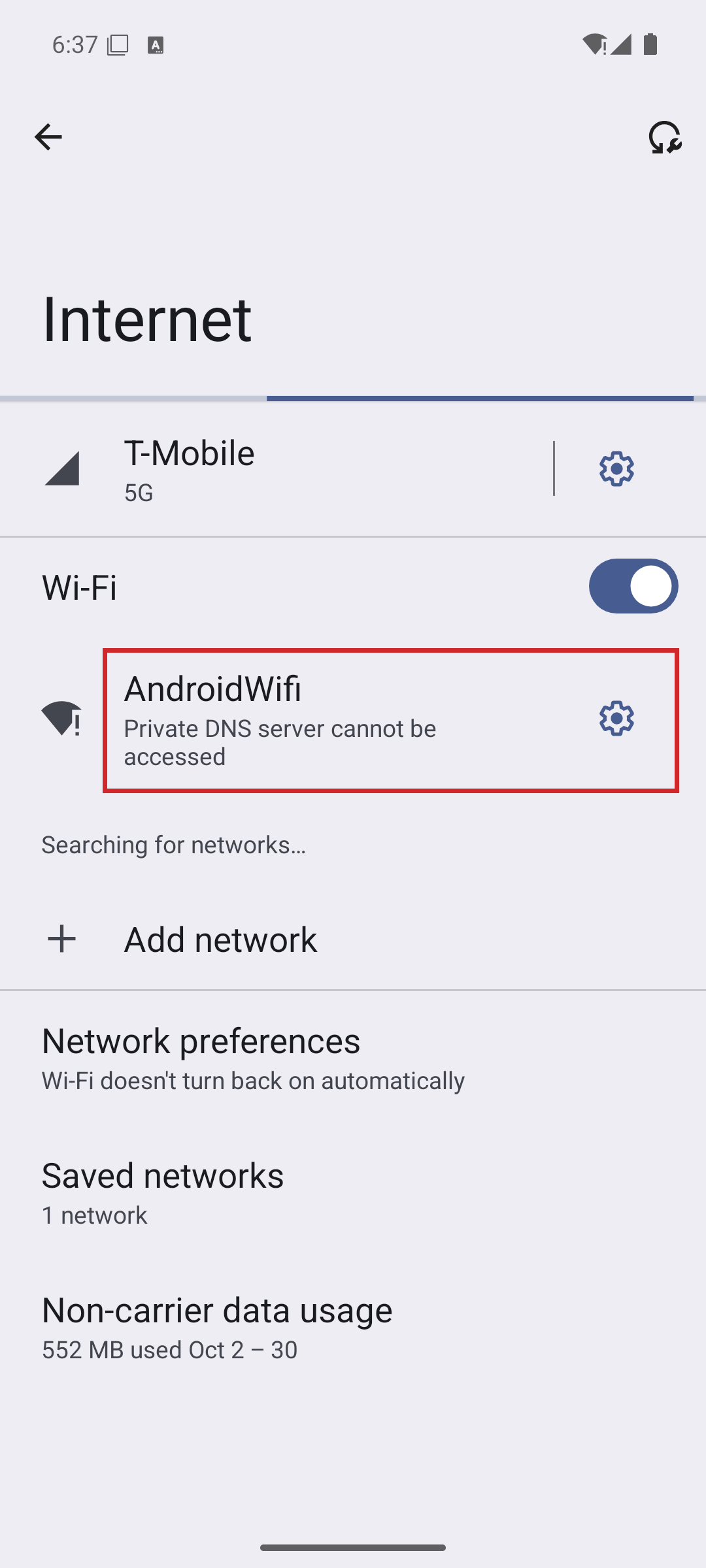
Confirm that your Wi-Fi or mobile connection is usable. Opening a webpage is a useful basic check, but does not prove that every Play download endpoint is reachable. If available, compare with another trusted connection.
For a Wi-Fi-related message, inspect profile menu → Settings → Network preferences → App download preference.
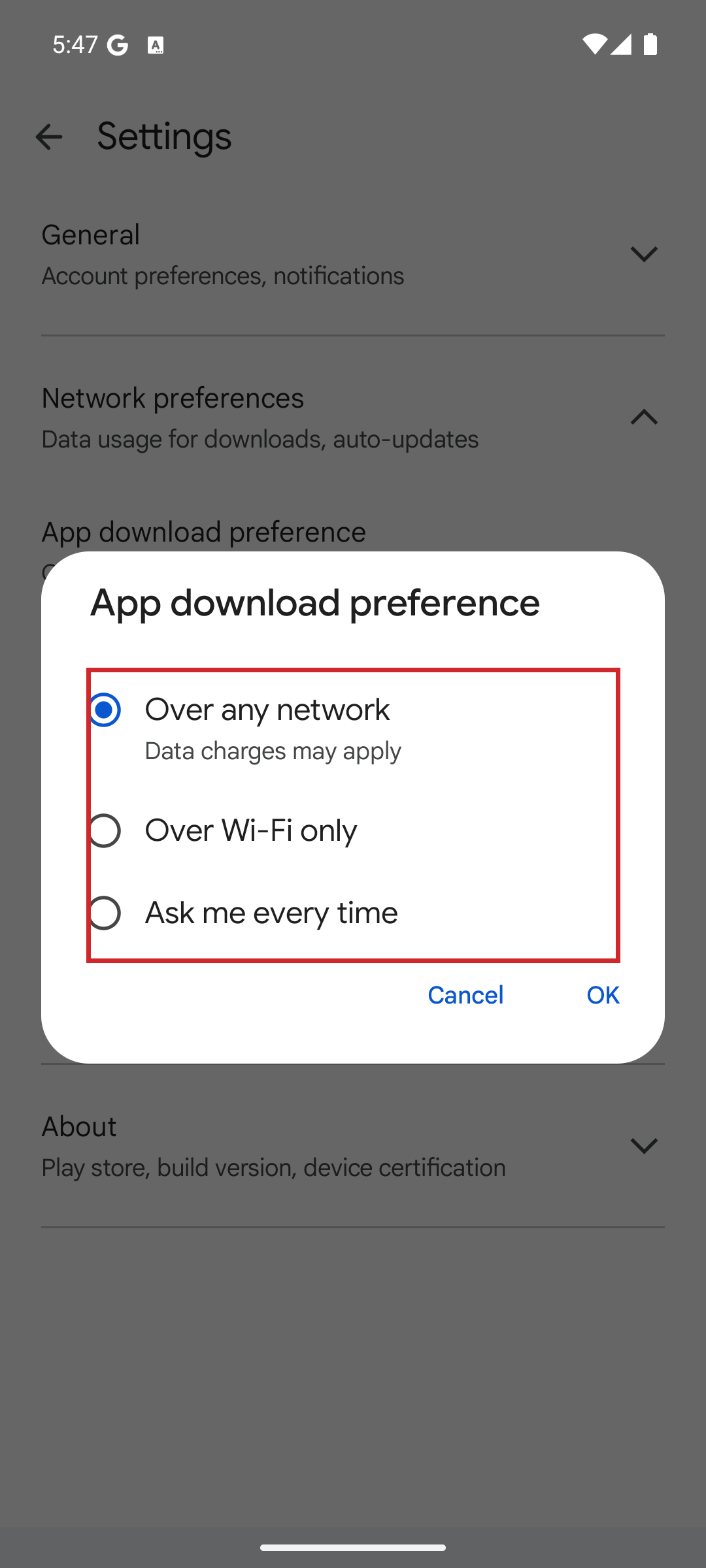
Prefer connecting to Wi-Fi if that is what the current preference requires. Choose a mobile-data option only if you accept the charges. Motorola's Play Store guidance documents this preference and its mobile-data consequences. This is separate from the Auto-update apps setting.
Check storage, then reopen and restart
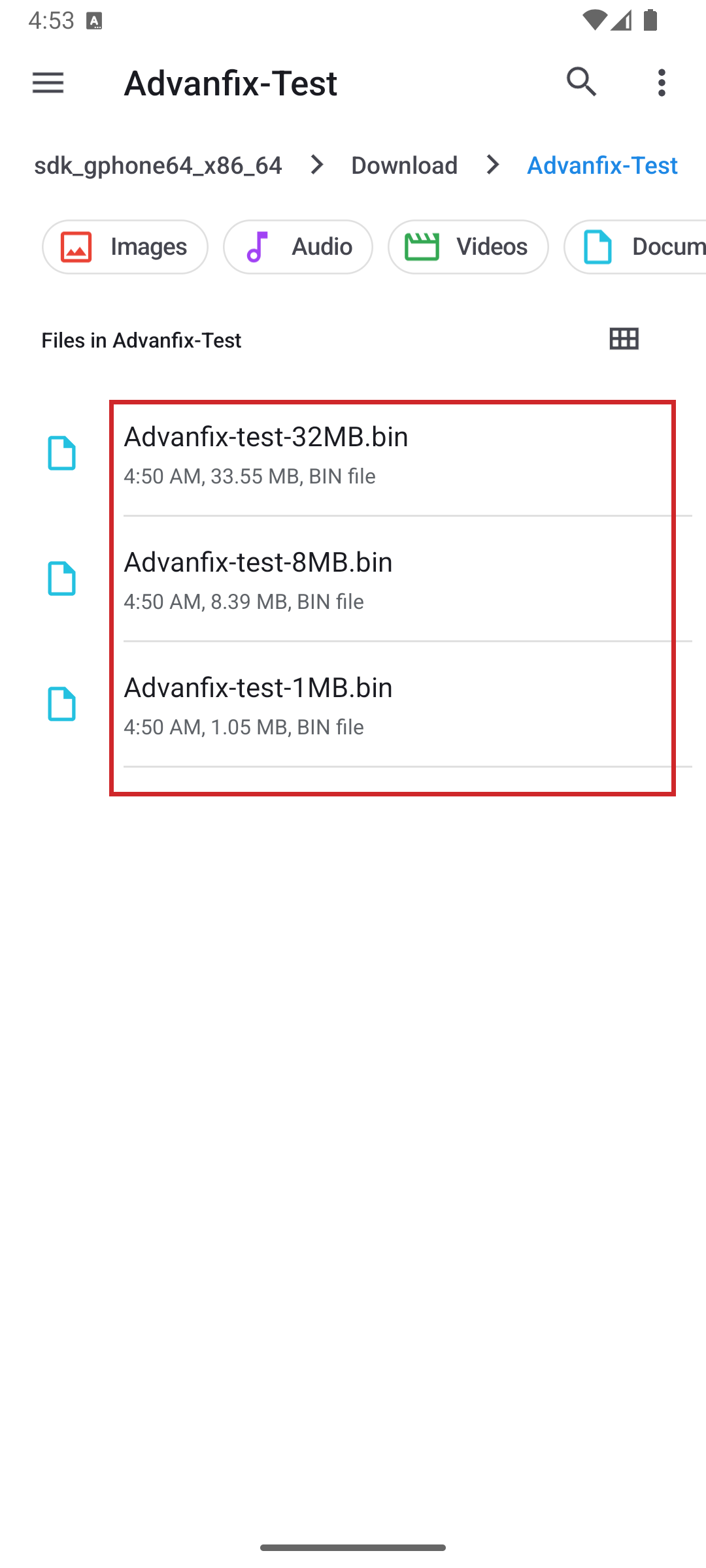
In Android Settings → Storage, review available device space. Google lists insufficient storage as a possible reason downloads or installations fail. Review your own downloads or media before deleting anything; do not remove unfamiliar app folders.
Close Google Play from the recent-apps view and reopen it. If the problem continues, save any work and restart the phone. Check that its date and time are correct, and review available Android updates. These are Google's basic download troubleshooting steps, not all procedures we independently tested here.
Retry the affected download after each action so you can tell what changed.
Clear the Play Store cache
- Open Settings → Apps → All apps or See all apps.
- Select Google Play Store. Check the name: Google Play services is another entry.
- Open Storage & cache, or the equivalent Storage page.
- Tap Clear cache.
- Reopen Google Play and retry the download.
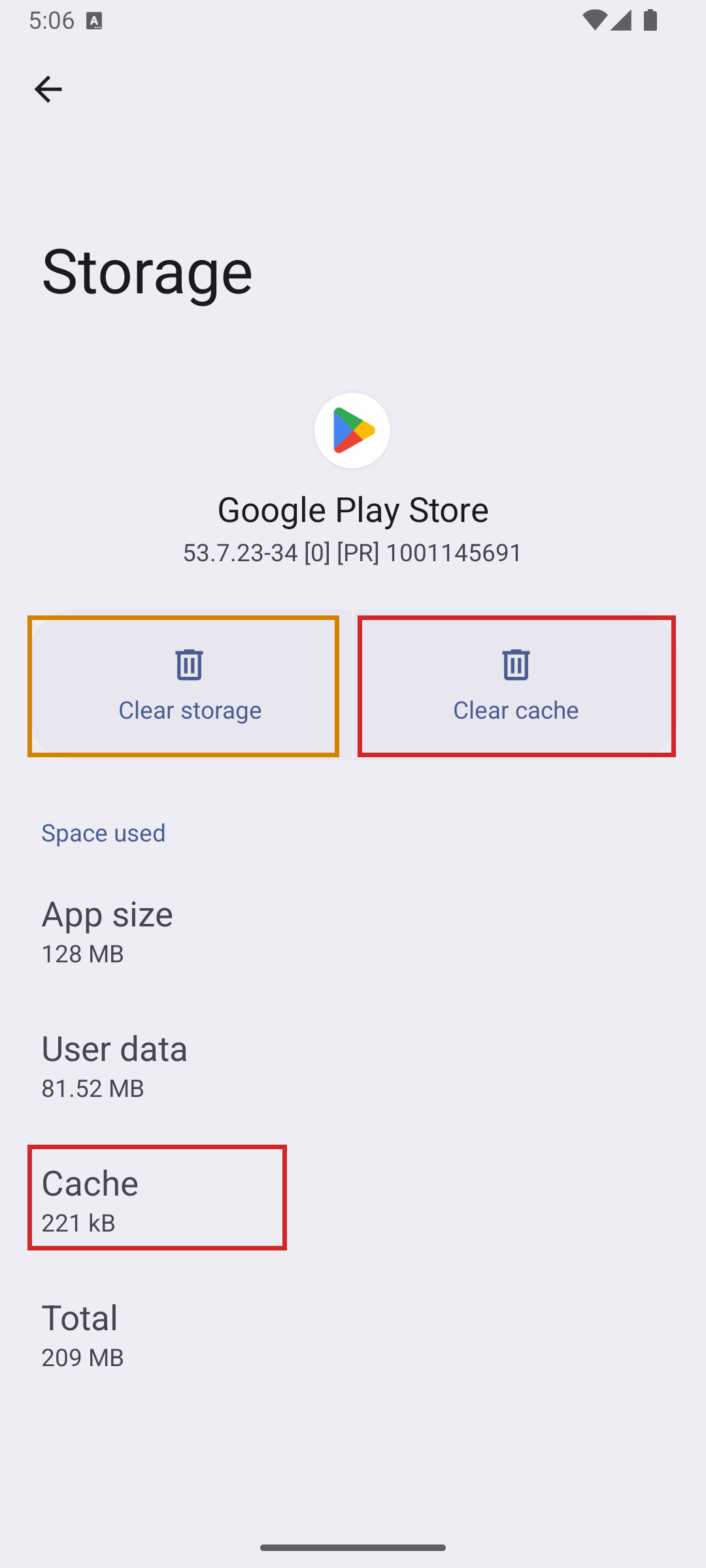
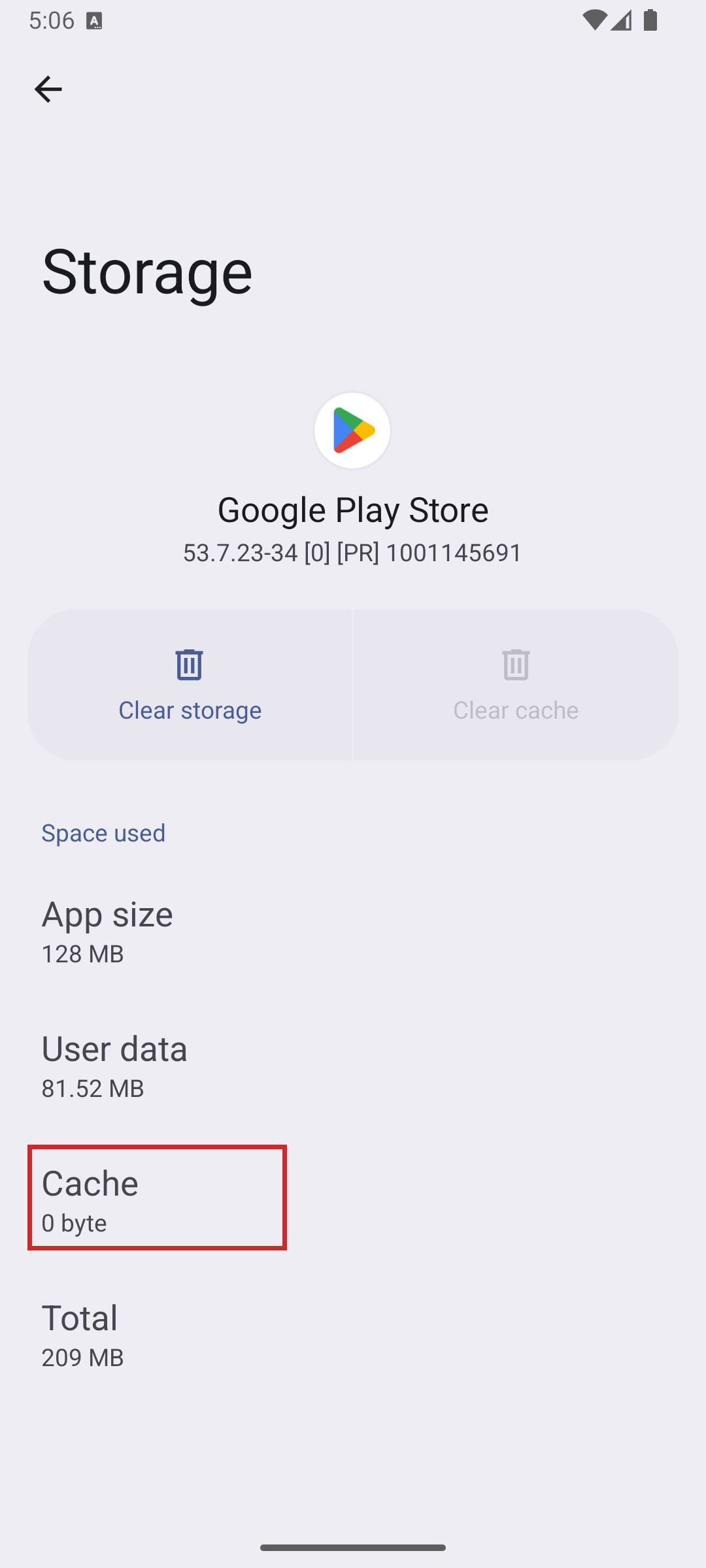
The cache result is evidence that the action ran, not that a download problem is fixed. Check the original download itself afterward.
Treat storage resets as a separate decision
If the basic checks and cache action do not help, consult Google's matching advanced help before resetting data. Its Play Store troubleshooting guide warns that clearing cache and data can remove settings such as parental controls and password protection, and require accepting the terms again.
Before a Play Store storage reset, record preferences you need to restore and understand how to re-enable the protections you use. We did not test that reset or its recovery here.
Do not substitute Google Play services → Clear storage for the Play Store cache step. Google reserves Play services data clearing for after other troubleshooting options, and warns about saved credentials, payment-related information, and reauthentication. Those actions were not performed in this test.
What we checked
| Check | Observed result |
|---|---|
| Play Store cache, before account sign-in | 221 kB → 0 byte. Clear storage was not used. |
| App-management screen after sign-in | Initially showed Something went wrong. Try again. Retry changed it to Checking for updates… during observation. |
| Download preference | Over any network was already selected; the dialog was cancelled without a change. |
| Free test installation | Files by Google, published by Google LLC, progressed through Installing… to Installed and Open. |
| Launch | Open reached the app's initial access-setup screen. File-access permission was not granted as part of this installation check. |
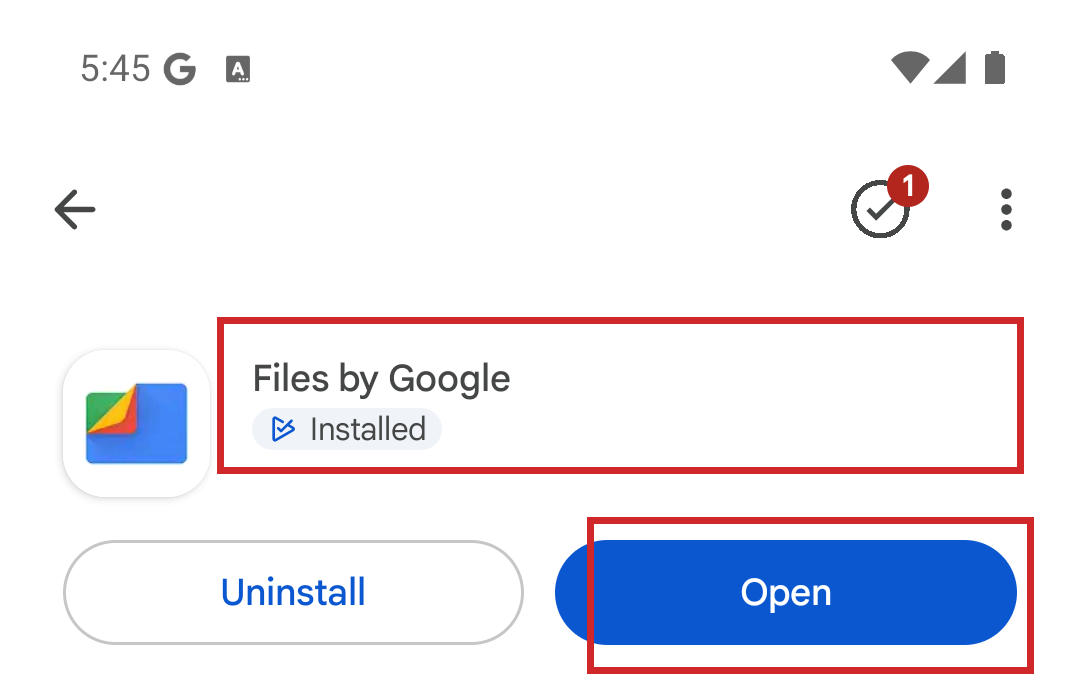
The installed app reported version 1.13003.1002253400.1-release. We did not reproduce sustained Pending, Waiting for Wi-Fi, or a low-storage failure. We did not establish why the update-check screen initially failed, or that its Retry result resolved a download fault. Physical phones, mobile-data downloads, signed-in cache clearing, and advanced resets were not tested.
If the download still will not progress
Record the exact status, affected app, whether other apps install, Android and Play Store versions, available space, networks tried, and the result of each step. Use Google's help path for one app, multiple apps, or the Play Store itself, as appropriate.
For a managed device or restricted account, check with its administrator or account administrator before changing restrictions. Do not turn an unknown APK download into a routine workaround, or factory-reset a phone simply to continue this checklist.
Relevant sources
Your reading checklist
Optional notes for this device. A checked box records your progress, not whether a fix worked.
Progress is stored only in this browser when storage is available.
Something doesn’t match?
Report the differing step, with your Android and Play Store versions. Leave passwords, verification codes, and account details out of the report.