Quick answer
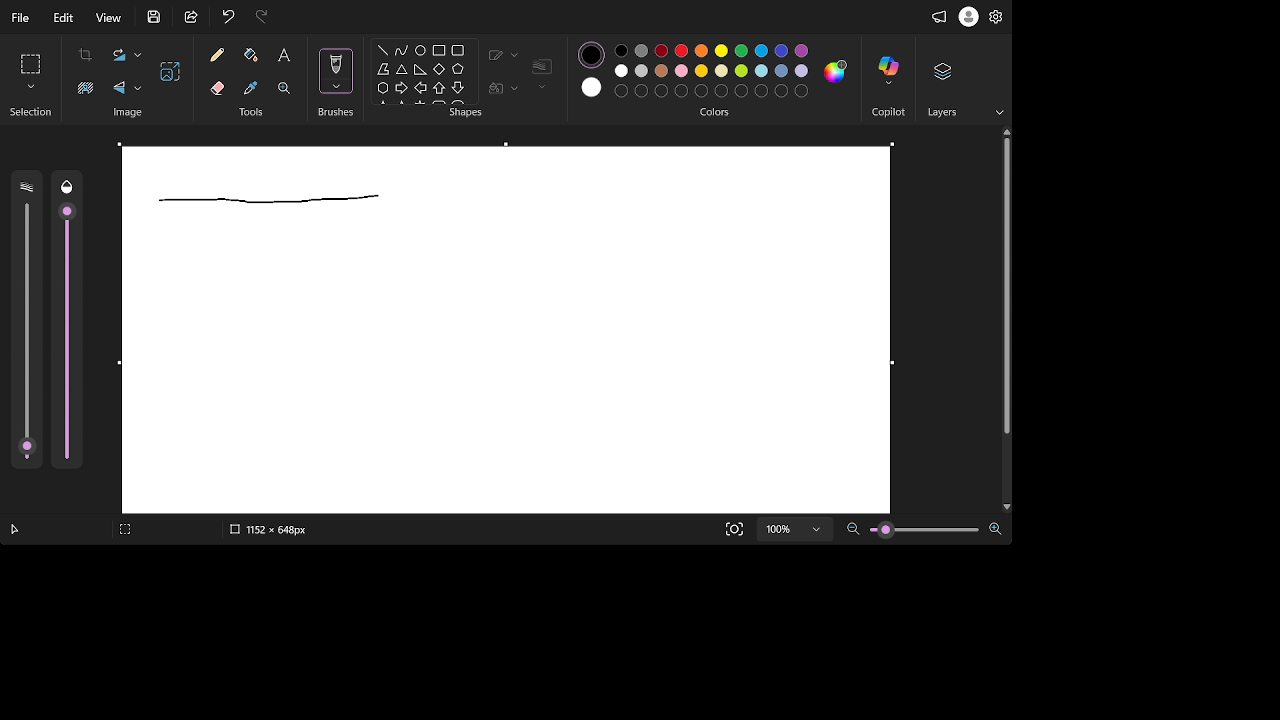
Choose OBS Studio for recording a specific app window, or ShareX for a quick region capture. Both saved a local MP4 of drawing in Paint in our Windows test. We saw no recorder watermark in the frames we inspected.
OBS Studio 33.0.1 Portable and ShareX 22.4.0 Portable on Windows x64, build 26300.9711. We recorded Paint on November 11, 2026. We decoded both saved exports with FFmpeg and inspected frames at several points. Snipping Tool is covered by Microsoft documentation. Audio content, recording limits and performance were outside the test.
Choose for your recording task
| Candidate | Documented role | Check before relying on it |
|---|---|---|
| OBS Studio | Free, open-source video recording with multiple sources | Source selection, audio routing and encoder load |
| ShareX | Free, open-source Windows capture and recording tool | Video workflow, audio setup and local saving |
| Snipping Tool | Windows screen-region recording | Installed app features, sound controls and export |
A clean-looking preview is not an export test. Watermarks, duration restrictions, resolution caps and account requirements are separate questions. Check each one rather than treating “free” as a complete specification.
OBS Studio: control the sources and sound
OBS Studio documents video recording, scenes and audio mixing. It is the candidate to investigate first when you need a screen source, a microphone and other sources in one project.
Follow the official quick-start guide: run the configuration wizard, add a display or window source, check audio meters and make a trial recording. Choose the source that captures what you need while keeping unrelated windows out of view.
Play the saved file. A moving microphone meter does not establish that the voice is audible in the export, and a visible source does not prove that every frame was recorded smoothly. Inspect the beginning, middle and end, including a section with motion.
If performance is poor, reduce the recording workload and test again. We have not measured which settings or encoder perform best on a particular PC.
ShareX: a capture-oriented candidate
ShareX describes screen recording alongside screenshots and workflow tools. It is worth considering if screen capture is already part of your routine.
Check the installed build’s recording options and any components it requests. Save a trial clip locally and confirm the destination before recording personal material. ShareX also supports sharing workflows, so inspect the relevant after-capture and upload actions rather than assuming a file stays local.
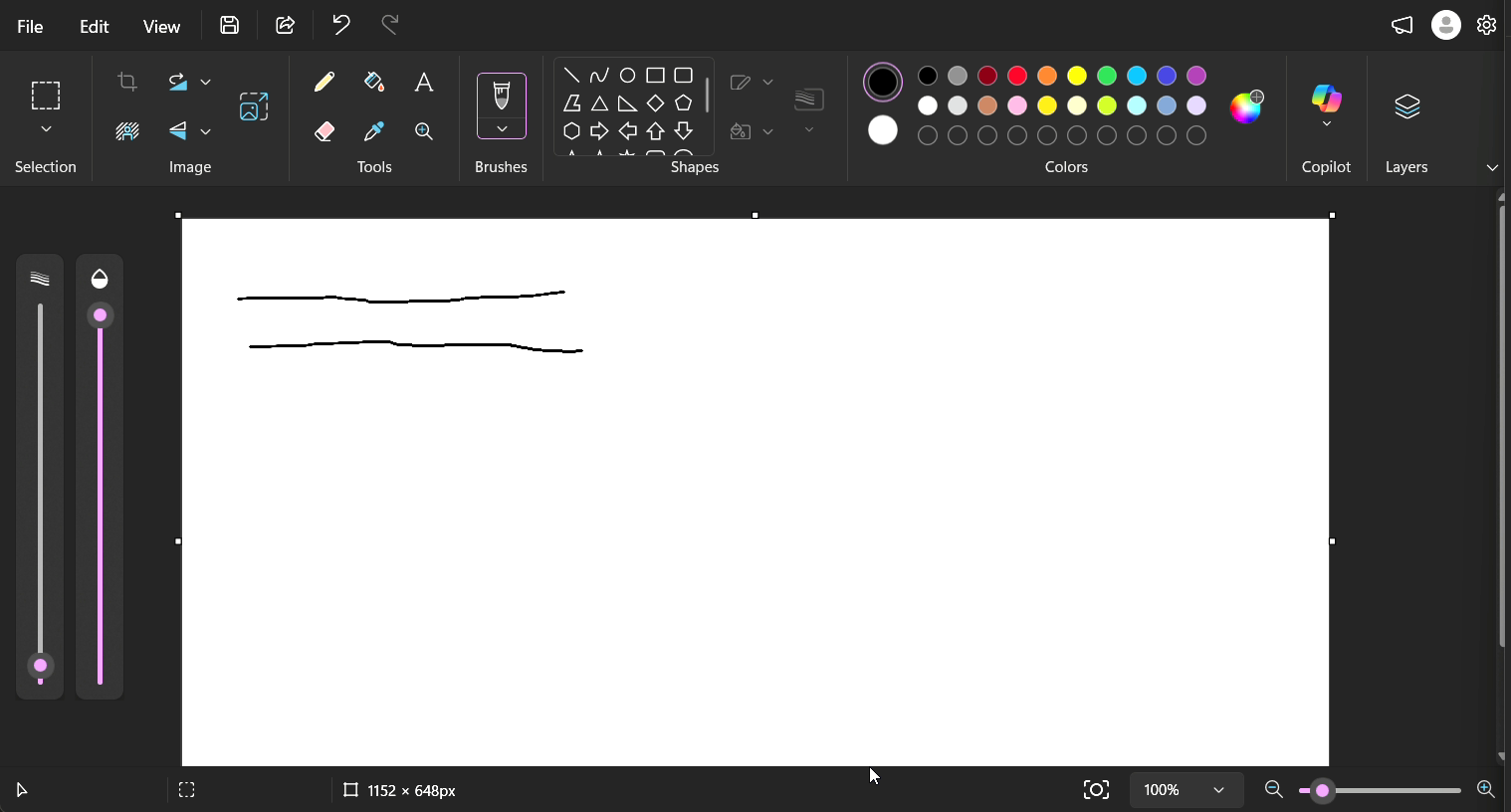
In our ShareX export, the selected region recorded Paint as a second line appeared. A ShareX menu entered the recorded region near the end. Stop the recording before opening menus over the area you want to keep clear.
Snipping Tool: try the recorder already on Windows 11
Microsoft’s Snipping Tool guide covers recording a selected screen area. Open the application and look for the video-recording control; its availability and sound options depend on the installed version.
Select an area, record a short sample, stop and inspect the saved file. Capture the region you intend to show, including menus that may extend beyond a window. If a control described in current documentation is missing, record your app version before assuming the instructions match your installation.
Our Snipping Tool shortcut guide covers screenshots. A screenshot shortcut should not be presented as proof of the recorder’s audio or export behavior.
Verify audio before a long session
Use a non-sensitive spoken phrase and a short local audio sample you have permission to record. Listen to the export with the same playback device you will use for review.
Check microphone and system sound separately, then together. Listen for a missing source, echo, clipping or an obvious timing offset. Headphones can help avoid recording speaker output twice through a microphone.
If Windows does not detect the input at all, use the separate microphone troubleshooting guide. It does not establish that the recorder has selected the correct source.
Check the actual export
Before a tutorial, meeting or demonstration:
- Record a short sample containing text, movement and the sound sources you need.
- Open the result in a separate player.
- Inspect the full frame and several timestamps for branding or overlays.
- Confirm the duration, dimensions and whether all intended audio is audible.
- Make a longer trial if your task depends on extended recording.
Do not use a brief successful clip to claim unlimited duration or stable performance over an hour. Test the workflow you plan to use. Protected content and applications may impose capture restrictions; do not assume every black frame is a recorder fault.
What we checked and what remains
| Recorder | Saved MP4 | Video | Watermark in inspected frames |
|---|---|---|---|
| OBS Studio | 10.00 s | H.264, 1280 × 720, 30 fps | None visible |
| ShareX | 21.97 s | H.264, 1518 × 816, 30 fps | None visible |
Both files decoded successfully and showed drawing in Paint. The OBS log identifies Windows Graphics Capture (WGC) for the successful export. Earlier Paint setup attempts used BitBlt and we observed a black preview. If Automatic or BitBlt gives a black preview, try Modern (WGC) in Window Capture properties and check that the window appears before recording.
The OBS recording shows unused black space around the Paint window because the source occupies only part of the output canvas. Fit the source to the canvas if you want it to fill the frame. Both MP4s contain an AAC stream. We inspected the video frames and did not evaluate the audio content.
Relevant sources
Your reading checklist
Optional notes for this device. A checked box records your progress, not whether a fix worked.
Progress is stored only in this browser when storage is available.
Something doesn’t match?
Tell us which step differs, the application version and your operating system. Report a guide issue.