Quick answer
If the Bluetooth switch is missing, check whether Windows detects the adapter and reports a device error. A missing control is different from a headset that appears but will not pair. Record the symptom before changing settings or installing a driver.
Our Windows 11 check found a missing switch alongside Code 43. Installing the matching Bluetooth package from the laptop manufacturer’s support site was followed by an adapter status of OK and a restored switch. That is one documented case, not a universal cure.
Confirm which control is missing
Open Settings → Bluetooth & devices. Look for the Bluetooth On/Off switch. If it is present and can be enabled, investigate the particular connection or pairing problem separately.
Next, open Device Manager and expand Bluetooth. Open the adapter’s Properties and read Device status on the General tab. Record the exact message, not just the warning icon.
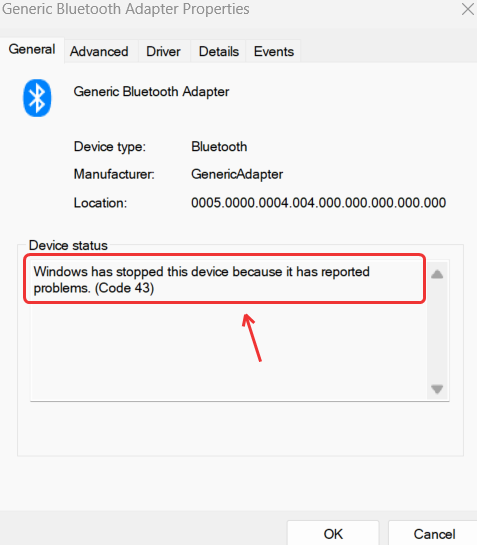
The initial Code 43 state before the OEM Bluetooth driver was installed.
Our initial adapter appeared as Generic Bluetooth Adapter and reported Code 43. Microsoft’s Code 43 reference says the driver reported a device failure. The code alone does not identify the failed component or prove that every affected PC needs the same driver.
Match the driver to the actual hardware
- Record the laptop or motherboard model.
- In adapter Properties, open Details → Hardware Ids.
- Find the appropriate support page for that exact model and identify its Bluetooth package.
- Check that the package supports the adapter’s hardware ID and Windows architecture before installing it.
In this case the system identified MAIBENBEN X558. The adapter ID was USB\VID_0E8D&PID_0608&MI_00. The downloaded OEM package’s Bluetooth INF matched that ID in its x64 section and named the device RZ608 Bluetooth(R) Adapter.
We used the official MAIBENBEN driver page. The Bluetooth driver was MediaTek 1.930.0.287, dated 19 January 2023 inside the INF. Its catalog and driver file had valid Microsoft Windows Hardware Compatibility Publisher signatures. A matching ID and valid signature are checks on the package, not a guarantee of recovery on every Windows build.
Install through Device Manager and verify
- Save your work and make a note of the current driver provider and version.
- Choose Update driver → Browse my computer for drivers.
- Select the extracted Bluetooth driver folder and leave Include subfolders enabled.
- Follow Windows’ prompts. If it reports an incompatibility or signature problem, stop and verify the package rather than forcing it.
- After installation, restart when appropriate and recheck both Device status and the Bluetooth switch.
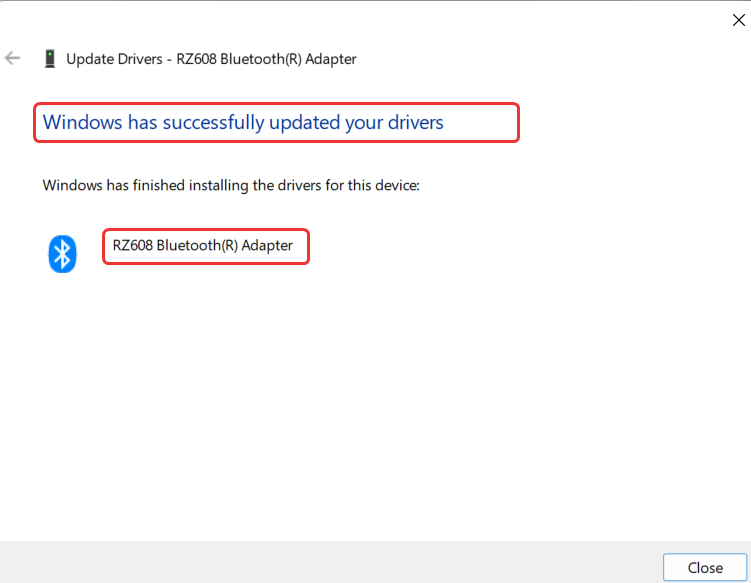
Device Manager confirmed installation of the matching OEM package.
Microsoft also describes manufacturer-provided updates in its Bluetooth driver instructions. Do not install an entire unrelated Wi-Fi or driver bundle merely because Bluetooth is missing.
What changed in our check
Before the change, the MAIBENBEN X558 running Windows 11 Home 26H2, build 26300.9711, showed Microsoft’s generic driver 10.0.26100.9711, Code 43 and no Bluetooth switch. We installed the matching OEM Bluetooth package through Device Manager and supplied the success screen.
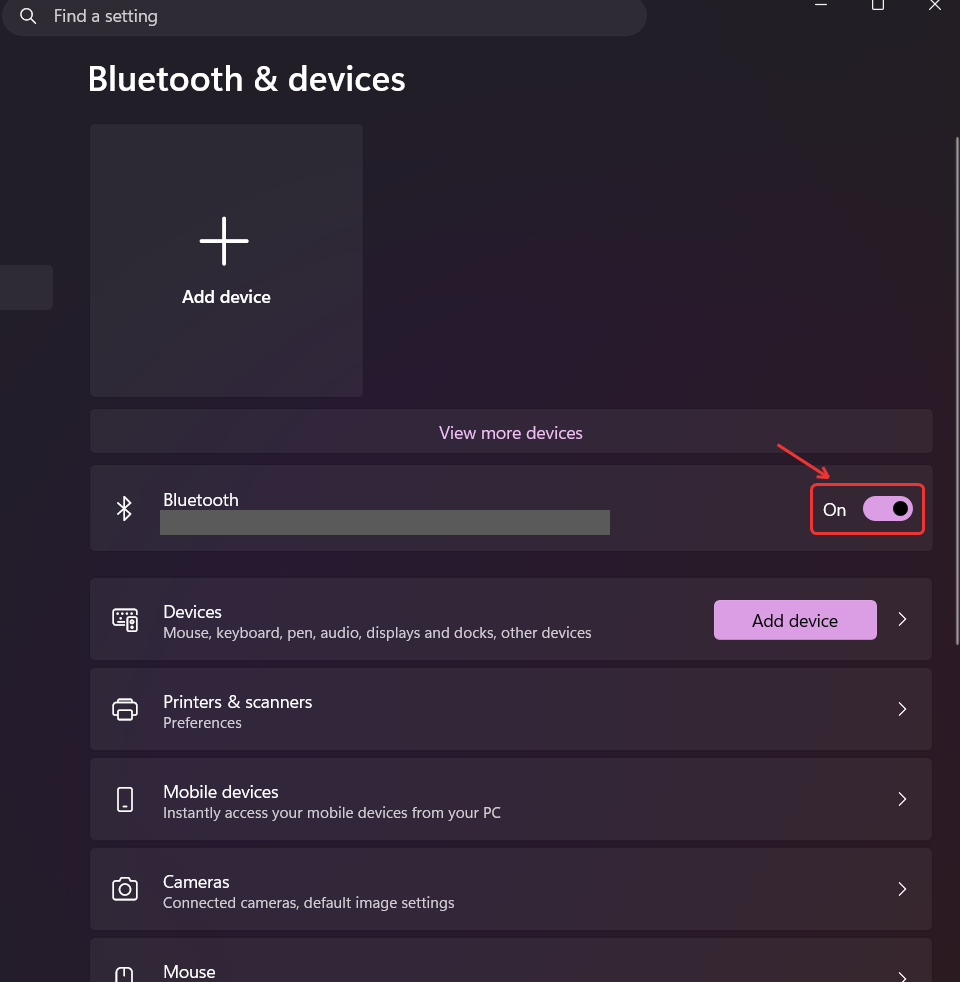
Bluetooth was present and On after our restart check. Computer name redacted.
Following our restart check, the supplied Settings image showed Bluetooth On. A separate system query confirmed RZ608 Bluetooth(R) Adapter, MediaTek 1.930.0.287, Status OK and problem code 0. The computer name is masked in the image. Pairing, audio quality and data transfer were not tested.
If the switch is still absent
Keep the before-and-after adapter status, driver version and exact model. Follow the manufacturer’s guidance and Microsoft’s missing-Bluetooth guide. Plan power-off checks so the PC can be turned back on, especially during remote support. Firmware changes are not the routine first step in this article.
If the adapter remains undetected or still reports an error, preserve that result. Repeatedly installing packages for different models makes diagnosis harder and is not evidence of a successful repair.
Relevant sources
Microsoft’s Code 43 reference ↗official MAIBENBEN driver page ↗Bluetooth driver instructions ↗Microsoft’s missing-Bluetooth guide ↗Your reading checklist
Optional notes for this device. A checked box records your progress, not whether a fix worked.
Progress is stored only in this browser when storage is available.
Something doesn’t match?
Tell us which step differs from your device. Include the OS and app versions if you know them.
Report an issue with this guide →