Quick answer
First check whether the microphone appears under Settings → System → Sound → Input. If Windows lists it, the next question is whether it records a signal and whether the application is using that input. An absent device and an app with no sound are different symptoms.
This guide follows that decision path. Our practical checks used one PRO X 2 LIGHTSPEED input reported as Generic USB Audio. We did not reproduce a missing-device failure or test every connection type.
Find the intended input
- Open Settings → System → Sound.
- Under Input, identify the microphone you intend to use.
- Check its physical connection and any hardware mute control.
- Open the device’s properties using the arrow beside it.
If several microphones are listed, do not assume the first one belongs to your headset. Identify which physical microphone corresponds to the selected entry. A wireless headset using a USB receiver should not automatically be described as a tested Bluetooth microphone.
Test a short, deliberate recording
- In the microphone’s properties, select Start test.
- Speak a short test phrase at an ordinary level.
- Stop the test, then choose Play for the recorded sample when available.
- Note whether your voice is audible, rather than judging the result solely by a percentage.
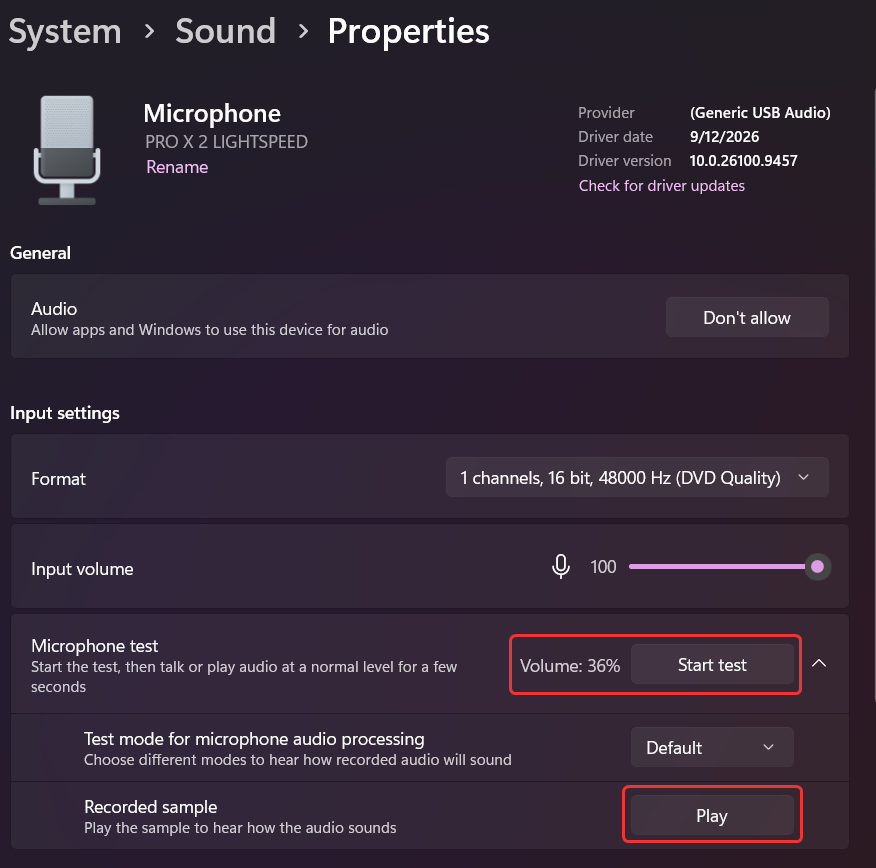
Input volume 100 and test result 36% are separate values. We heard audible speech.
Our screenshot shows Input volume set to 100 and a separate microphone test result of Volume 36%. These are different values. We played the sample and heard the test phrase; the audio itself was not supplied for independent review.
The displayed workflow matches Microsoft’s microphone troubleshooting instructions. A successful recording establishes that this input can record in that test; it does not prove that every app has access.
If Windows records but the app does not
Open the affected application’s audio settings and check its chosen input. An app may use a different microphone from the one you just tested. Make one change at a time and repeat the same short sample.
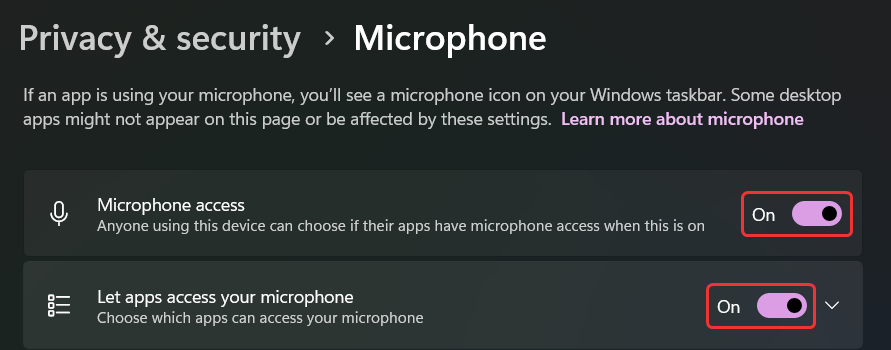
General access settings inspected earlier; app lists and recent activity excluded.
In Windows, inspect Settings → Privacy & security → Microphone. Check the relevant device, app and desktop-app access controls. Desktop applications are handled differently from individually listed Store apps. Enable only the access you intend to grant; do not change unrelated permissions.
For a local comparison, record and play a short phrase in Sound Recorder. In our check, we also heard the voice there. That result is based on our listening check; no Sound Recorder screenshot or audio file was available for independent review.
If the microphone is absent
Record the connection type and whether the device appears after reconnecting it. Treat wired, USB receiver and Bluetooth cases separately. A Bluetooth microphone additionally depends on a working Bluetooth connection.
Use Device Manager and the manufacturer’s instructions to investigate the particular device or driver. Avoid removing several audio drivers before identifying the failing hardware. If there is a specific error message, preserve it for support.
What this check confirms
The Windows 11 Home 26H2 PC, build 26300.9711, listed two microphone endpoints. PRO X 2 LIGHTSPEED was the default input; its properties showed Generic USB Audio, driver 10.0.26100.9457 and mono 16-bit/48000 Hz format. The selected input and levels were not changed by the agent.
We performed the controlled Windows recording and the separate Sound Recorder test on 29 October 2026 and heard audible speech in both. The general microphone access switches were inspected. These observations cover recognition and recording of this input; they do not establish that a previously missing device was repaired, that a Bluetooth microphone works, or that an arbitrary target app is configured correctly.
Relevant sources
Microsoft’s microphone troubleshooting instructions ↗Your reading checklist
Optional notes for this device. A checked box records your progress, not whether a fix worked.
Progress is stored only in this browser when storage is available.
Something doesn’t match?
Tell us which step differs from your device. Include the OS and app versions if you know them.
Report an issue with this guide →