Quick answer
Confirm the network name, try a fresh webpage, and compare another device or network before resetting anything. A Wi-Fi connection means the phone has joined an access point; it does not by itself prove internet access.
Follow the specific message. Sign in to network points toward a network login step; Private DNS server cannot be accessed points toward the DNS configuration or its reachability. If you use a custom Private DNS provider, record its hostname before changing it. Do not erase saved networks or reset the router as the first response.
Checked on October 30, 2026 in Android Emulator 37.2.13, using a Pixel 7 hardware profile, Android 16/API 36, build BE2A.250530.026.D1, and English menus. Chrome reported 133.0.6943.137. The Android image's security patch is July 5, 2025; this identifies the test image, not current update coverage.
We observed a working webpage and a connected simulated AndroidWifi network. We then deliberately applied an unusable Private DNS hostname inside the emulator. Android reported a Private DNS error while Wi-Fi remained connected, and a fresh webpage request failed. After restoring the original DNS state, the same webpage loaded.
This is a controlled configuration test, not a reproduced physical router or ISP outage. The emulator provides simulated Wi-Fi and also exposes an Ethernet interface; we did not isolate a physical Wi-Fi transport. Other devices, real mobile data, captive portals, VPN failures, and network resets were not tested.
Separate the possible failure points
Start with one simple webpage and record the exact result.
| Observation | Useful next comparison |
|---|---|
| Several devices fail on the same Wi-Fi | Check the network's internet service or ask its operator. |
| Only this phone fails | Compare its settings and whether it works on another trusted network. |
| The phone works on another network | Investigate the original network rather than resetting every phone setting. |
| Only one app or site fails | Check that app or service; do not assume the whole connection is down. |
| Android names Private DNS in the error | Inspect the configured provider and the exact hostname. |
Google's Pixel Wi-Fi troubleshooting guide recommends comparing another device and another network to narrow the problem. These comparisons are diagnostic clues, not proof of a particular hardware fault.
Confirm the Wi-Fi connection and use a fresh request
Open Settings → Network & internet → Internet, or the equivalent Wi-Fi page on your phone. Check that you joined the intended network, then open its details.
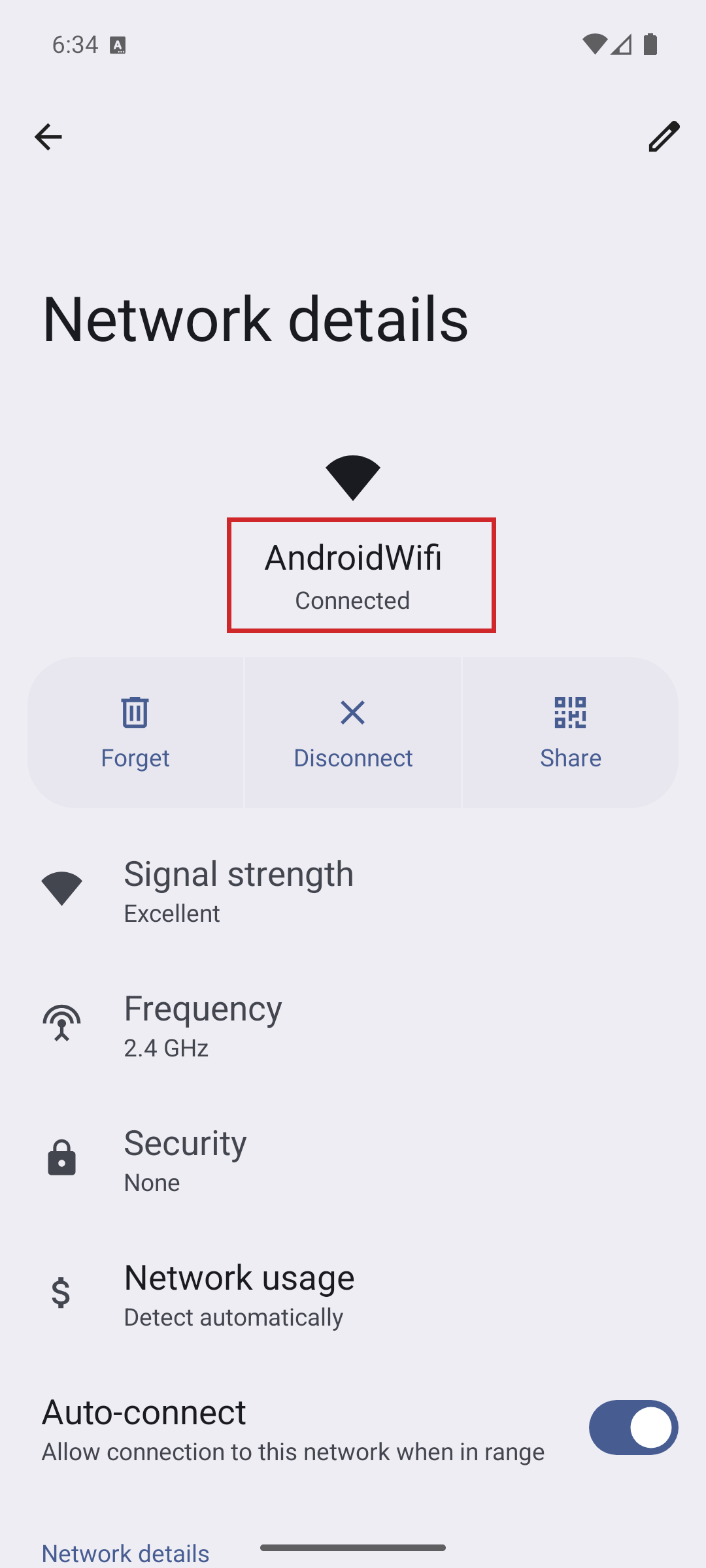
Open a trusted webpage you know is normally available. Try another site if only one fails. Refresh the page or make a new request: a page's previously loaded text can remain visible after connectivity stops.
In our test, Chrome retained the old Example Domain page while showing No internet connection. A new request to the IANA reserved-domains page then failed with ERR_NAME_NOT_RESOLVED. The older page was not evidence that the connection still worked.
If you compare Wi-Fi with mobile data, account for possible data charges and confirm which connection the phone is using. We did not perform that comparison in the emulator.
If the other device is an iPhone, use our iPhone connected to Wi-Fi without internet guide for its settings and comparison steps. Keep both devices on the same Wi-Fi and record each result separately.
Check for a network sign-in requirement
On hotel, airport, or other guest networks, look for Android's Sign in to network notification and follow the network operator's legitimate login process. Google describes this case in its Wi-Fi connection guide.
Do not confuse a network login page with a broken Wi-Fi radio. If the page does not appear or repeatedly fails, ask the operator what is required. Do not install an unknown certificate or bypass a browser's certificate warning to continue this checklist.
This login scenario was not reproduced in our test.
If Android reports a Private DNS problem
In the emulator's controlled failure, the Internet screen still listed AndroidWifi, but added Private DNS server cannot be accessed.
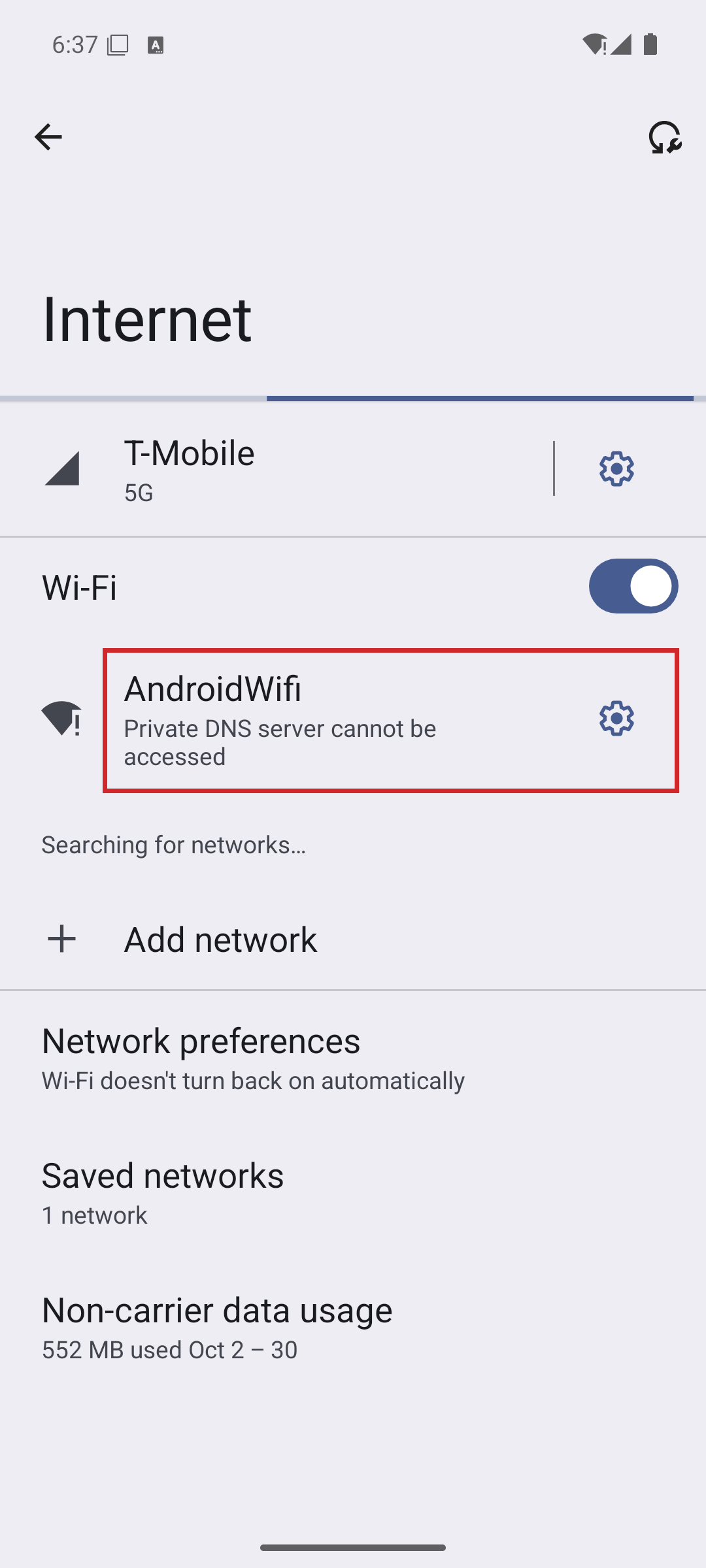
To inspect your setting:
- Open Settings → Network & internet → Private DNS. If the path differs, search Settings for Private DNS.
- Record the current mode and any custom provider hostname.
- If you intentionally use a custom provider, check its spelling and the provider's instructions. On a managed device, ask the administrator before changing it.
- If the custom value was an unwanted change and Automatic was your working configuration, restore Automatic, save, and retry a fresh webpage.
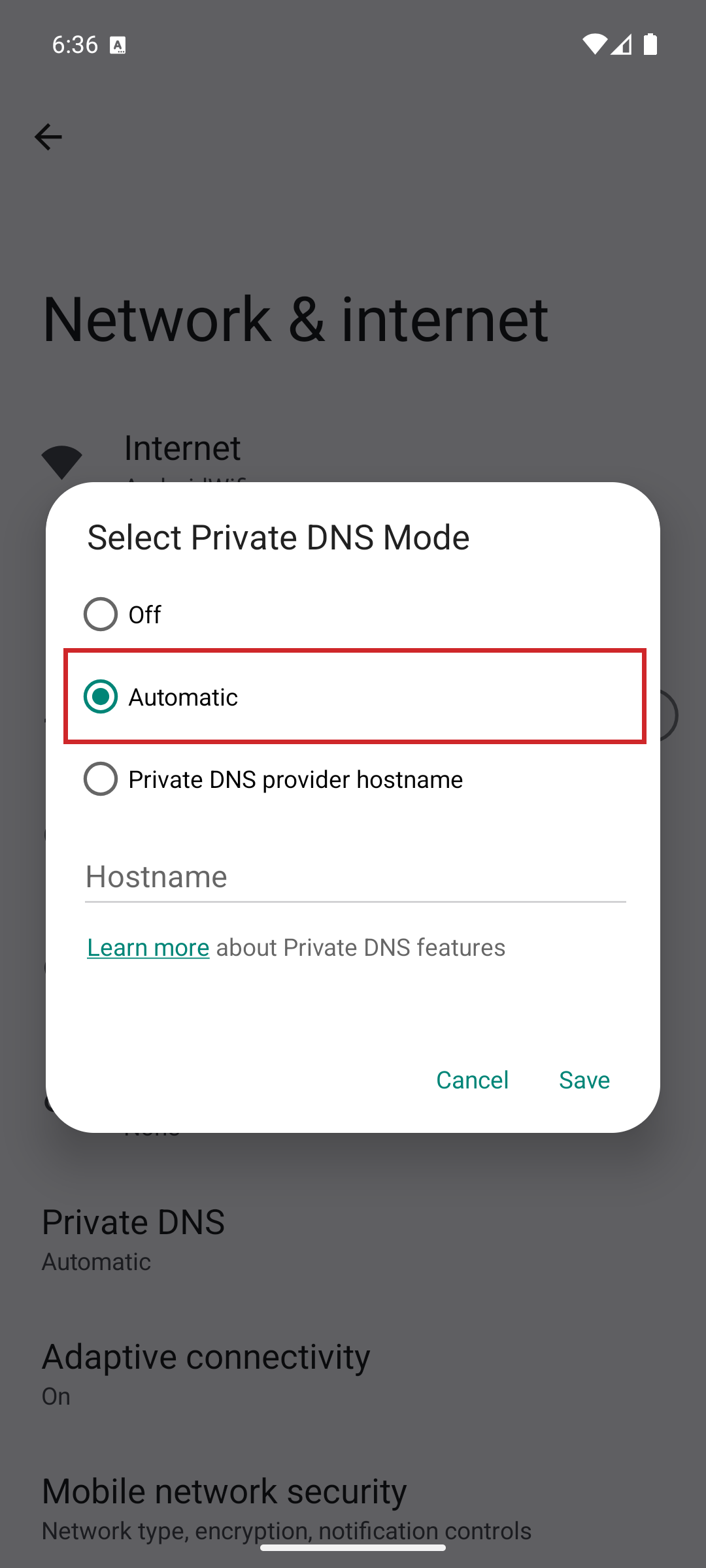
Google lists Off, Automatic, and Private DNS provider hostname, and recommends keeping Private DNS enabled. See its advanced network settings guide. Do not treat turning it Off permanently as a universal fix, or copy an arbitrary provider hostname from an example.
Compare the browser error with the network message
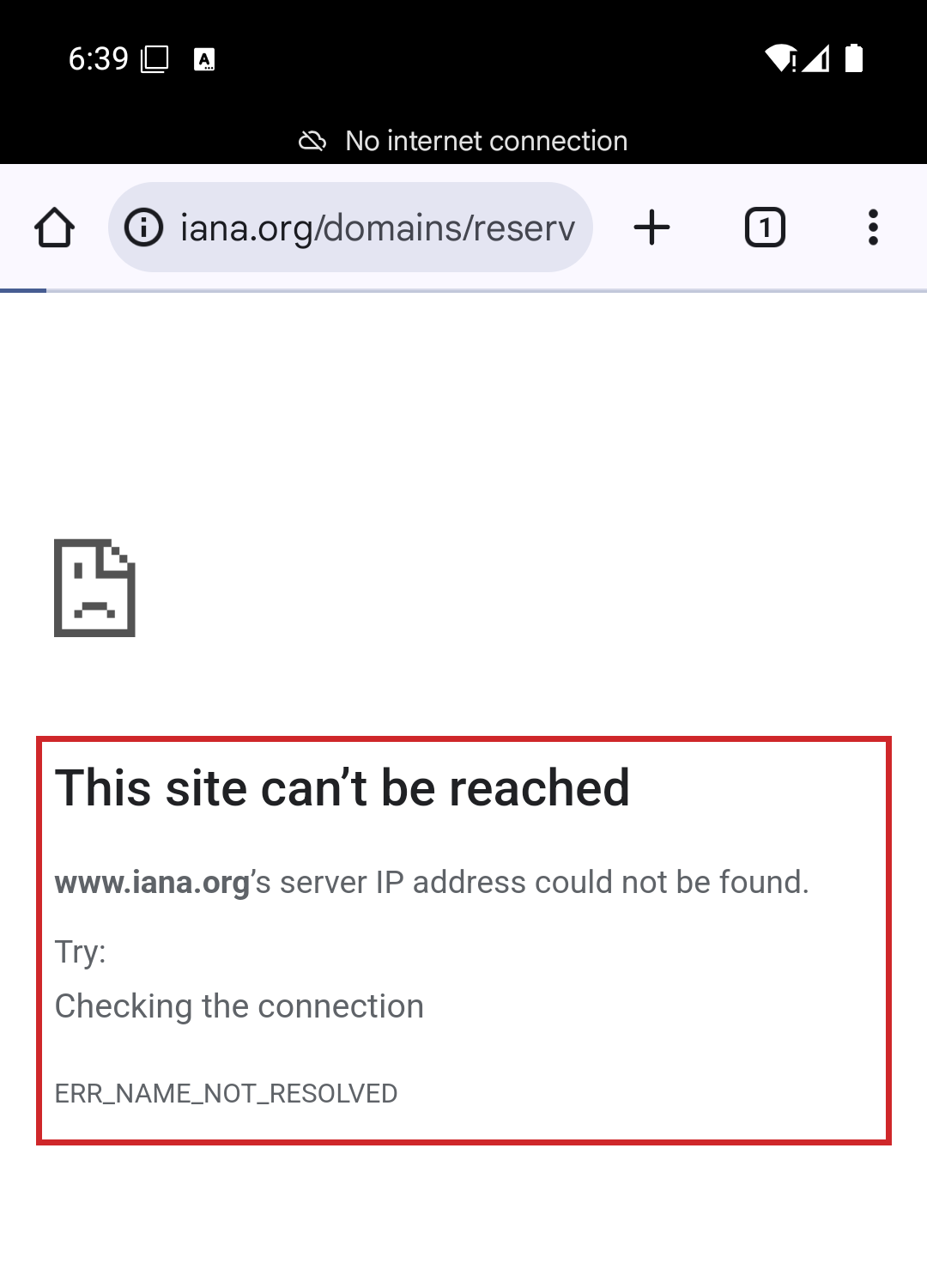
A name-resolution error supports investigating DNS in this particular comparison. The error code alone does not identify which DNS provider, network policy, or device setting caused someone else's failure. Use the network message and the before-and-after result together.
Check deliberate VPN or proxy changes before broader resets
If the problem began after installing a VPN or changing a proxy, record that change and consult the app or network administrator's instructions. A work or school connection may require a specific configuration; do not remove it blindly.
Our Network & internet page showed VPN: None. We did not reproduce a VPN or proxy fault, and we did not change the computer's network or VPN settings.
For routine reconnection steps, Google's general internet troubleshooting includes restarting the device and comparing connections. A router restart is a separate action that affects other users: do it only for a router you control and follow its instructions. Do not confuse a restart with a factory reset.
What we checked
| Stage | Android observation | Web observation |
|---|---|---|
| Original state | AndroidWifi connected; Private DNS Automatic | A webpage loaded. |
| Deliberately bad DNS setting | Wi-Fi still associated; Private DNS could not connect | A fresh IANA page request failed with ERR_NAME_NOT_RESOLVED. |
| Restored original DNS state | Automatic/default DNS restored; test hostname removed | Refreshing the same IANA URL loaded the page. |
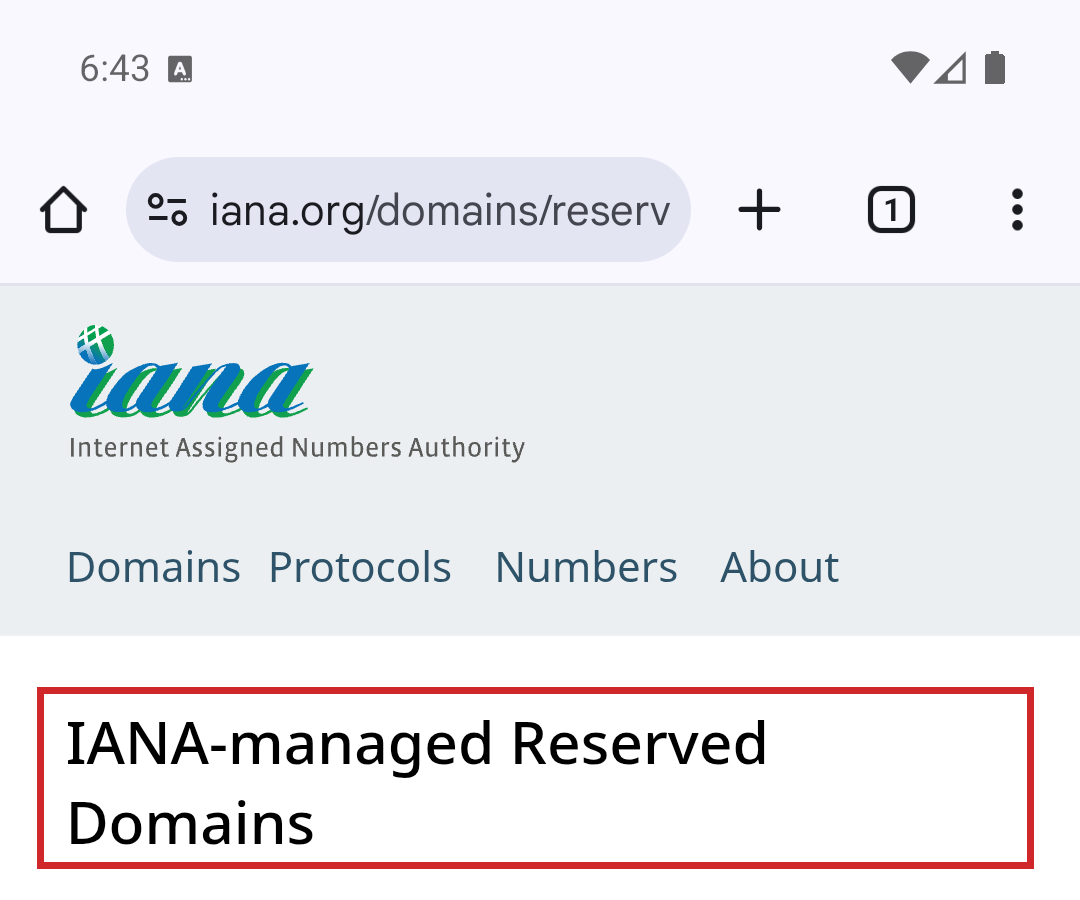
We observed the UI, checked Wi-Fi association, and confirmed the DNS-setting values. The original DNS configuration was restored, including removal of the temporary provider hostname used for this test.
No saved Wi-Fi network was forgotten, no network reset was run, and no router setting was changed. A successful page load is not a throughput measurement or a guarantee that every service is reachable. This test does not cover physical interference, ISP outages, roaming, captive portals, or device-manufacturer differences.
If the problem remains
Record the exact Wi-Fi and browser messages, phone and Android versions, whether other devices work on the same network, and whether the phone works elsewhere. Include any recent DNS, VPN, or proxy change, but keep passwords and private network details out of public reports.
If all devices fail on the same network, contact its operator or internet provider with those results. If only this device fails, use the phone maker's matching troubleshooting path. Forgetting a network requires being able to reconnect, including any password; broader network-reset consequences vary by device. Neither action was tested here or is required just to complete this guide.
Relevant sources
Your reading checklist
Optional notes for this device. A checked box records your progress, not whether a fix worked.
Progress is stored only in this browser when storage is available.
Something doesn’t match?
Report the differing step, including the Android version and exact message. Do not send Wi-Fi passwords, account credentials, or sensitive network information.