Quick answer
Open Snipping Tool and try New first. If manual capture works but Windows + Shift + S does nothing, investigate the shortcut and keyboard. If the capture toolbar opens, select an area and test Ctrl + V in Paint before assuming the screenshot failed.
The shortcut, capture selection, editor and clipboard are separate parts of the workflow. A missing notification does not establish which part failed.
Start with two short capture tests
- Open a blank document containing ordinary test text.
- Press Windows + Shift + S, choose Rectangle and drag around the text.
- Open Paint and press Ctrl + V. Note whether the image appears.
- Open Snipping Tool from Start, select screenshot mode and choose New. Repeat the selection and paste test.
Microsoft describes both capture entry points in its Snipping Tool guide. Record the result of each test rather than treating every symptom as a broken shortcut.
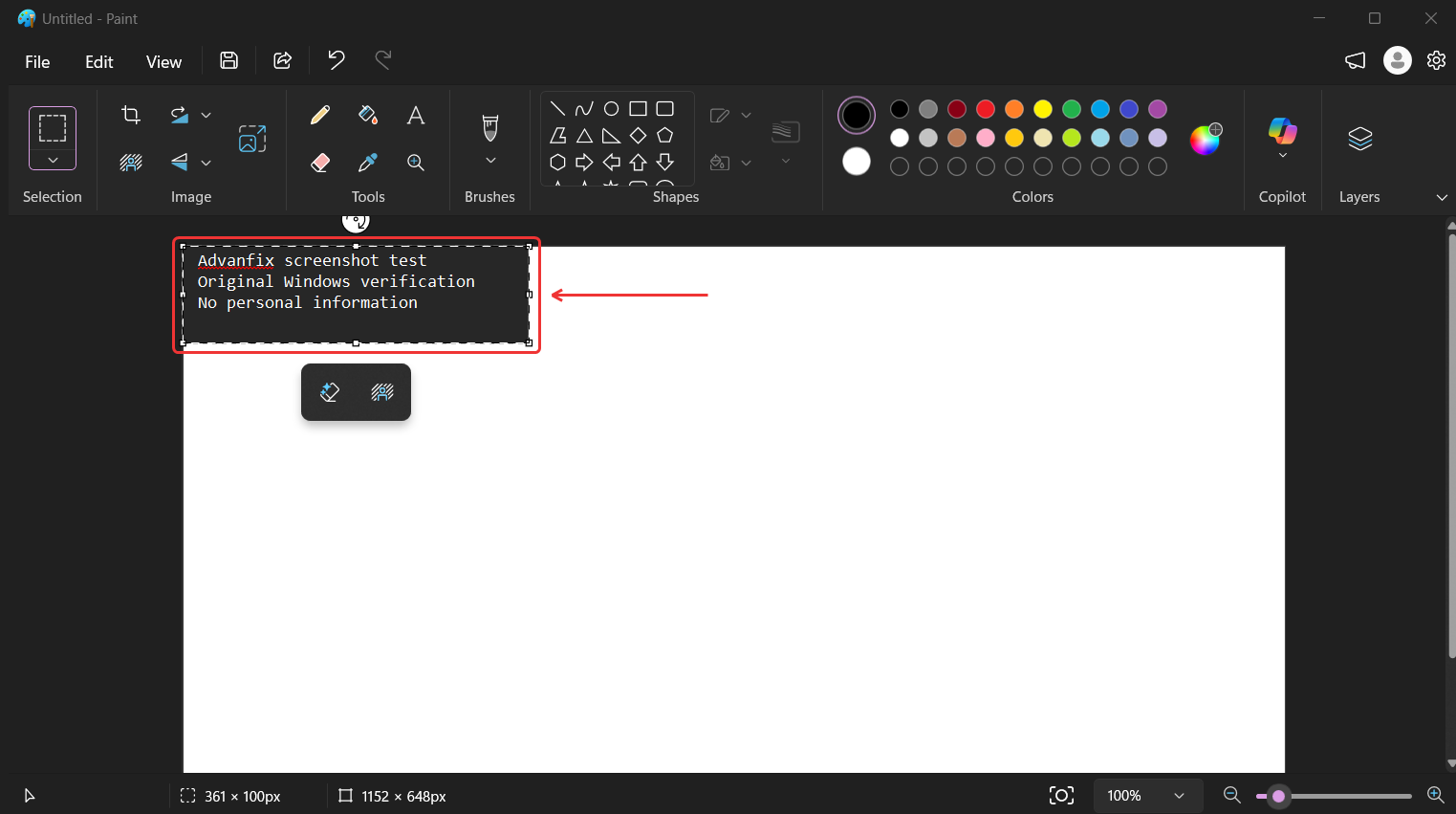
We confirmed both Windows + Shift + S and manual New captured and pasted successfully.
Choose the next check from the result
- New works, but the shortcut does nothing: check the Windows, Shift and S keys, then investigate shortcut conflicts.
- The toolbar opens and Paint receives the image: capture and pasting work; investigate notification or editor behavior separately.
- An image is in the editor but will not paste: focus the editor, press Ctrl + C, then test Paint again.
- New also fails or the app will not open: investigate the application and its repair options.
If only the shortcut fails
Check whether the Windows key opens Start. In a blank document, test S and Shift with an uppercase letter. If a key fails, try another keyboard before changing the capture app.
A keyboard’s gaming mode or Windows-key lock may affect the shortcut. Consult that keyboard’s instructions; there is no universal unlock combination. If a remapper or another screenshot utility assigns the same keys, temporarily pause that assignment and repeat the same test. Record the original setting and restore a change that makes no difference.
If the capture does not paste
Use an image-capable destination such as Paint. A text-only field cannot prove whether the image clipboard is working. Ctrl + V pastes the current item; Windows + V opens clipboard history. See Microsoft’s clipboard reference for the distinction.
Repair the app only when the symptom calls for it
Save unsaved snips and other work. Restart Windows and repeat the original test; check Microsoft Store for a Snipping Tool update. If the app still fails, follow Settings → Apps → Installed apps → Snipping Tool → menu → Advanced options → Repair, when available. Retest New and the shortcut.
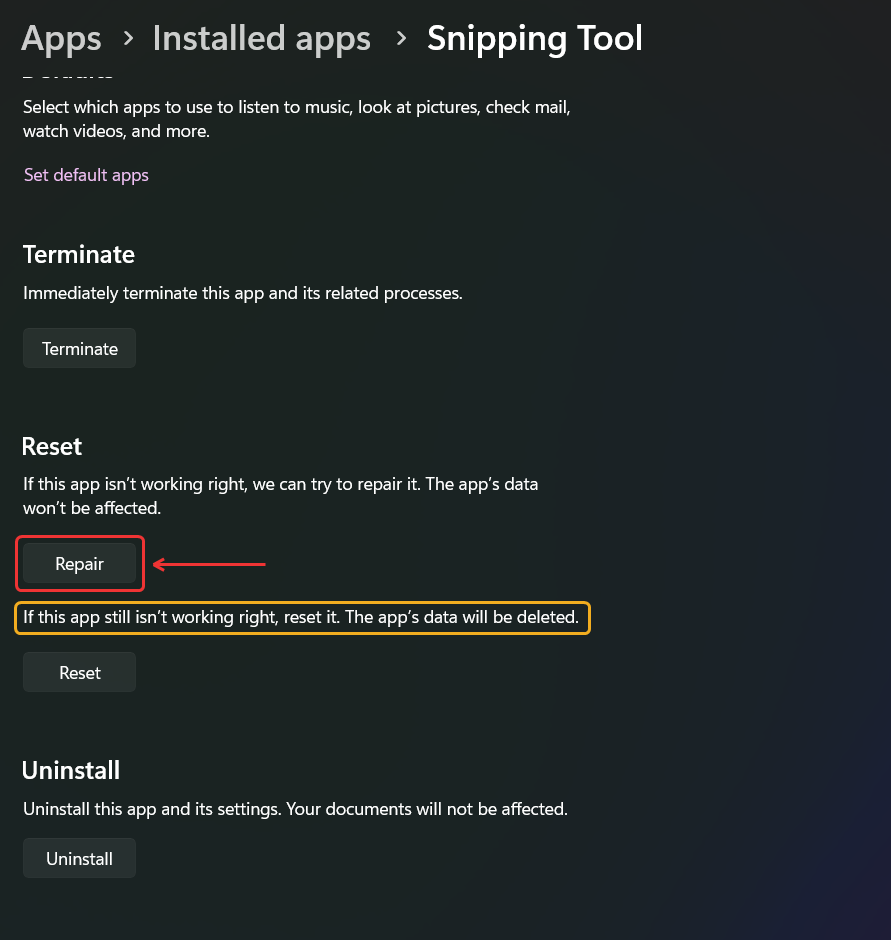
The available repair controls; Reset was not performed.
Read the Reset warning before considering it. Reset deletes app data; it is not a harmless screenshot-taking step. Preserve important snips and preferences first. Microsoft explains the available controls in Repair apps and programs.
What we checked
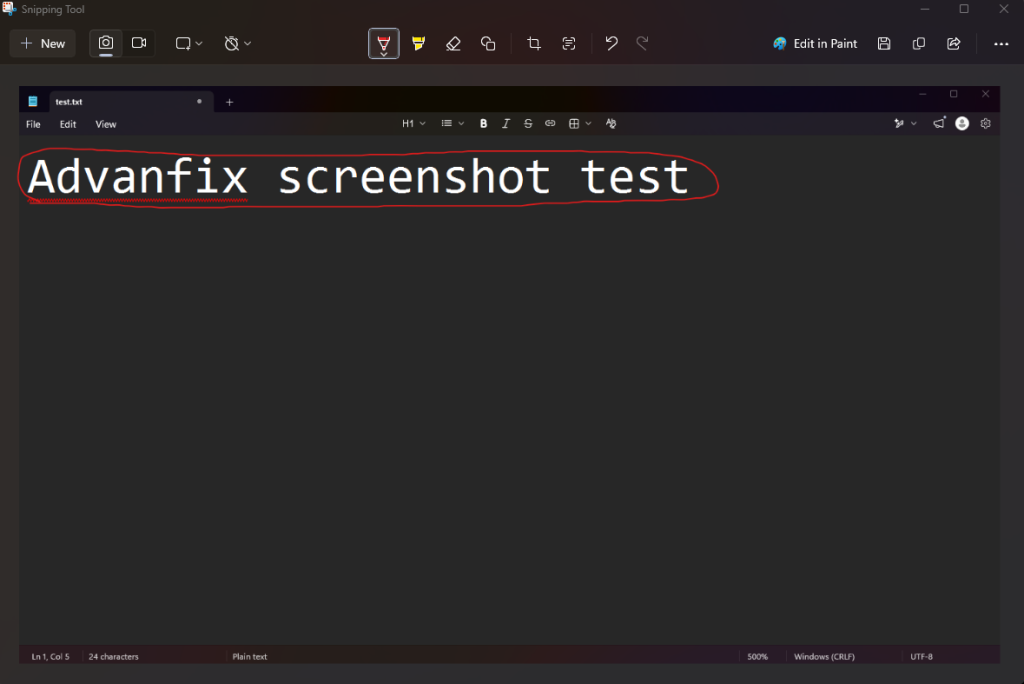
On 29 October 2026, we confirmed successful Windows + Shift + S → Rectangle → paste in Paint, and the same result through manual New. The prepared Paint window was captured for the image above. We performed these checks manually, without automated key presses.
The PC reported Windows 11 Home 26H2, build 26300.9711, and Snipping Tool 11.2608.41.0. An earlier separate editor check confirmed copying an annotation and saving it. Repair also completed with a success mark. No original shortcut failure was reproduced, so we do not claim Repair caused a fix. Reset was not performed.
If the problem remains
Keep the Windows build, app version, the separate New/shortcut results and any exact error message. Those details make a support report useful. On a managed PC, give them to your administrator rather than copying registry edits or bulk removal commands without a diagnosis.
Relevant sources
Snipping Tool guide ↗Microsoft’s clipboard reference ↗Repair apps and programs ↗Your reading checklist
Optional notes for this device. A checked box records your progress, not whether a fix worked.
Progress is stored only in this browser when storage is available.
Something doesn’t match?
Tell us which step differs from your device. Include the OS and app versions if you know them.
Report an issue with this guide →