Quick answer
Open your file manager, open a folder or file category, and look for More → Sort by → Size (largest first). Review the largest items individually before selecting anything to delete.
If you use Files by Google, its Clean menu also offers a Delete large files card when available. Before confirming deletion in either app, read the actual dialog: a file manager named Files does not necessarily offer Trash. Keep a usable backup of anything you may need again.
Checked on October 30, 2026 in Android Emulator 37.2.13, with a Pixel 7 hardware profile, Android 16/API 36, build BE2A.250530.026.D1, and an English interface. The image reports a July 5, 2025 security patch; this identifies our test image and does not imply current security updates.
The tested app was the system Files, package com.google.android.documentsui, version 16. It was not Files by Google. The agent sorted three disposable files, deleted one through the interface, and copied it back from a computer backup. The restored file matched the original SHA-256 checksum. Files by Google's Clean and Trash routes were checked against documentation only. Physical phones, SD cards, and cloud-synced deletion were not tested.
Before you delete anything
Size identifies a storage candidate, not a file that is safe to remove. For each item, check:
- Do you recognize its contents and know which app uses it?
- Do you still need this copy on the phone?
- If it matters, can you open a usable backup somewhere else?
For an important video or document, verify the other copy before deleting the original. A filename or sync indicator alone does not establish that the backup is complete.
Find the largest files in a folder
- Open your device's Files or file-manager app.
- Open the folder or category you want to inspect, such as Download, Videos, or Documents.
- Use list view if it makes the filenames and sizes easier to compare.
- Open More (the three-dot menu), then Sort by.
- Choose Size (largest first), or the equivalent descending size order.
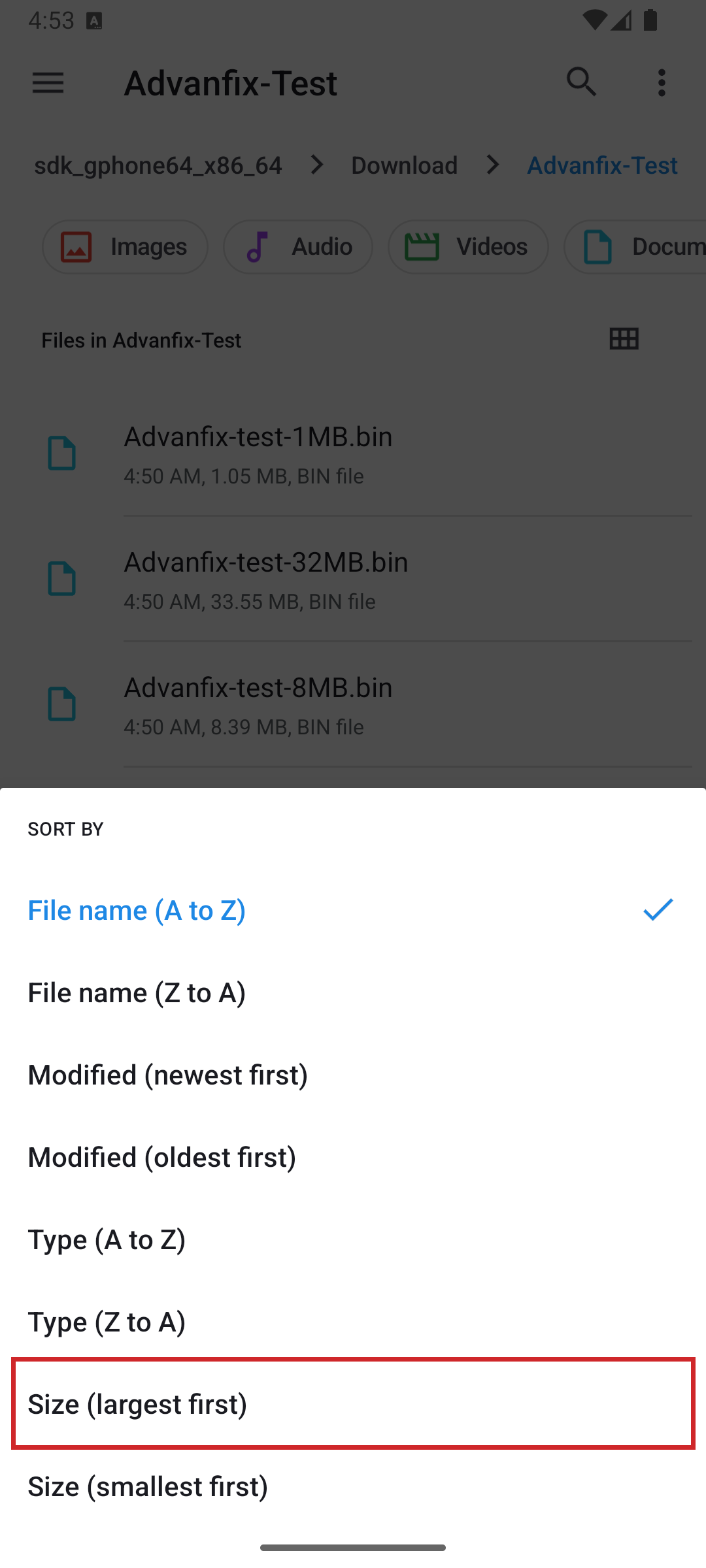
In our setup, we opened the side menu, selected the device's internal storage, and browsed to Download → Advanfix-Test. The device storage entry was named sdk_gphone64_x86_64. Your phone may use a different label. The Downloads shortcut initially did not show our computer-copied folder; browsing the storage path did.
Google's Android file guide describes sorting by name, date, or size and notes that the device's file app can vary. If your menu differs, check the app name and the manufacturer's instructions rather than assuming every Files app has identical controls.
If you use Files by Google
Google documents this separate route: Menu → Clean → Delete large files → Select files. Review your selections, then use Move x files to Trash and read the confirmation. See Google's large-file instructions.
That card was not available to test in our system Files app. If a card is missing, inspect folders and categories by size instead; its absence does not prove that no large files exist.
Read the deletion dialog before confirming
Select only the items you have reviewed. Check the selected count and the filename in the confirmation.
In the tested system Files app, tapping the file icon selected one item. The toolbar's delete icon opened Delete "Advanfix-test-32MB.bin"?, with Cancel and OK. It did not offer Move to Trash.
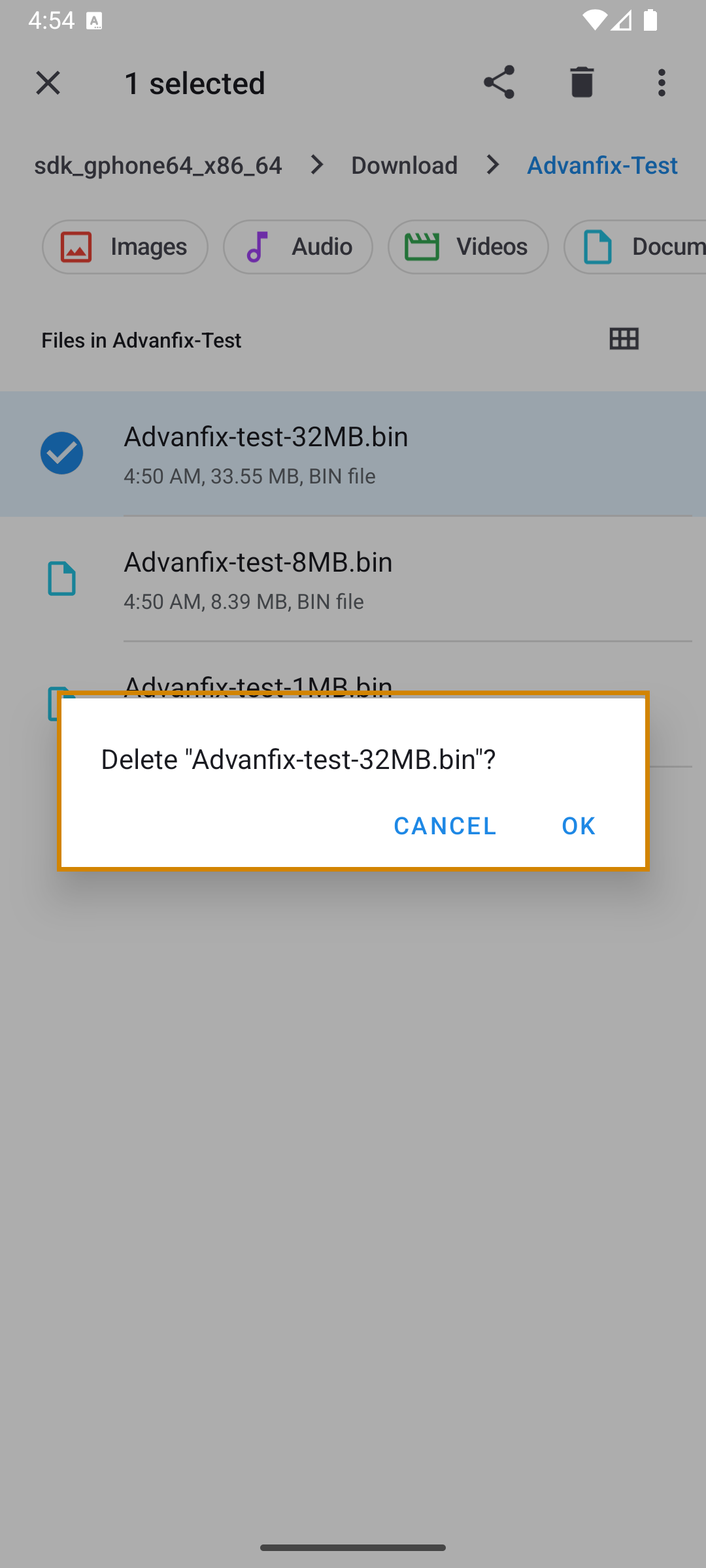
If a dialog offers direct deletion and you still need the file, cancel until you have verified another copy. Do not rely on finding a recycle bin afterward.
Restore from Trash or from your backup
For Files by Google, Google's Trash guide says files remain in Trash for 30 days. Open Menu → Trash, select the item, and use Restore, then confirm. Deleting items from Trash is permanent; the Junk files cleanup also bypasses Trash. We did not test those actions in this emulator.
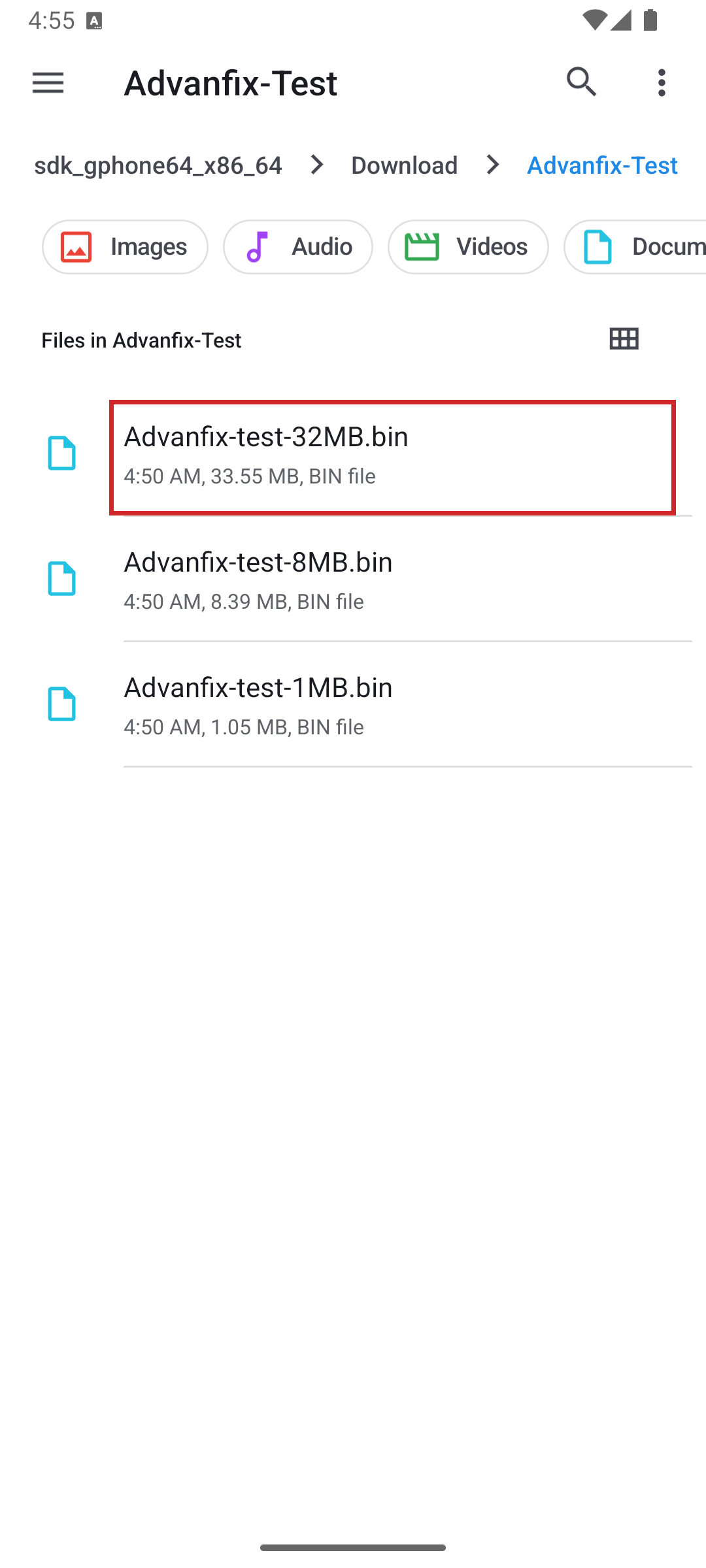
For the tested system Files route, we restored our file by copying the backup from the computer to its original folder. We did not recover it from Trash or retrieve deleted bytes from the phone.
Check the result
Confirm that the intended file disappeared from the folder and that files you meant to keep remain. If you restored a file, verify that the returned copy is usable.
You can also review device storage in Settings. Storage figures can change during background activity, and deleting a file is separate from clearing an app's cache or reducing a cloud quota. For downloads held inside a streaming app, use that app's download controls when the items are not ordinary files in your file manager.
What we checked
| Check | Observed result |
|---|---|
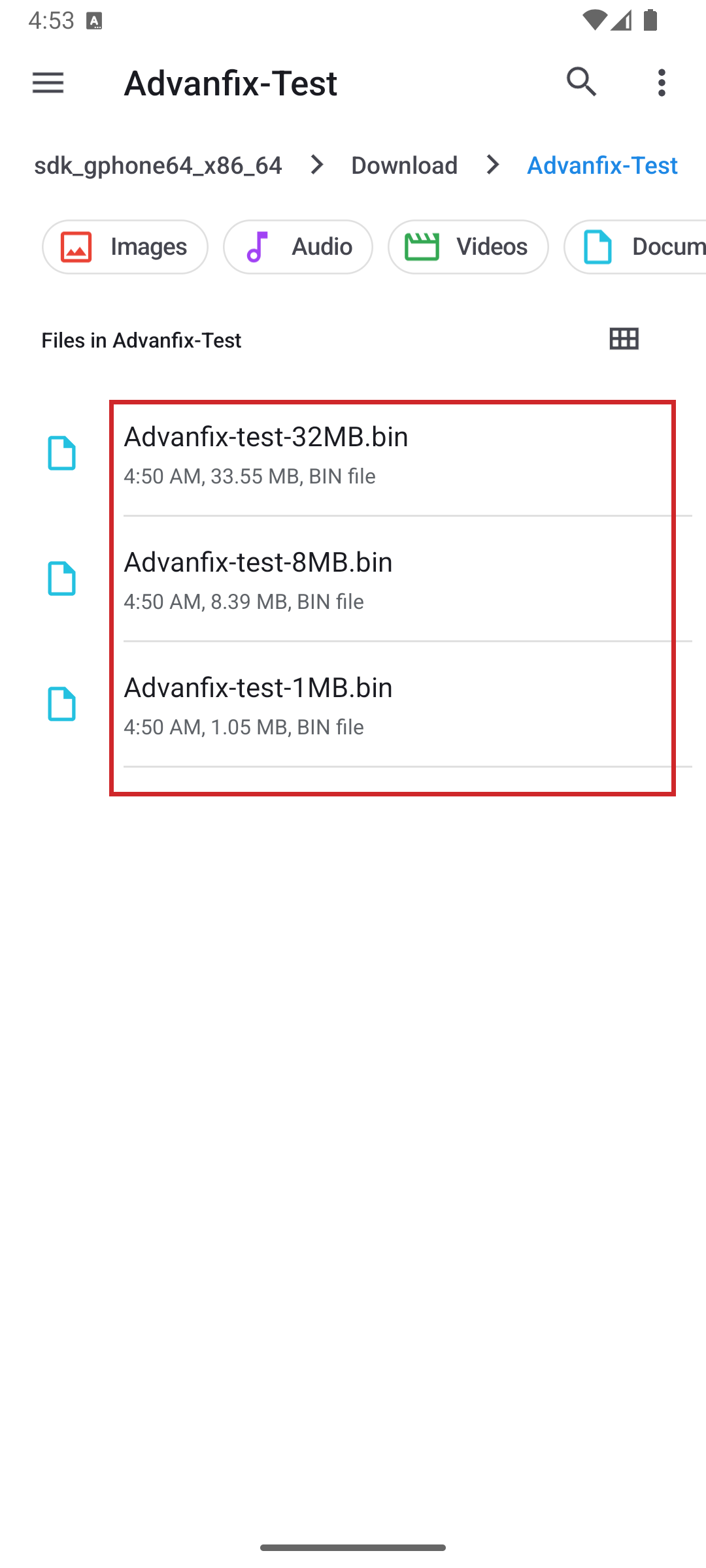
| Size sorting | Three test files appeared as 33.55 MB, 8.39 MB, and 1.05 MB, largest first. |
| Selection and deletion | One named file was selected and confirmed; the 33.55 MB file disappeared. The other two remained. |
| Backup restoration | The same file was copied back from the computer and reappeared in its folder. |
| Integrity | The restored file's SHA-256 matched the original computer copy and the pre-deletion device copy. |
The filenames use 1, 8, and 32 MiB sizes; Files displayed decimal MB. The largest file contained exactly 33,554,432 bytes. This explains the 33.55 MB display without implying a size change.
This was a controlled file-management test. We did not test automatic large-file detection, the 30-day Trash period, recovery without a backup, or a guaranteed amount of permanent space savings.
Relevant sources
- Google: Find and delete files on Android — file apps, sorting, and device differences.
- Google: Delete large files in Files by Google — the separate Clean route.
- Google: Move files to Trash and restore them — retention and the distinction from permanent deletion.
Your reading checklist
Optional notes for this device. A checked box records your progress, not whether a fix worked.
Progress is stored only in this browser when storage is available.
Something doesn’t match?
Report the differing step, including your phone model, Android version, and file-manager name. Do not include private files or account credentials.