Quick answer
To clear Safari cookies and cache while keeping browsing history, open Settings → Apps → Safari → Advanced → Website Data and choose Remove All Website Data. If you also want to erase history, use Clear History and Website Data instead.
These actions can remove website sign-in data. “Keep history” does not mean “keep every website session.” Choose the option based on what you want to retain.
We reviewed our screenshots on November 23, 2026. iPhone 15, iOS 26.6.1, English interface. We inspected Safari settings, the Clear History sheet and the Website Data warning. The images document the controls before confirmation. Actual deletion and resulting changes to history, sign-ins and AutoFill were not tested.
Decide what you want to remove
| Your goal | Which option to consider |
|---|---|
| Remove website cookies and cache but keep history | Advanced → Website Data → Remove All Website Data |
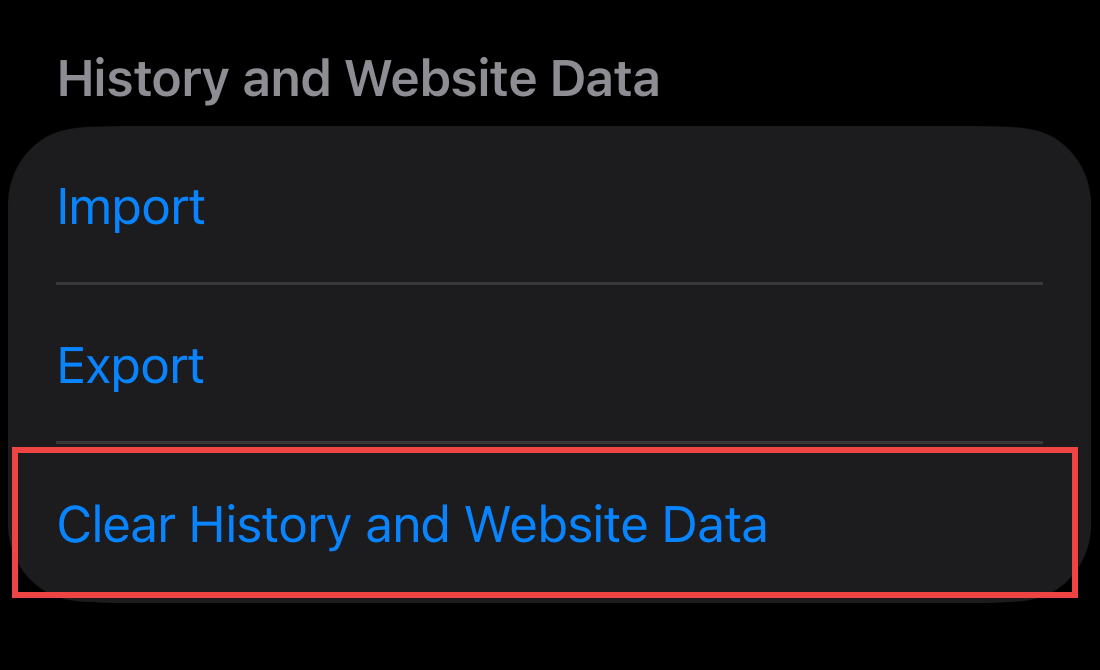
| Remove history as well as website data | Clear History and Website Data |
| Fix one site without immediately clearing everything | Test that site's behavior first and review the available site-data controls |
Apple documents the first two workflows in its Safari data guide. On an older Settings layout, search Settings for Safari if Apps is not shown.
Prepare before clearing
Finish any unsent form or web task. Make sure you can sign back into sites you need, including access to any required verification method.
Write down the symptom you are testing: a broken layout, an outdated page, or a repeated sign-in problem. If a page loads differently afterward, comparing the same task helps you judge whether clearing data made a useful difference.
Do not expect a cache cleanup to resolve every website failure. A site can have its own outage or account problem.
If several websites and other apps also fail to connect, use our iPhone Wi-Fi troubleshooting guide first. Removing Safari data does not repair a wider network outage.
Clear website data while retaining history
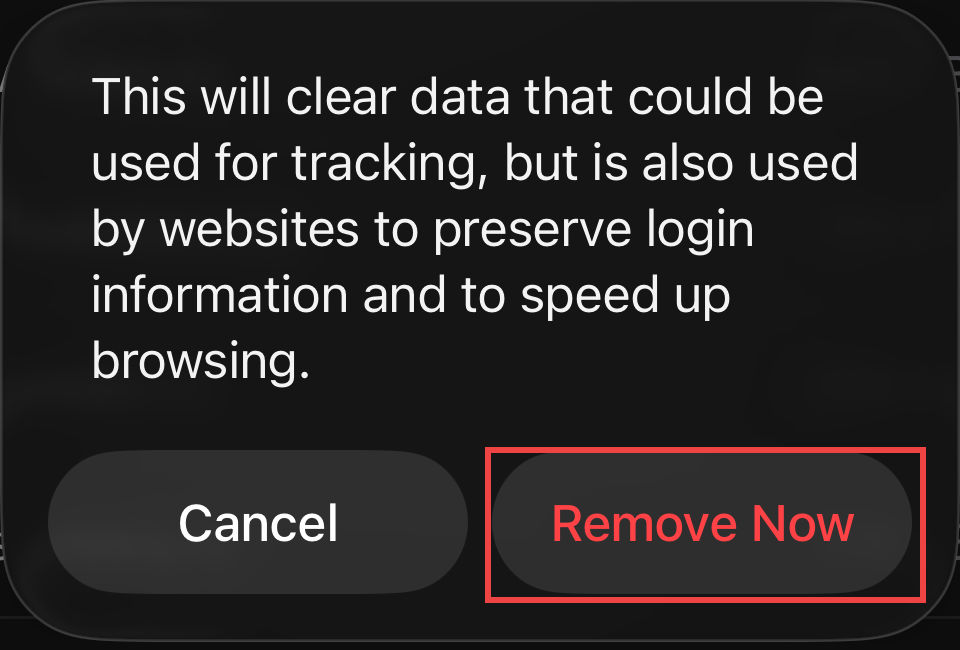
In Safari's Settings, open Advanced, then Website Data. Select Remove All Website Data and read the confirmation before continuing.
Afterward, reopen the affected site. Be prepared to sign in again and reset site preferences. This route preserves browsing history according to Apple's guide, but removes website data used for tracking and remembering logins.
If retaining a particular sign-in is essential, postpone the all-site action until you have confirmed access to that account.
Clear history as well
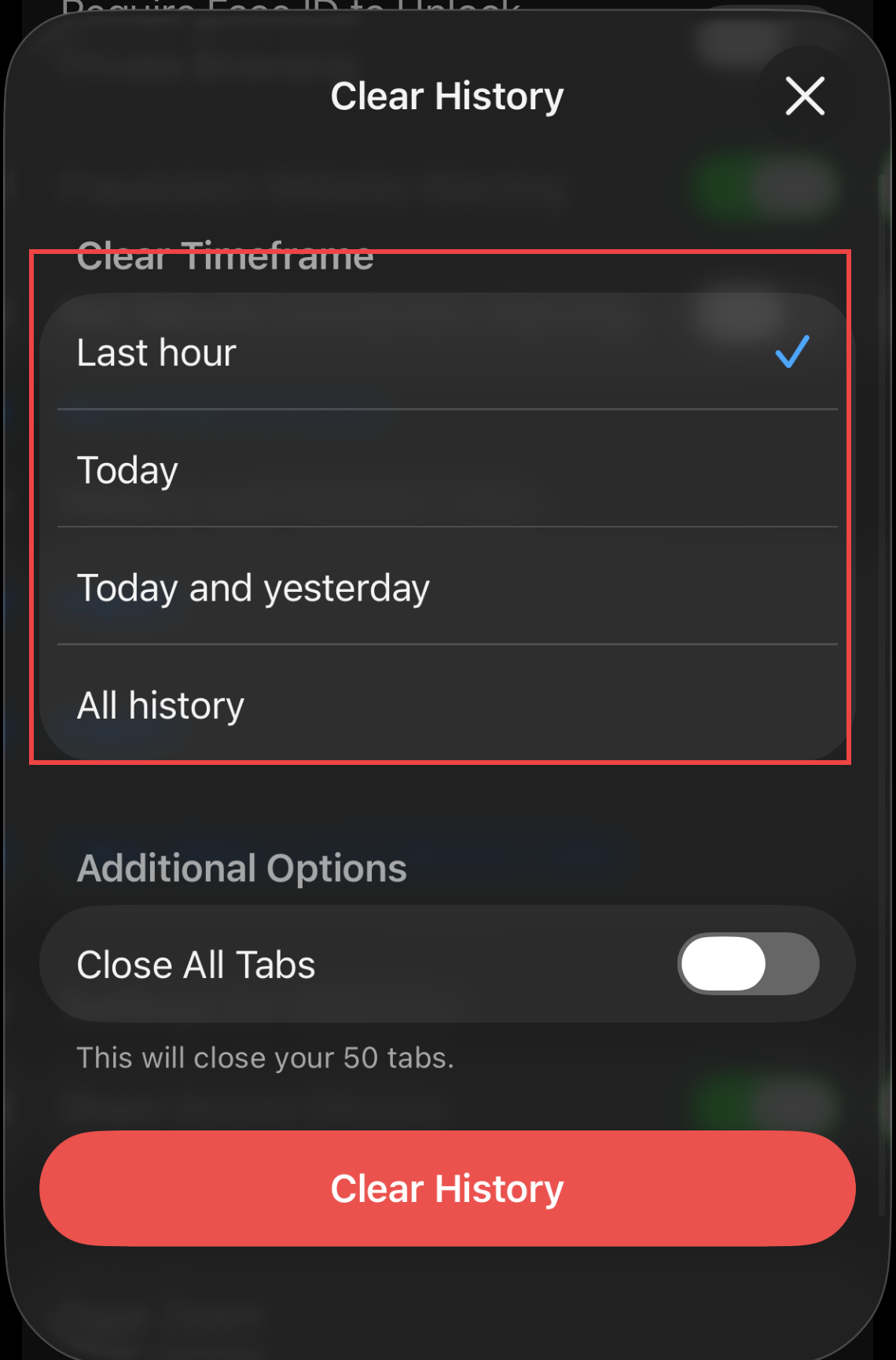
Return to Safari's main Settings and choose Clear History and Website Data. Review the available timeframe and any profile choices before confirming. Our iOS 26.6.1 screen also offers Close All Tabs as a separate switch. Review its state before confirming the cleanup.
Apple says this does not change AutoFill information. That is different from retaining cookies: an available AutoFill entry does not mean a website will still consider you signed in.
Apple's iPhone user guide also explains that clearing Safari history does not erase histories kept independently by websites or other apps. Do not use this action as a substitute for deleting records in those services.
If the clearing option is gray
Apple identifies two possibilities: there may be no data to clear, or Screen Time web-content restrictions may apply. Check which situation fits before trying broader resets. On a managed or family-controlled device, ask the person responsible for those restrictions.
Do not turn on Block All Cookies as a routine repair. Blocking cookies can interfere with normal website sign-ins and features.
Verify the result
Open the original page again and repeat the failing action. Check whether the layout or sign-in issue changed. If it persists, record the website, exact error, and whether other sites work.
Record which data you cleared and whether the original website task now succeeds.
What we checked and what remains
We inspected our Safari controls and both confirmation screens. The Clear History sheet showed Last hour selected, additional timeframes, and a separate Close All Tabs switch. The Website Data dialog warned about removal of saved login information. These are menu and warning checks. The supplied images do not establish completed deletion or its effects on website sessions, history or AutoFill.
Relevant sources
Your reading checklist
Optional notes for this device. A checked box records your progress, not whether a fix worked.
Progress is stored only in this browser when storage is available.
Something doesn’t match?
Tell us which step differs, the application version and your operating system. Report a guide issue.