Quick answer
Check available iCloud storage and your iPhone's Next Backup Size. Free space on the iPhone itself does not tell you how much space is available for an iCloud backup. If the next backup will not fit, reduce what needs backing up, free cloud storage carefully, or choose more storage.
Do not start by deleting the only backup you have. First decide what you need to protect.
We reviewed our original screenshots on November 23, 2026. iPhone 15, iOS 26.6.1, English interface. We reviewed iCloud storage, Backup Details, app switches and the recorded last-backup timestamp. The account had available capacity. A storage-shortage failure, backup deletion, coverage changes and recovery were not tested.
Compare the two relevant numbers
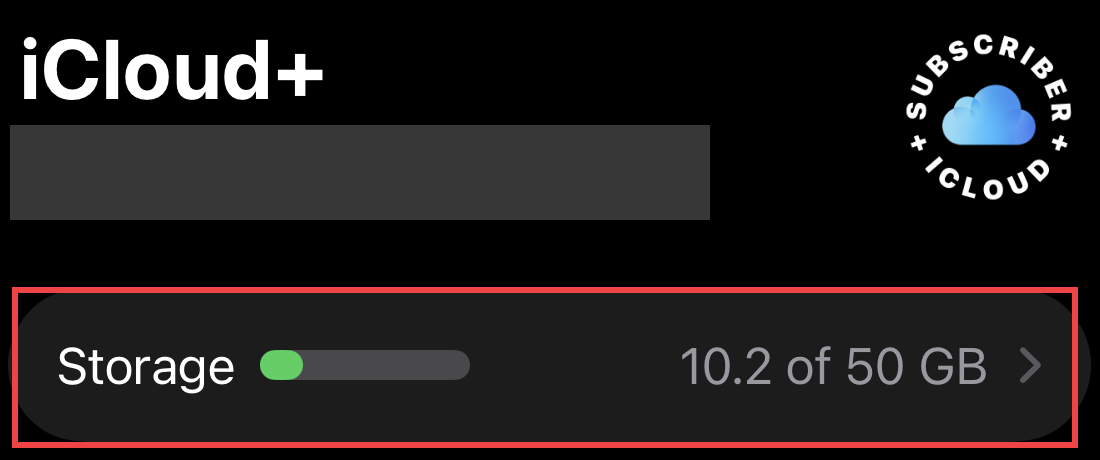
Open Settings → [your name] → iCloud and check your cloud usage. Open Storage (or Manage Account Storage), then Backups → this iPhone. Allow time for Next Backup Size to calculate.
Compare that estimate with available iCloud space. Apple's backup troubleshooting uses this comparison to identify the capacity problem.
For example, if a prospective backup needs more space than remains in your account, removing a downloaded film from the phone may not address the cloud shortage. Identify which storage category you are changing before deleting anything.
Reduce the backup only where you can accept the trade-off
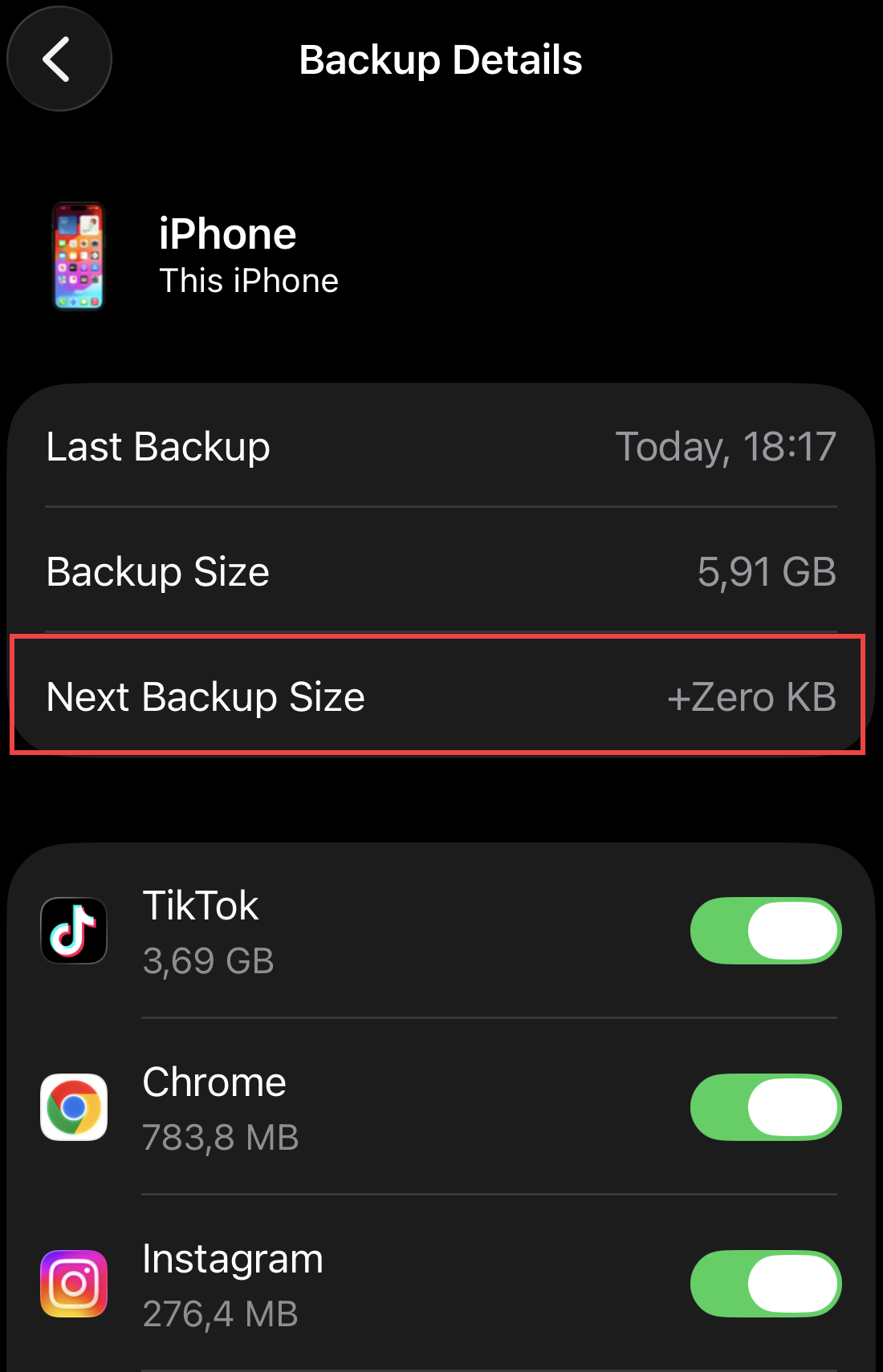
In this device's backup details, review which apps contribute data. Exclude an app only if you understand how you would recover its information.
Apple explains that turning off an app's backup also removes that app's backup information from iCloud. It is not simply a way to pause an upload. Some apps cannot be excluded. See Apple's storage management guide.
A useful decision is: “Would I be comfortable losing this app's local data if this phone stopped working today?” If the answer is no, keep a recovery method before reducing its backup coverage.
Review old backups and other cloud content cautiously
An old device backup may be removable if you no longer need it, but check its device name and date first. Deleting a device backup also turns off iCloud Backup for that device. Do not assume that deleting the current copy will leave ongoing protection unchanged.
Treat synced content separately from backups. Before deleting a cloud file or photo, verify a copy you intend to keep. Removing content from a synced service can affect other devices using that service.
If you are unsure what a large category contains, stop and identify it. A smaller storage total is not a successful outcome if important information has been removed.
Choose more storage or a computer backup
If the data matters and you cannot safely reduce it enough, review the iCloud+ options displayed for your account. Check the current price and capacity there rather than assuming a fixed price from a guide.
A computer backup is another option, using Apple Devices on Windows or Finder on a supported Mac. It needs sufficient computer storage and a completed backup you can identify. It does not increase your iCloud quota. Apple's Windows backup guide explains the local backup workflow. Our iPhone-to-computer backup guide walks through Windows and Mac, encryption, and how to identify a completed local copy.
Retry and confirm completion
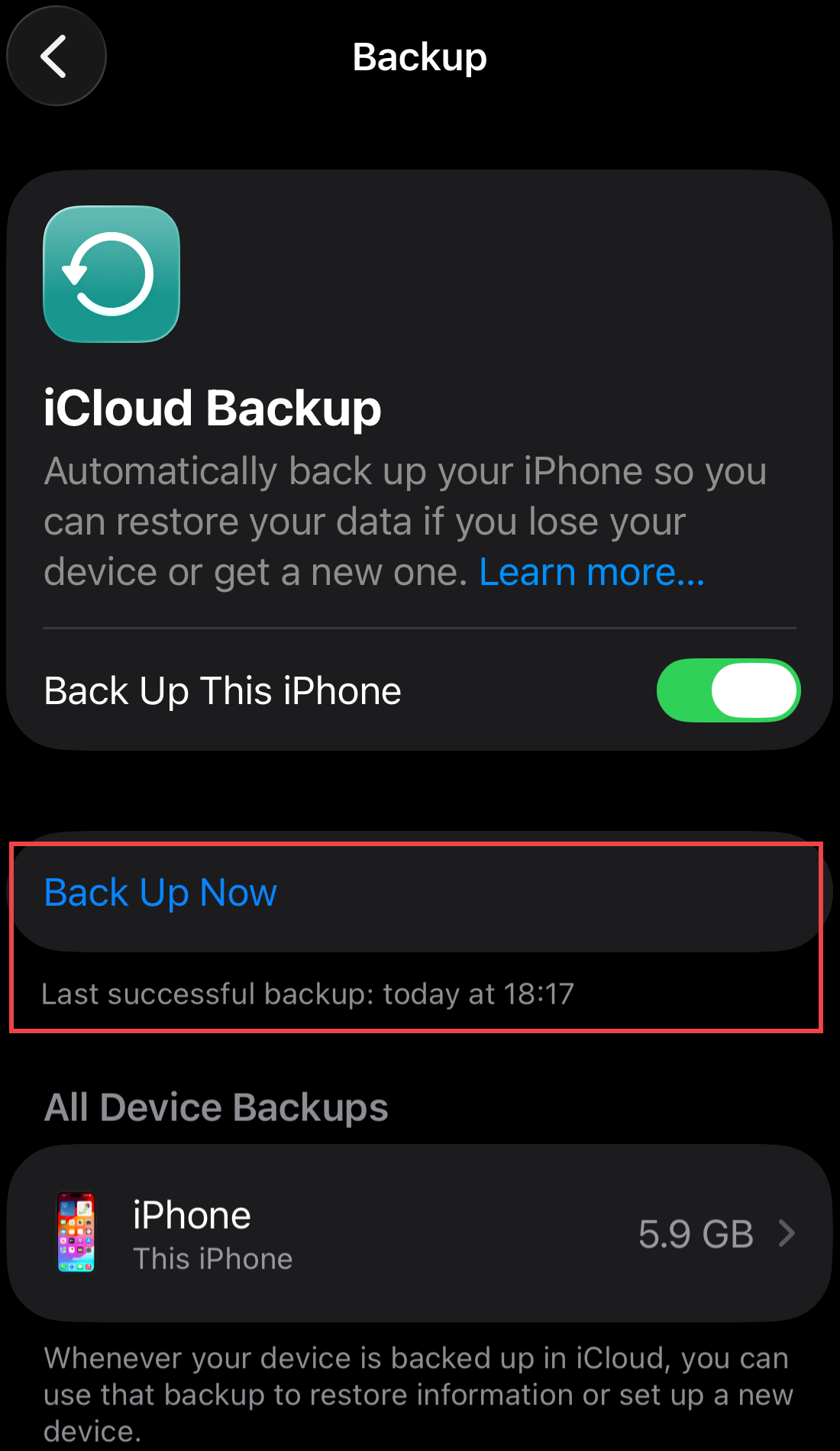
After addressing capacity, open Settings → [your name] → iCloud → iCloud Backup and choose Back Up Now. Stay on Wi-Fi until it finishes, then check the last-backup timestamp. Apple's manual backup instructions show where to confirm completion.
If the error changes to a connection or incomplete-backup message, follow that new symptom. Record the exact wording, estimated size, available iCloud space, and last successful backup date for support.
Confirm a recent completed backup and record its coverage before relying on it.
What we checked and what remains
We inspected our original iPhone screens. iCloud showed 10.2 GB used out of 50 GB, an existing Backup Size of 5.91 GB, and Next Backup Size displayed as “+Zero KB”. Record the estimate exactly as your device presents it and keep it distinct from the size of an existing copy. The iCloud Backup screen recorded the last successful backup as today at 18:17. These observations document the working menus and recorded status. We did not reproduce the shortage error or observe a new iCloud backup run, deletion, app exclusion or recovery.
Relevant sources
Your reading checklist
Optional notes for this device. A checked box records your progress, not whether a fix worked.
Progress is stored only in this browser when storage is available.
Something doesn’t match?
Tell us which step differs, the application version and your operating system. Report a guide issue.