Quick answer
Connect the iPhone by cable, select it in Apple Devices on Windows or Finder on a Mac, choose a backup to the computer, and start the backup. Wait for completion and check the latest backup entry before disconnecting.
Choose an encrypted local backup if you need to include supported sensitive information such as Health data. Keep its password somewhere you can retrieve it later.
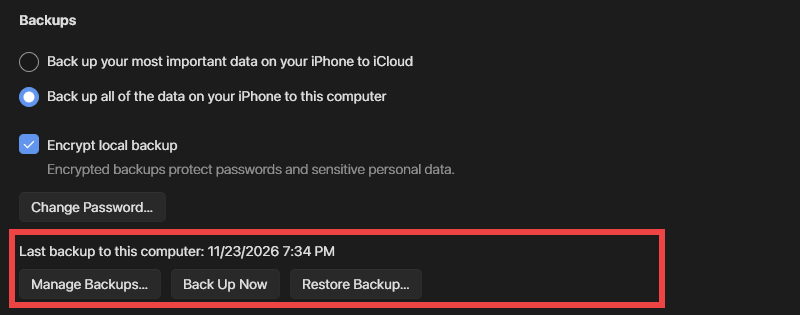
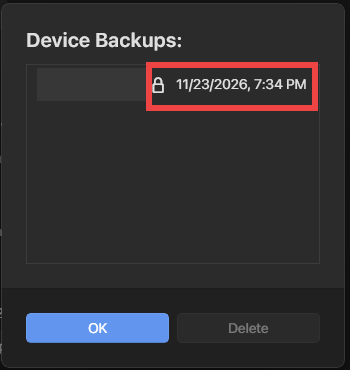
We completed a Windows Apple Devices backup and captured original screenshots on November 23, 2026. The connected device is an iPhone 15 on iOS 26.6.1. Apple Devices shows a local backup dated November 23 at 19:34 and the same entry with a lock icon in Manage Backups. Windows and Apple Devices versions were not recorded with the test. Mac backup and restoration were not tested.
Before you start
Use a computer you trust, make sure it has enough free storage, and keep the iPhone available to unlock and approve the connection. A cable that supplies power is not necessarily a reliable data connection.
Decide where you will store the encryption password before creating it. The backup is useful only if you can access both the backup files and any password required to restore them.
| Computer | Backup app |
|---|---|
| Windows with Apple Devices installed | Apple Devices |
| Mac with macOS Catalina 10.15 or later | Finder |
| Older supported setup using iTunes | iTunes |
Back up on Windows with Apple Devices
Connect the iPhone and approve Trust This Computer if asked. Open Apple Devices, select the phone in the sidebar, and open General.
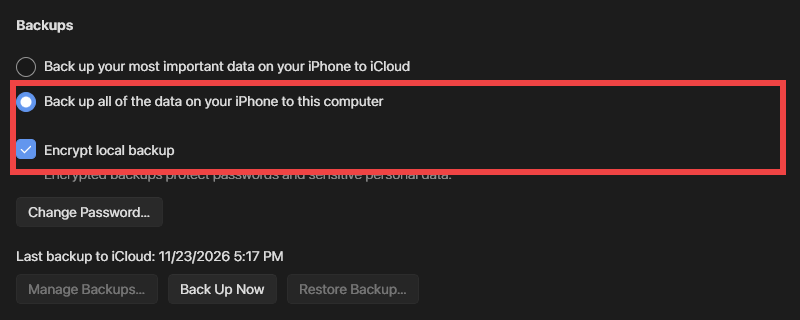
Choose the option to back up the iPhone's data to this computer, rather than to iCloud. Enable Encrypt local backup if appropriate, set the password privately, and follow the backup progress. Enabling encryption can itself start a backup and overwrite the previous backup set. Preserve any older copy you need before changing encryption. If no backup is running, select Back Up Now. When finished, use Manage Backups to inspect the resulting entry. These controls are described in Apple's Apple Devices backup guide.
If the iPhone is absent, resolve the connection first; pressing Sync is not a substitute for locating the backup controls.
Back up on a Mac with Finder
Connect and unlock the iPhone. Open Finder, select the phone in the sidebar, and approve the trust prompts on the Mac and iPhone when shown.
In General, choose a backup to the Mac. Select encryption if needed and follow the progress. Enabling encryption can start the backup. If it is idle, choose Back Up Now. Leave the device connected until the process completes and the last-backup date updates. See Apple's Finder instructions.
If your Mac uses macOS Mojave or earlier, Apple's instructions use iTunes instead. On Windows without Apple Devices, Apple also documents an iTunes fallback: select the device and use Summary. Windows and iTunes instructions.
Understand backup encryption
An encrypted local backup can include saved passwords, Wi-Fi settings and Health information that an unencrypted backup does not include. Face ID, Touch ID and the device passcode are not included.
Apple warns that forgetting the encryption password prevents use of the existing encrypted backups. Setting a new backup password later does not unlock an old copy. Check the lock indicator in the backup list and retain the password securely. Apple's encryption guide.
Keep the password out of screenshots and shared notes.
Confirm that you have a backup
Check the date and time, device name, and encryption status. Do not infer success just because the phone charges or appears in the sidebar.
Use Manage Backups to identify the backup location where supported. Apple documents Show in Finder or Show in Explorer in its backup management guide. Avoid manually renaming or editing individual files inside a backup.
A completed backup entry is evidence that the process finished. It is not the same as a successful restore test. If you need to validate recovery, plan that separately on an appropriate device.
What a computer backup does not solve
It does not expand iCloud storage or automatically make every cloud-only item available offline. Review how your important services sync and export information rather than treating one backup as a copy of every account you use.
Keep the backup computer protected, retain the password, and create a fresh backup after important changes. Before replacing or erasing an iPhone, identify the backup you intend to rely on and confirm that you have its password.
If the immediate problem is a cloud-capacity warning, see what to check when iCloud Backup reports not enough storage. A computer copy provides a separate backup destination; it does not expand the cloud account.
If the backup fails
Keep the device connected while checking any error. Record the exact message and whether the computer ran out of storage or lost the connection. Resolve that cause and retry, then confirm a new completed entry. If the problem persists, provide Apple with the device, computer and app versions and error wording.
What we checked and what remains
We selected a backup to the Windows computer with encryption enabled and completed the procedure. Apple Devices then displayed “Last backup to this computer: 11/23/2026 7:34 PM”. Manage Backups listed the same timestamp with a lock icon. We reviewed both original screenshots alongside the completion report. This supports the observed completion and encryption status. Recovery from the backup and the Mac workflow remain untested.
Relevant sources
Your reading checklist
Optional notes for this device. A checked box records your progress, not whether a fix worked.
Progress is stored only in this browser when storage is available.
Something doesn’t match?
Tell us which step differs, the application version and your operating system. Report a guide issue.