Quick answer
Start with PDFgear desktop for changing selectable text. Consider PDF24 Creator for annotations and page utilities. We saved an existing-text edit in PDFgear and an annotation in PDF24 on the same two-page sample. Page utilities are covered by the product documentation.
We used the same synthetic two-page PDF with selectable text on Windows x64 (build 26300.9711). PDF24 Creator 11.33.0 saved an annotation on November 10, 2026. PDFgear 3.0.1 saved a direct text edit on November 11, 2026. Ghostscript 10.08.0 extracted the text and rendered both pages. OCR, performance, network isolation and privacy were outside the test.
Compare the task before comparing the brands
| Decision | PDF24 Creator | PDFgear desktop |
|---|---|---|
| Primary reason to investigate | Local Windows PDF utilities | Documented direct text editing |
| Existing-text replacement | Not established for the installed build here | Verified in one saved selectable-text sample |
| Page and document operations | Creator documents a broad toolkit | PDFgear documents page operations |
| OCR | Workflow and resulting file need a practical check | Workflow and resulting file need a practical check |
| Local processing | Advertised for Creator | Documented for ordinary desktop workflows |
| Our measured winner | No comparative test | No comparative test |
Do not read the last two rows as a privacy certification. Offline success for one task and the behavior of online or AI features are separate questions.
Choose PDFgear for a direct-text-editing trial
PDFgear’s text-editing documentation advertises replacing and formatting original PDF text. Its Windows editing guide provides a starting point for the desktop workflow.
Use a copy of a selectable-text PDF. Replace a short phrase, save a new file and inspect it in another viewer. Check the new words, font, line breaks and whether the old phrase remains searchable. Repeat on a more complex page before adopting it for a long document.
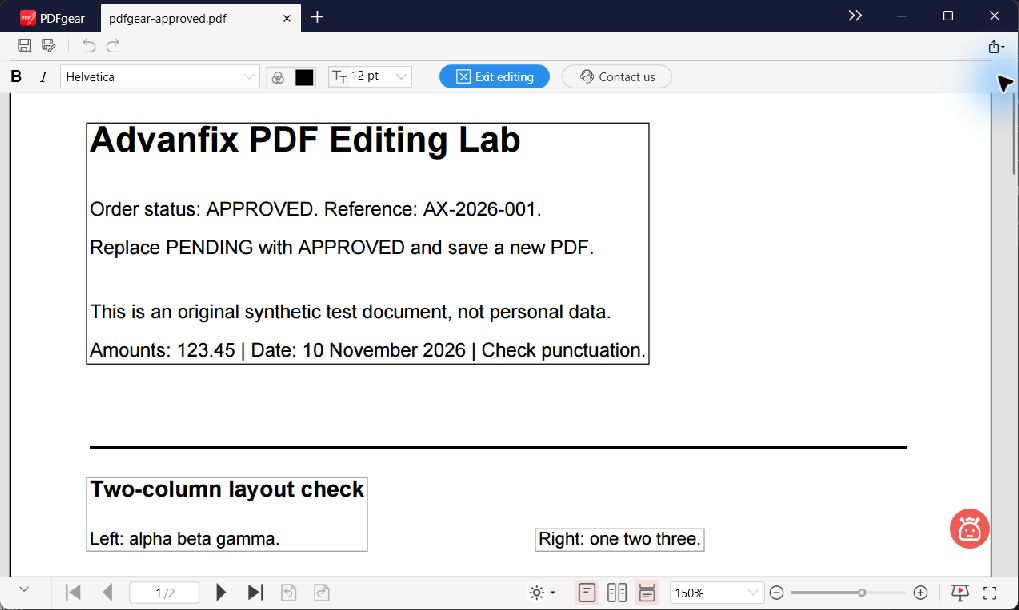
In PDFgear 3.0.1, we chose Edit → Edit Text, selected PENDING in the existing status line, pressed Delete, typed APPROVED and used Save As. Ghostscript found “Order status: APPROVED. Reference: AX-2026-001.” in the saved PDF and retained the control marker on page two. The original and exported second pages produced identical PNG files at 120 dpi.
Choose PDF24 Creator for a document-toolbox trial
PDF24 Creator is advertised as a free Windows desktop toolkit for local PDF work. Consider it when your main job involves assembling, converting or organizing documents.
Try your exact sequence on copies: combine two files, rearrange pages, save and reopen the output. Compare page count, order, dimensions and visible content. Check that a conversion or compression step has not affected information you need.
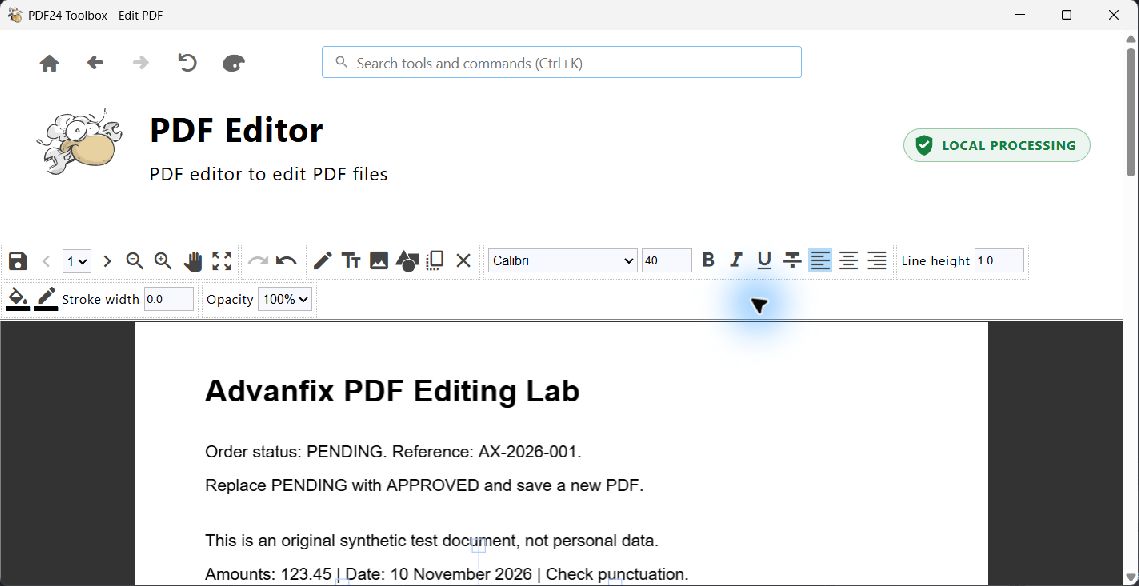
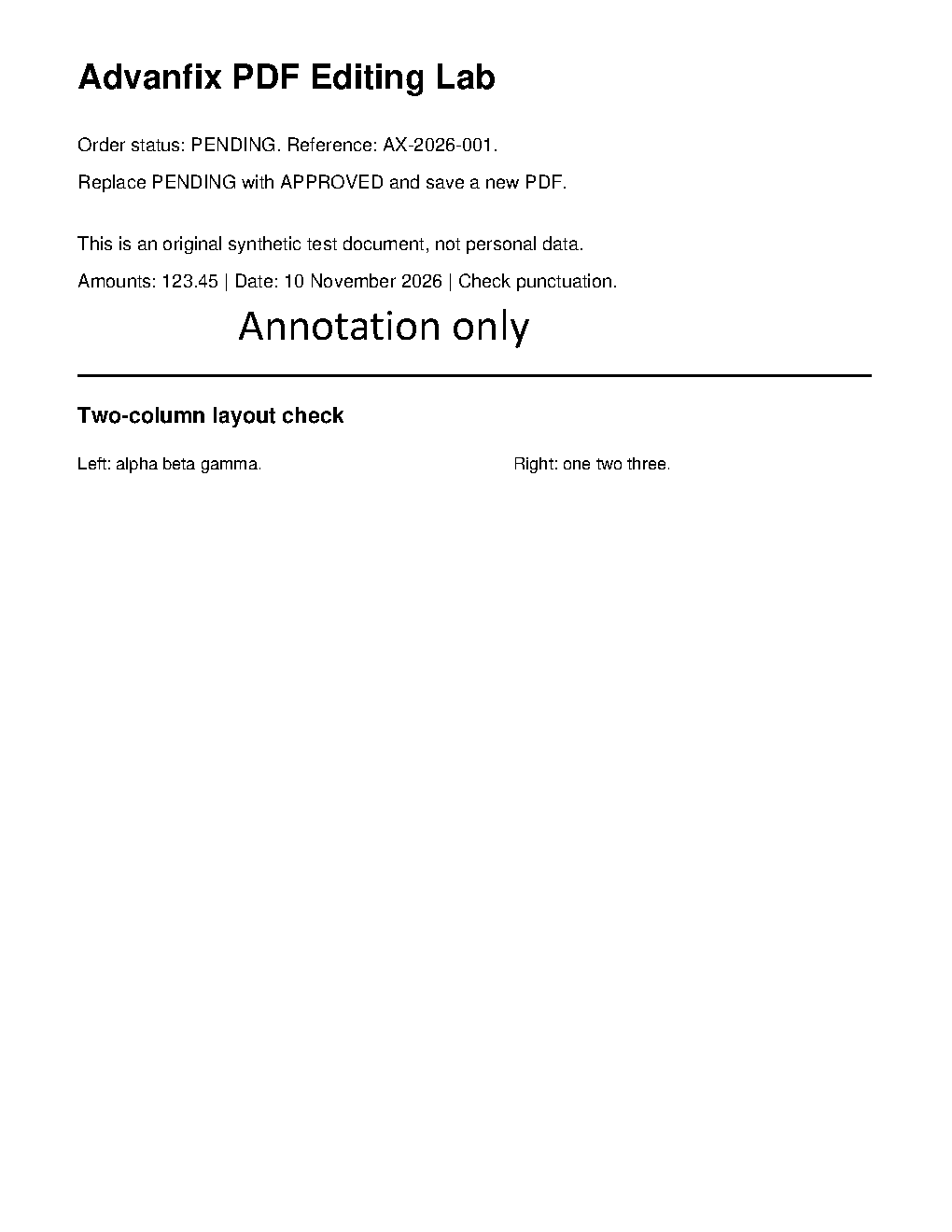
PDF24’s web editor describes adding content and suggests Word conversion for text changes. This does not establish what every Creator build can do to original text. We have not completed an original-text replacement in Creator and leave it unverified. In its Edit PDF tool, we added a separate “Annotation only” text object to our two-page test file and saved it. Ghostscript extraction found the annotation, the unchanged PENDING phrase and the page-two marker. This is evidence for adding content in that workflow, not replacing the original text.
Reproduce this narrow trial with our original two-page synthetic PDF and inspect the actual PDF24 annotation export. These files contain test content only. They do not demonstrate a successful original-text replacement.
Compare OCR outputs, not an accuracy slogan
A scan can need several different outcomes: searchable pages, extracted plain text, an editable document, or a file that preserves the page’s appearance.
Use the same scan in both applications and specify the outcome first. Inspect names, numbers, punctuation and a two-column passage against a reference transcription. Check reading order as well as spelling.
A selectable OCR layer is not proof that the page can be edited without disturbing the layout. We have not measured either application’s recognition quality and do not repeat vendor accuracy percentages as our own findings.
Keep desktop and online processing separate
PDF24 says Creator keeps file processing on the PC. Its online editor describes server processing and deletion of uploaded files after a period. These are different services.
PDFgear’s online/desktop comparison also distinguishes their functions and processing. A desktop label should not be extended to every optional connected feature.
For a local-workflow check, finish setup, disconnect a test environment from the network, launch the application and process a previously unused non-sensitive file. Record which operation succeeded or failed. Even successful completion does not prove zero network traffic in a connected session.
Check the free export before committing
Run the complete operation you need rather than stopping when the file opens. Save the result, close the editor and inspect the export in another viewer.
Check whether an account, paid upgrade, watermark or limit appears at any point. A free download does not establish that every current feature is free, and a short successful operation does not prove unlimited use.
For signed, fillable or accessibility-sensitive documents, verify those properties separately. A visually correct page alone is insufficient.
Our decision and remaining checks
PDFgear saved the text replacement on our sample. PDF24 Creator saved a separate annotation on the same original. Page assembly, OCR, complex layouts and network-isolated workflows still need their own tests.
See our guide to free PDF editors for Windows.
Relevant sources
Your reading checklist
Optional notes for this device. A checked box records your progress, not whether a fix worked.
Progress is stored only in this browser when storage is available.
Something doesn’t match?
Tell us which step differs, the application version and your operating system. Report a guide issue.