Quick answer
Start with PDFgear desktop if you need to replace selectable text. It changed the existing status line in our sample and saved the edit to a new PDF. PDF24 Creator saved an annotation on the same sample. LibreOffice Draw remains an option to try on a copy of a simple PDF.
We used the same synthetic two-page PDF with selectable text on Windows x64 (build 26300.9711). PDF24 Creator 11.33.0 saved an annotation on November 10, 2026. PDFgear 3.0.1 saved a direct text edit on November 11, 2026. Ghostscript 10.08.0 extracted the text and rendered both pages. OCR, performance, network isolation and privacy were outside the test.
Choose by the kind of edit you need
| Task | Candidate or approach | What must be verified |
|---|---|---|
| Replace an existing sentence | PDFgear desktop | Original text is replaced in the saved file |
| Make a small change in an imported PDF | LibreOffice Draw | Text remains editable and layout survives export |
| Merge, split or rearrange pages | PDF24 Creator | Correct page order and unchanged content |
| Add a note or new text box | Annotation tools | Added content appears in another viewer |
| Change words in a scan | OCR or source-document workflow | Recognition and final layout are correct |
“Edit PDF” covers several different jobs. Before downloading anything, try selecting the words in your file. A scanned page may contain only an image; a searchable scan may have an invisible OCR layer. Selectable text alone does not guarantee clean editing.
If you still have the original document, correcting that source and exporting a fresh PDF often gives you a more controllable workflow.
PDFgear desktop: a candidate for original-text changes
PDFgear’s text-editing page advertises direct changes to existing text. Its Windows guide distinguishes the desktop editor from annotation workflows.
For a trial on your own document, work on a copy. Open it in the installed Windows application, choose its text-editing tool and replace a short phrase. Save to a new filename, close the application and reopen the result in another viewer.
Check line wrapping, punctuation, fonts, links and whether the replaced phrase still appears in search or copied text. A product’s formatting claim is not a guarantee for an unusual font or complex document.
The online editor’s feature comparison distinguishes adding content from direct text editing. Do not assume a browser tool and desktop edition have identical functions.
LibreOffice Draw: try a simple document first
LibreOffice is a free, open-source office suite. Its Draw documentation explains editing text objects; the Getting Started guide covers importing document and graphic formats, including PDF.
For this shortlist, Draw is a candidate to test rather than a promise of full document fidelity. Open a copy of a simple PDF, inspect whether the target words are editable objects, make one change and export a new PDF.
Compare every affected page. Watch for separated text fragments, changed line breaks, substituted fonts and missing elements. If reconstruction is extensive, return to the source document or try another editor instead of rebuilding a long report by hand.
PDF24 Creator: separate page tools from text replacement
PDF24 Creator is a free Windows toolkit advertised for local document work. It is relevant when “editing” means assembling pages, converting a document or performing another PDF utility task.
PDF24’s web editor description focuses on inserting content and suggests conversion to Word for text changes. That description does not establish direct text-replacement parity with PDFgear desktop, or prove the behavior of the installed Creator build. We leave that capability unverified here.
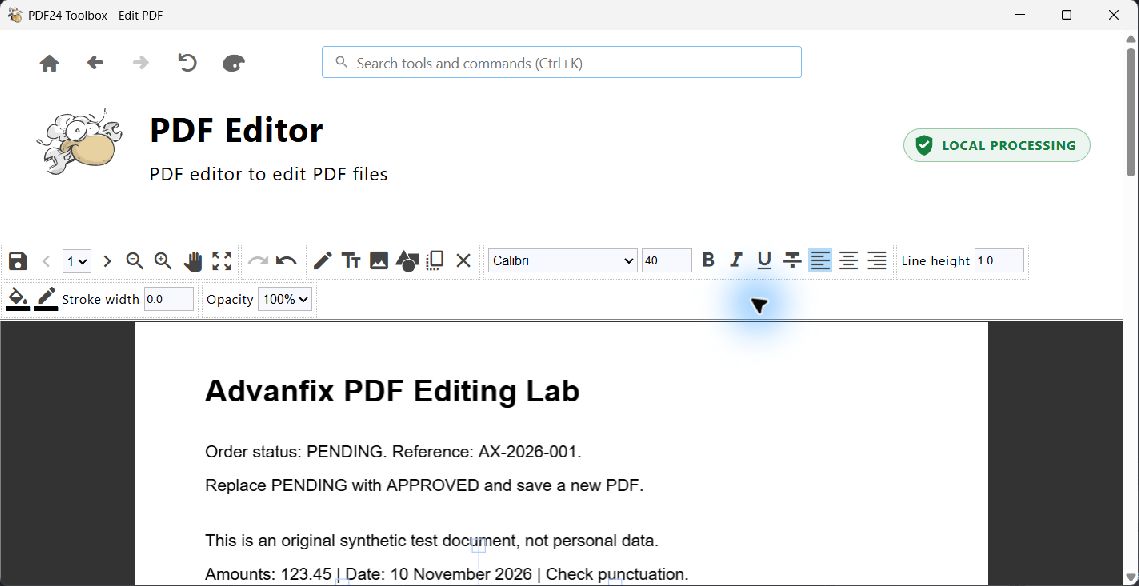
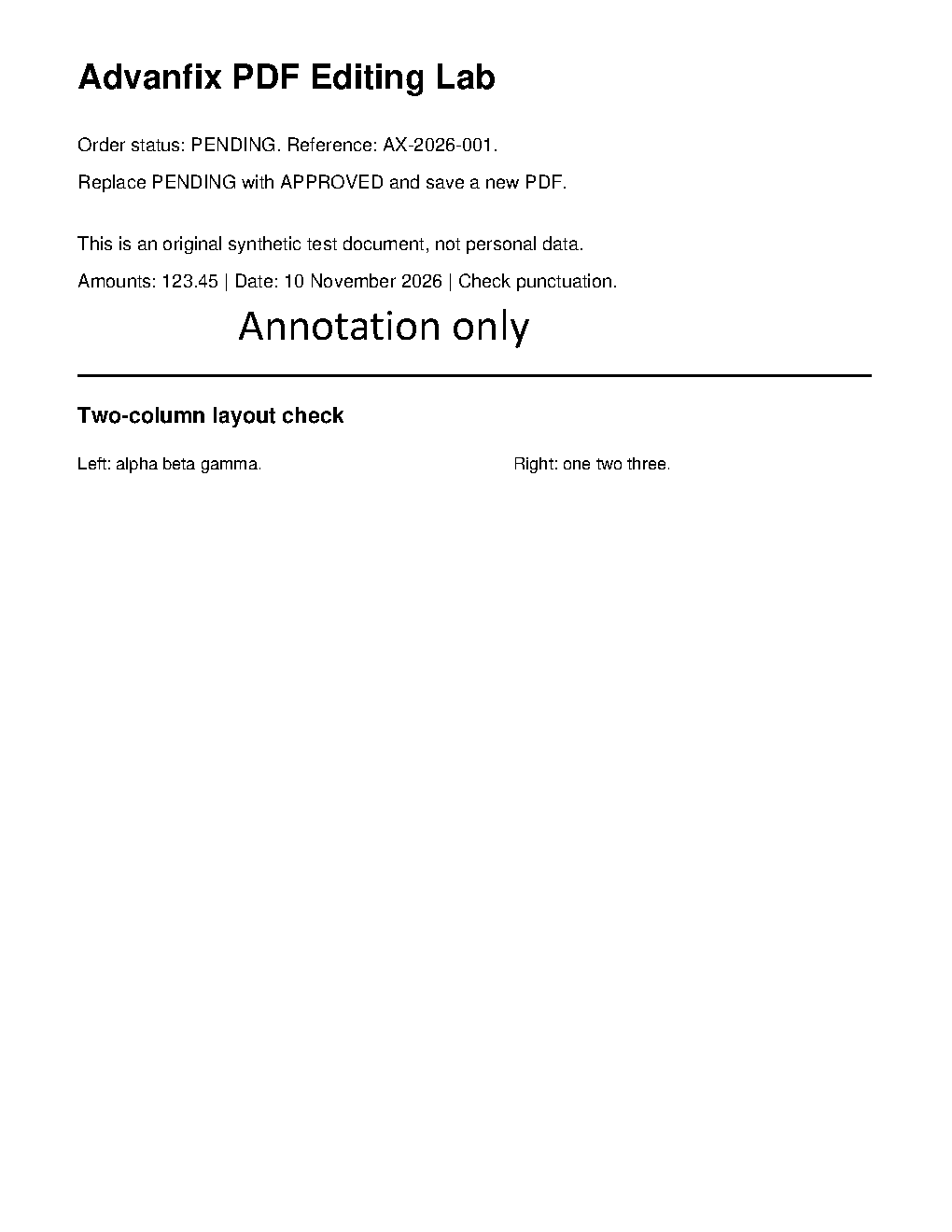
In PDF24 Creator 11.33.0, we opened our original two-page test PDF in the Edit PDF tool, added “Annotation only” in a blank area and saved a new file. Ghostscript text extraction found the added words, the original “Order status: PENDING” line and the page-two control token. This confirms the saved annotation path on that file. It does not demonstrate replacement of the original words or establish the capabilities of every PDF24 tool.
Choose the tool for the job you actually need. A successful annotation or merge does not establish that an editor can replace a paragraph.
Reproduce this narrow trial with our original two-page synthetic PDF and inspect the actual PDF24 annotation export. These files contain test content only. They do not demonstrate a successful original-text replacement.
Check scans, forms and sensitive changes separately
OCR recognition, an editable output and accurate formatting are separate outcomes. Check names, dates and numbers against the original scan after any conversion. We have not measured recognition accuracy in these products.
An image of a signature is also different from a cryptographically signed PDF. Editing a signed document can affect its validation. Preserve the original and follow the issuer’s workflow where relevant.
Covering text with a white rectangle does not establish secure removal. Use a documented redaction workflow when information must actually be removed, and inspect the exported file rather than its appearance alone.
Verify the saved PDF before sharing it
- Reopen the exported file in a second viewer.
- Search for the new phrase and check the old phrase.
- Select and copy the edited line into plain text.
- Compare layout at normal reading size and magnified view.
- Check forms, links and the pages you did not intend to change.
- Inspect for an unexpected watermark, account requirement or export restriction.
Keep the original until the replacement has been reviewed. Avoid uploading private documents simply to discover what an unfamiliar tool can do.
What we checked and what remains
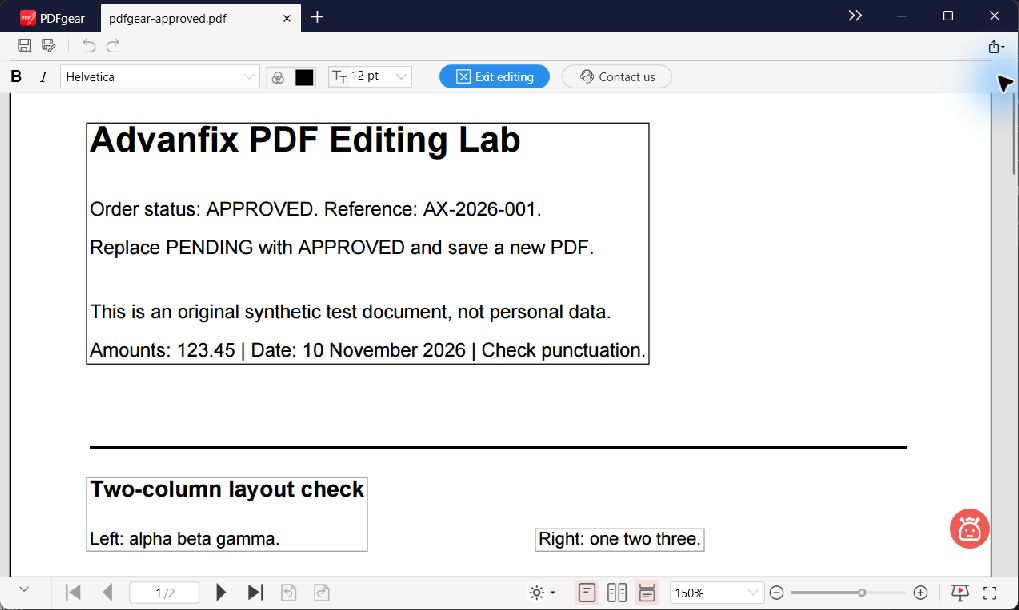
In PDFgear 3.0.1, we chose Edit → Edit Text, selected PENDING in the existing status line, pressed Delete, typed APPROVED and used Save As. Ghostscript found “Order status: APPROVED. Reference: AX-2026-001.” in the saved PDF and retained the control marker on page two. The original and exported second pages produced identical PNG files at 120 dpi. The PDF24 annotation export retained the original status. LibreOffice remains documentation-only here. Test complex fonts, forms and scanned files separately before relying on any editor for those documents.
See our PDF24 vs PDFgear comparison.
Relevant sources
Your reading checklist
Optional notes for this device. A checked box records your progress, not whether a fix worked.
Progress is stored only in this browser when storage is available.
Something doesn’t match?
Tell us which step differs, the application version and your operating system. Report a guide issue.